
Change the mobile number on your account
You can put a new mobile number on your CoraVision account from Settings in about three minutes. It takes two codes, one to prove it is you and one texted to the new number, and your old number stays on the account until the new one is confirmed.
- Your email inbox open, or your old phone if it still has your verified number. The first code goes to one of them.
- The new phone in your hand. The second code is a text message to it.
- Outside Australia and the United States, the new number with its country code, such as +64 for New Zealand.
Confirm it's you
-
At the bottom of the sidebar, click Settings, then My details.
-
Under Sign-in details, beside Mobile, click Change. The Change mobile popup opens at step 1 of 5.
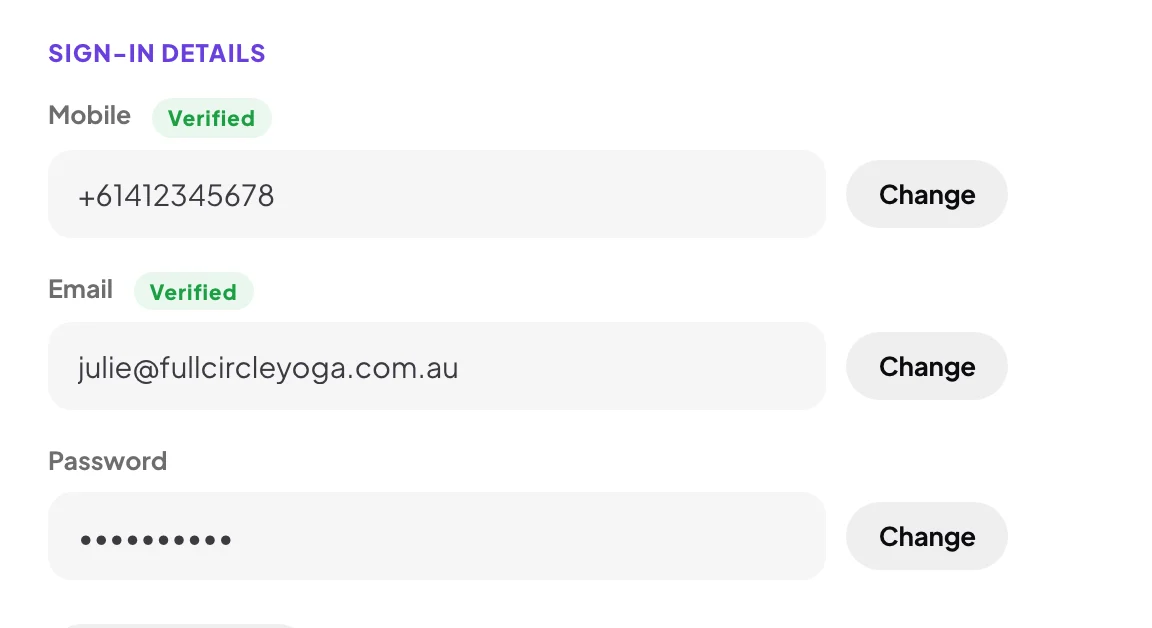
2 Mobile is the first of the three sign-in details. -
Choose where the first code goes: Email me sends it to your email address, and Text me sends it to the mobile already on your account. Click Send the code.
-
On Enter the code, type the six digits. When it says Code confirmed, the popup moves on by itself.
Confirm the new number
-
On New mobile number, type the new number and click Next. CoraVision texts a code to it straight away.
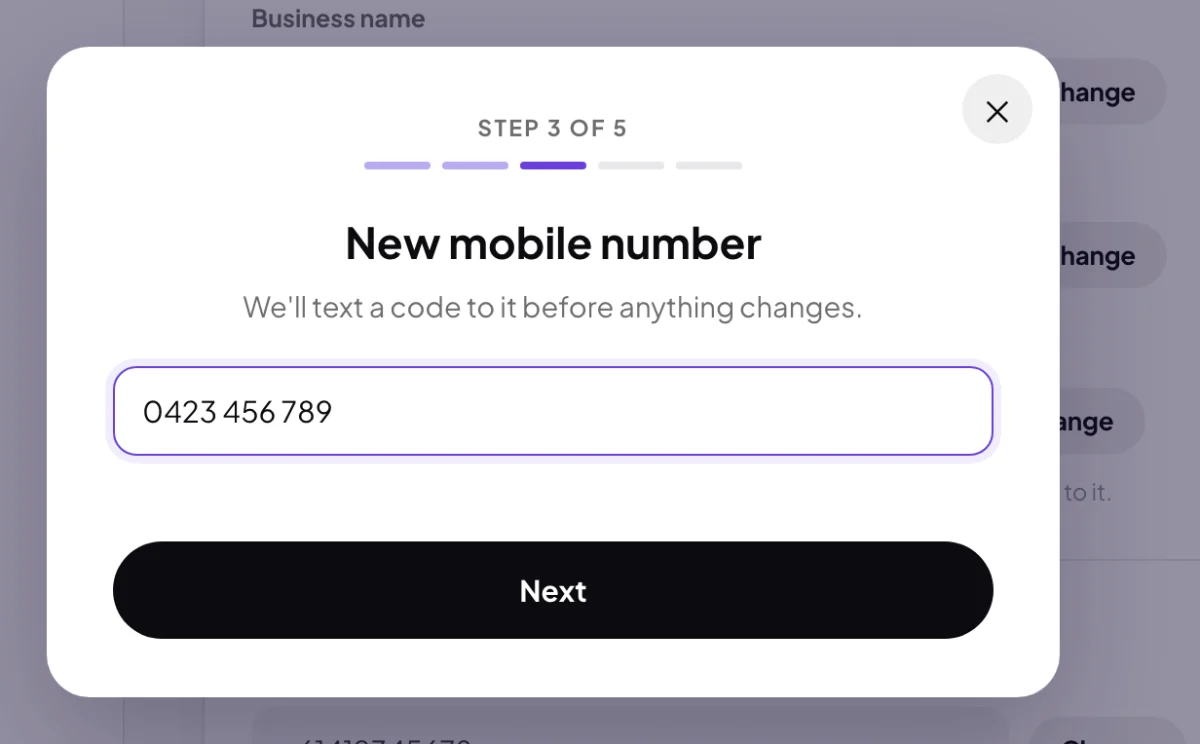
5 Type the new number, then click Next. Which format to typeAn Australian mobile can be typed as you say it, such as 0412 345 678, and so can a United States number. For any other country, start with a plus and the country code, such as +64 21 123 4567.
-
On Confirm your new mobile, type the code we texted to the new number. When it says Mobile confirmed, the popup moves on.
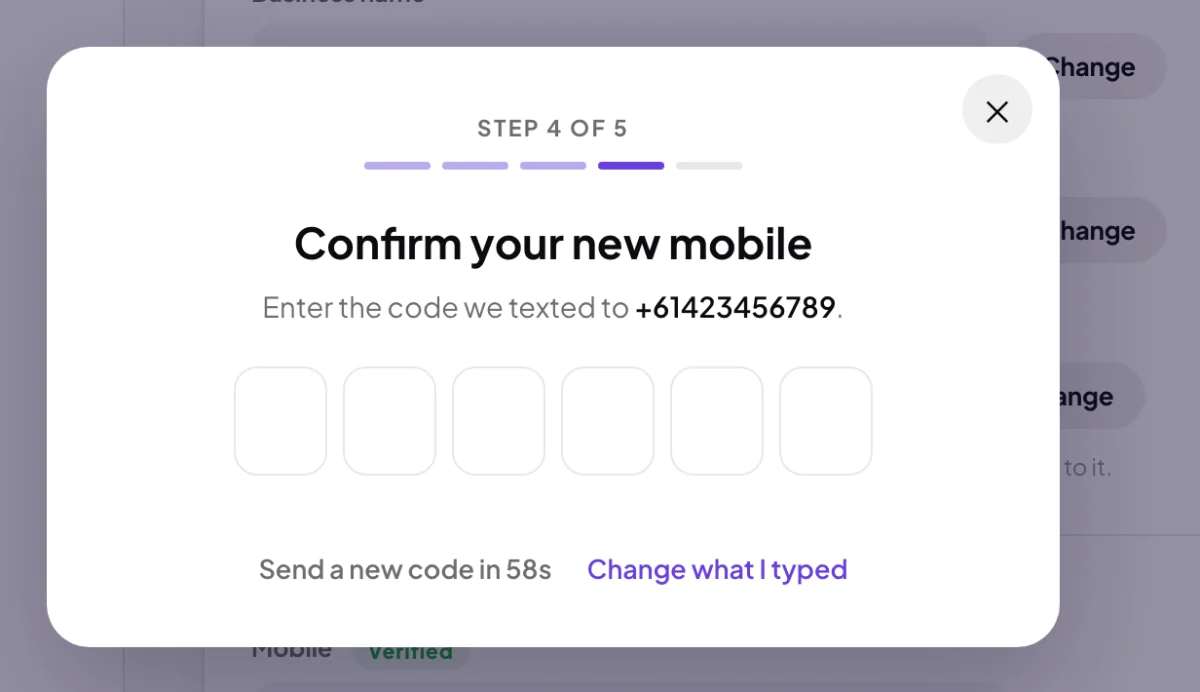
6 The second code goes to the new phone. TipTyped a digit wrong? Click Change what I typed to go back a screen. No text after a minute? Once the countdown ends, click Send a new code.
-
The popup shows Mobile updated with your new number. Click Done. My details now shows the new number marked Verified.
What happens next
The new number is the one CoraVision texts from now on, including the code behind Text me when you change a sign-in detail, and call reminders sent by text. Your sign-in codes still go to your email, and your email, password and everything else on your account stay as they were.
If you close the popup part wayClosing it ends the change, and your old number stays on the account, still verified. If your account had no mobile before, My details shows the number you typed marked Unverified until you finish. Click Change and start again.
Common questions
I no longer have my old phone
Choose Email me in step 3. The first code then goes to your email address, and the old number is never needed.
It says the number doesn't look valid
CoraVision reads a number without a country code only for Australia and the United States. Type it again starting with a plus and the country code. If it says Pick your country above first, or enter the number with its country code, like +61 412 345 678., your account has no country yet: add the plus and the code, or set your country in My details first.
The text message didn't arrive
Wait for the countdown, then click Send a new code. If it still does not come, see The six-digit code didn't arrive.
Can my sign-in code come to the new number?
No. Sign-in codes always go to your email. See Two-step sign-in.