
Sign in on a new computer
You can use one CoraVision account on more than one computer. Installing the app, allowing its permissions and signing in takes about ten minutes, and your plan, projects, calls and chats are waiting when you finish; only your speaker, microphone and camera choices start fresh, because they belong to each computer.
- The email address and password for your CoraVision account. If you have forgotten the password, see Reset your password.
- Your email inbox open on this computer or your phone, for the sign-in code.
- The access code for the download page, which we sent you with your invitation.
Install CoraVision and allow its permissions
-
On the new computer, download and install CoraVision. The steps are in Download and install CoraVision on a Mac and Download and install CoraVision on Windows.
-
Open CoraVision. The Welcome to CoraVision card asks for what this computer must allow: on a Mac, Screen Recording, Microphone and Accessibility; on Windows, Microphone only. Click Allow on each row, then Continue.
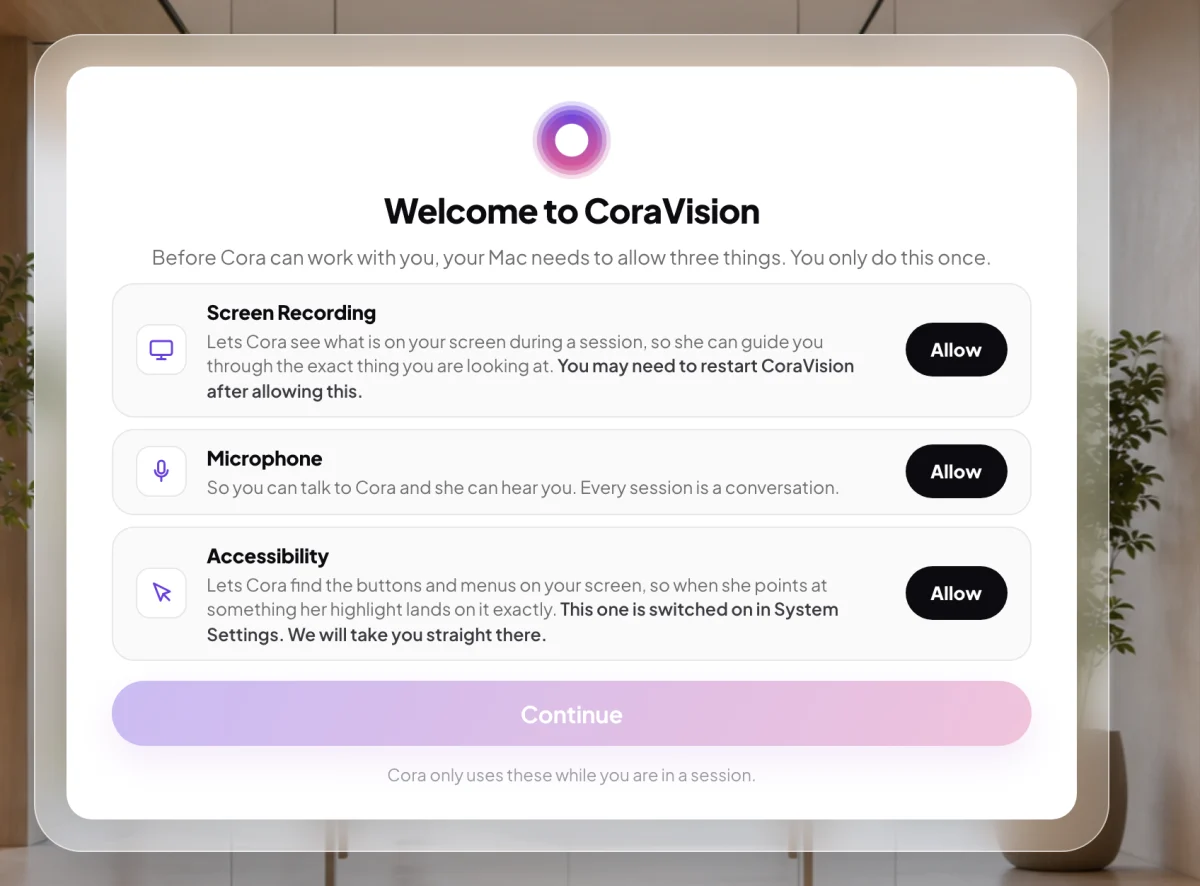
2 Each computer asks for its own permissions once. NoteOn a Mac, allowing Screen Recording makes CoraVision restart once, which is normal: see CoraVision asks you to restart after a permission. On Windows, a screen headed One thing we recommend may follow, about noise suppression for your microphone. Follow it, or click Skip for now.
Sign in
-
On Have we met before?, under I have an account, click Log in.
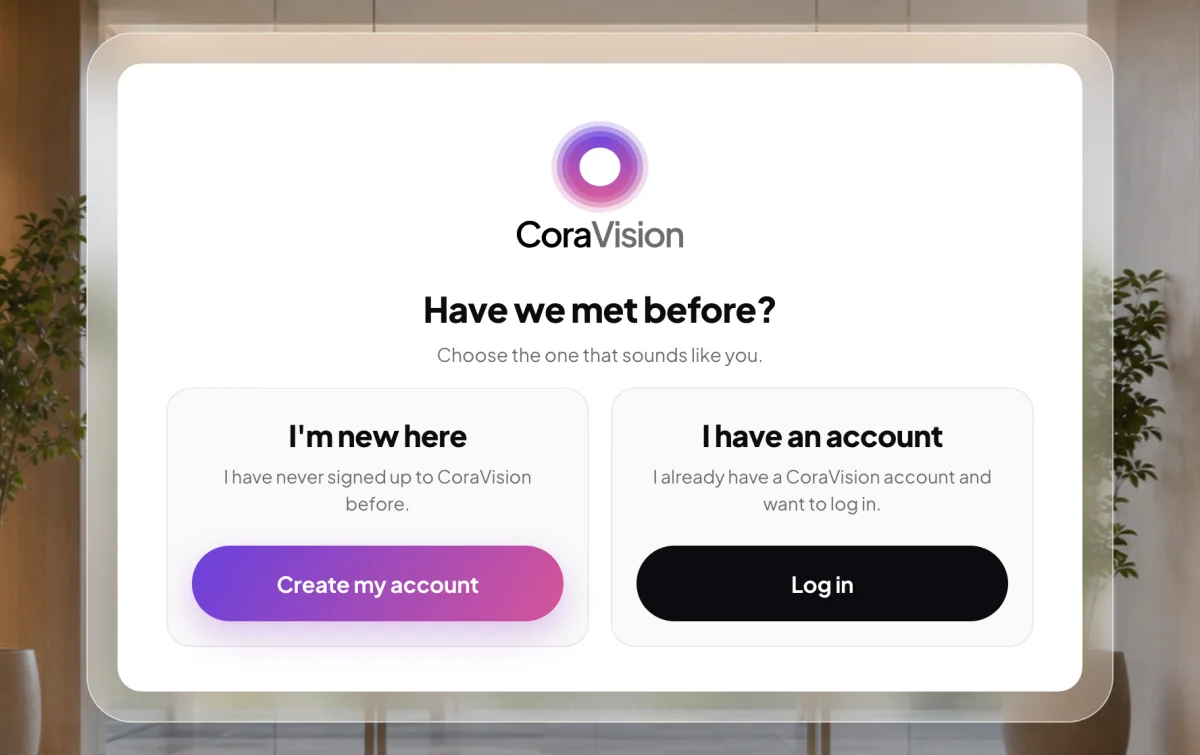
3 You already have an account, so choose Log in. -
Type your Email and Password, then click Log in.
-
On Enter your code, type the six digits from the email we send you. CoraVision checks the code as soon as the sixth digit is in. If no email arrives, see The six-digit code didn't arrive.
-
Do the speaker and microphone checks. They take about a minute: see The audio checks, and teaching Cora your voice. Your dashboard then opens.
Choose this computer's speaker and microphone
-
At the bottom of the sidebar, click Settings, then Audio & Camera. Choose your Speaker, Microphone and Camera. You see Settings saved.
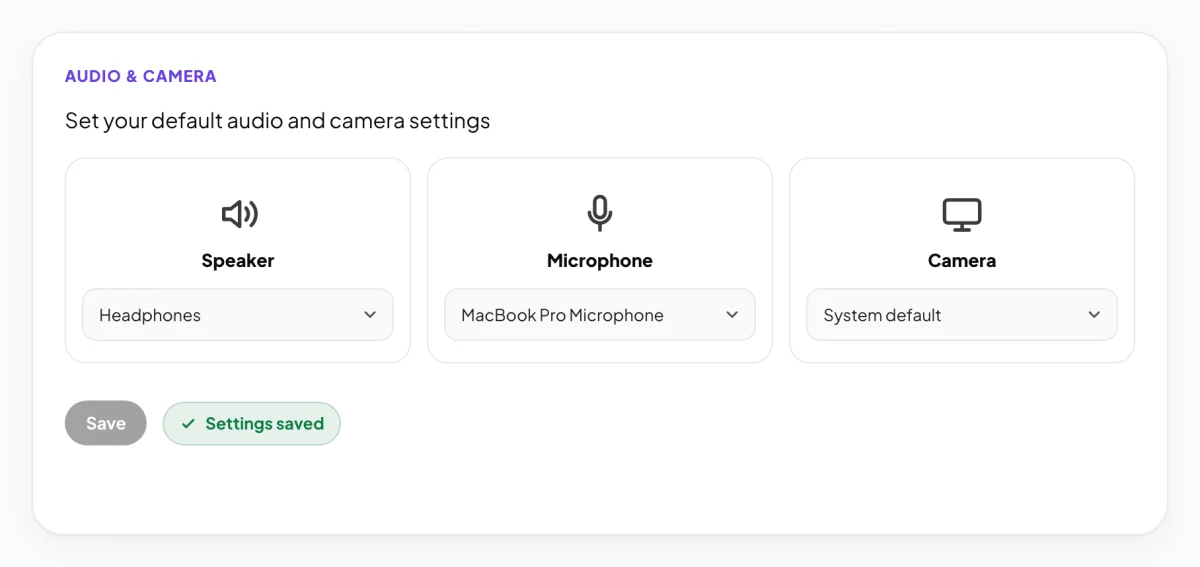
7 These choices are kept on this computer only.
What happens next
CoraVision stays signed in on this computer until you sign out, so the next time you open it you go straight to your dashboard. Your other computer stays signed in too. Everything in your account, from your plan to your call transcripts, is the same on both.
Common questions
Am I signed out of my old computer?
No. Signing in on a new computer leaves the old one as it was. To sign out there, open Settings, click Sign out, then Yes, sign out.
Why do I have to allow the permissions again?
Permissions belong to the computer, not to your account. Each computer asks once, the first time you open CoraVision on it.
Do I have to do my onboarding call again?
No. Your onboarding answers, your plan and your history are kept with your account, so the new computer opens on the same dashboard as the old one.