
Reset your password
If you have forgotten your password, CoraVision emails you a six-digit code and then lets you choose a new password. It takes about two minutes and nothing else on your account changes; if you are already signed in and only want a different password, change it in Settings instead.
- Your email inbox open on this computer or your phone.
- The email address you signed up with. The code only goes to the address on your account.
Ask for a reset code
-
Open CoraVision. On Have we met before?, click Log in.
-
Under the Log in button, click Forgot password?.
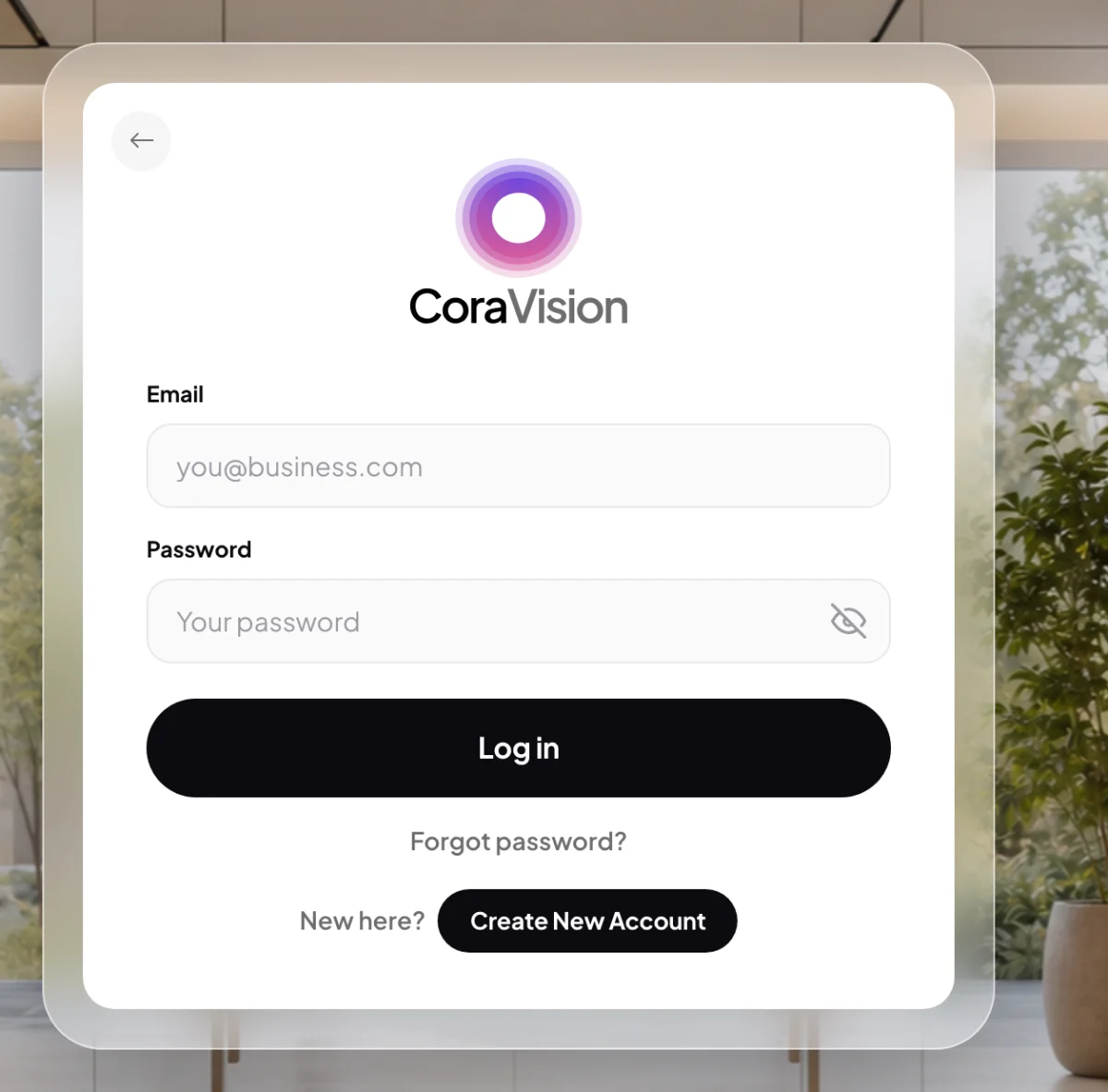
2 Forgot password? sits under the Log in button. -
On Reset your password, type your Email and click Send code.
Choose a new password
-
On Enter your code, type the six digits from the email. CoraVision checks the code as soon as the sixth digit is in.
-
On Choose a new password, type your new password. Each rule under the box lights up when your password meets it: At least 6 characters, One lowercase letter, One uppercase letter and One number. Then click Save new password.
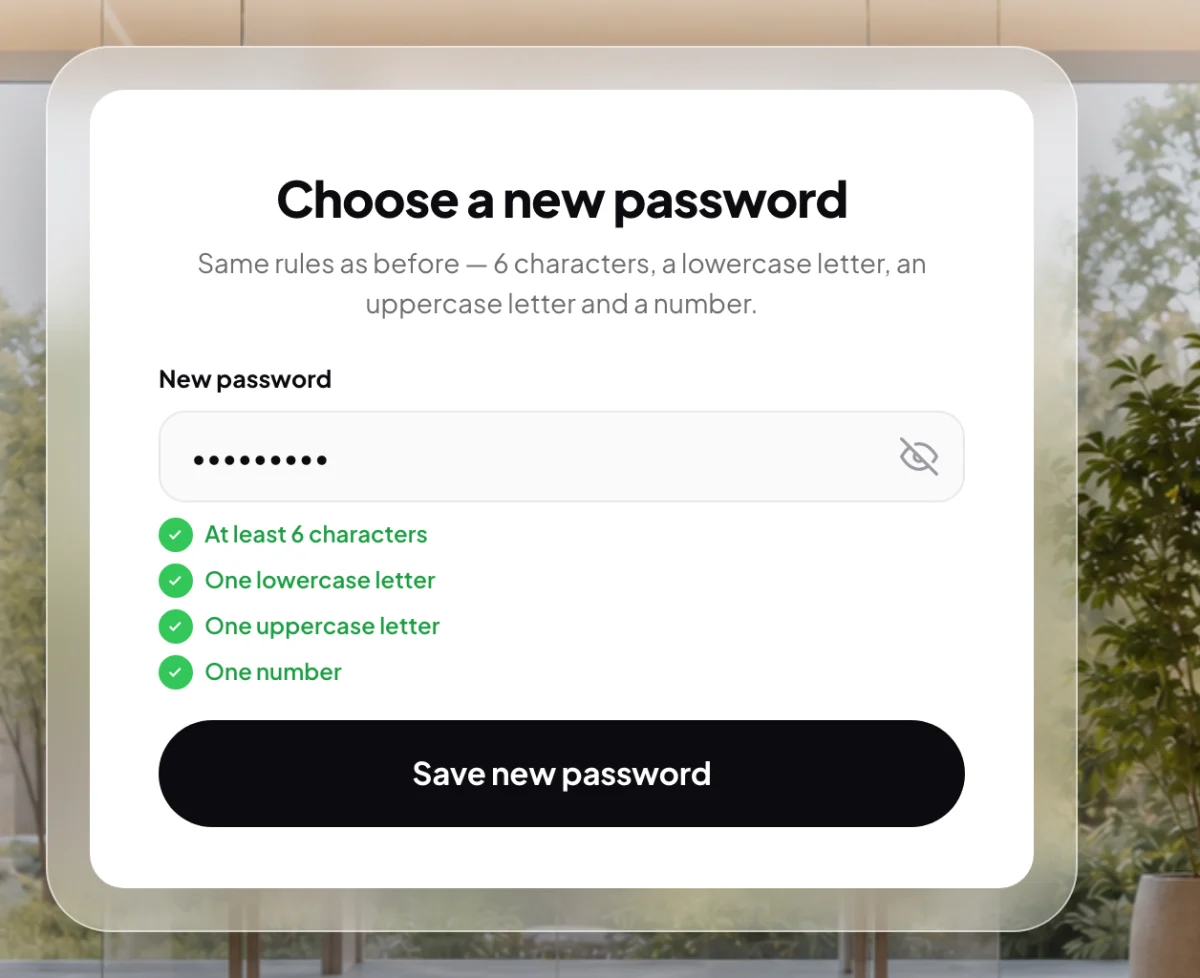
5 The button wakes up once all four rules are met. -
CoraVision shows Password updated. Click Log in, then log in with your email, your new password and a fresh sign-in code.
NoteResetting your password does not sign you in by itself. Every sign-in still takes your password and a code from your email: see Two-step sign-in.
Change your password while you are signed in
-
At the bottom of the sidebar, click Settings, then My details. Under Sign-in details, beside Password, click Change.
-
In Change password, choose Email me (or Text me, if you have a verified mobile) and click Send the code. Type the code on Enter the code.
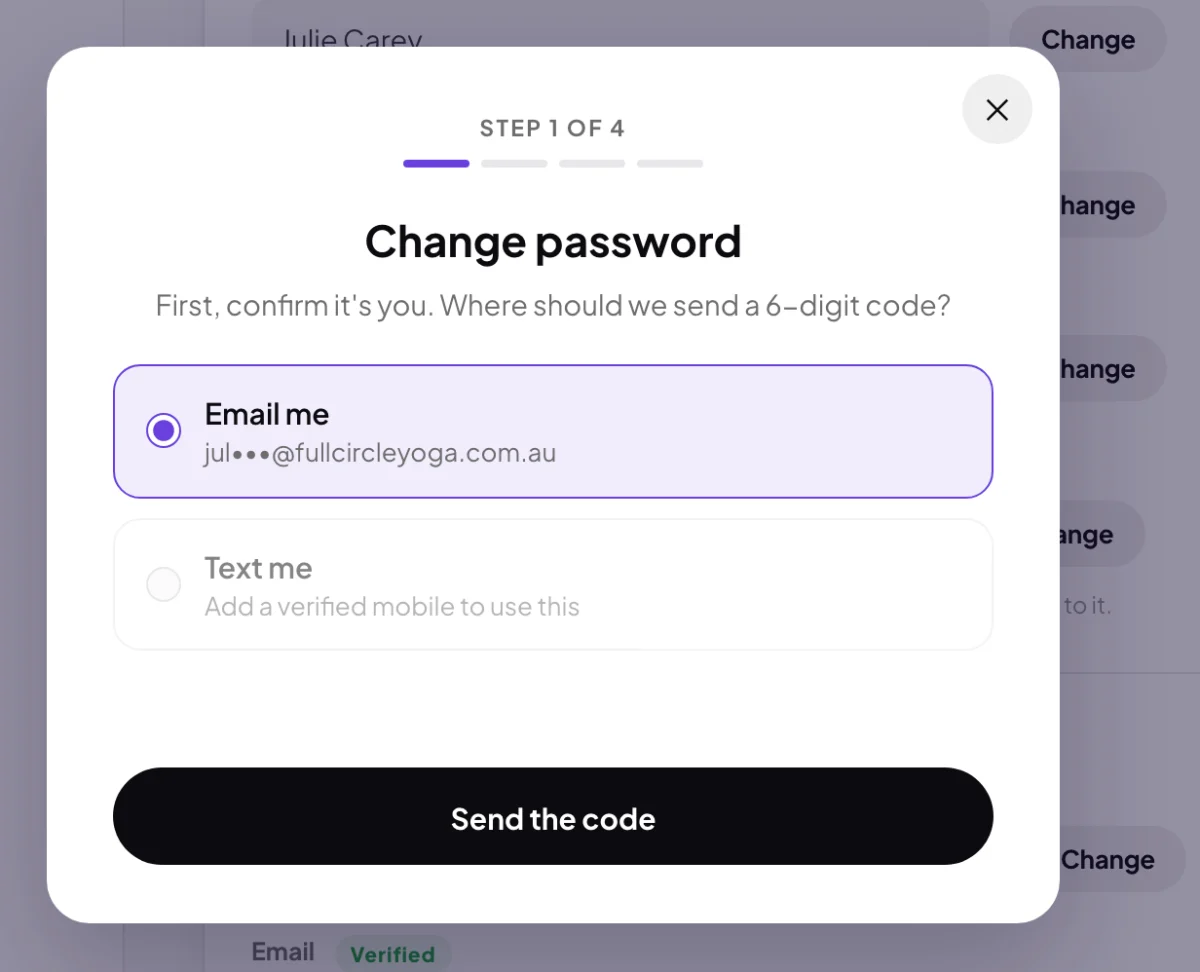
8 A code first, so only you can change it. -
On New password, type your new password and click Update password. When the popup says Password updated, click Done.
What happens next
Your new password works from your next sign-in, on every computer. This computer stays signed in, so you only need the new password when you sign in again or set up another computer.
Common questions
I clicked Send code and no email came
For your security, CoraVision moves on to the code screen whether or not the address has an account, so check you typed the email you signed up with. Then follow The six-digit code didn't arrive.
Can I use my old password again?
No. In Settings, a new password that matches the old one is refused with That's already your password. Choose one you do not use anywhere else.
Why was my password not accepted?
It needs at least 6 characters, with a lowercase letter, an uppercase letter and a number. The button stays grey until all four are there.