
Make a newsletter in the Design Studio
You tell Dune what the newsletter is for, Dune designs it in your brand in about half a minute, and you change it by talking to Dune. When it is right you save it and copy it into your email tool; nothing is sent to anyone from CoraVision.
- The Design Studio is unlocked for you. See The Design Studio and Dune.
- You know roughly what the email is about: a sale, a new class, some news.
- If you want your own photos in it, add them to the studio's Library first.
Brief Dune
-
In the sidebar, click Marketing Plan, then Design Studio. On the home screen, click the big microphone, Create new design.
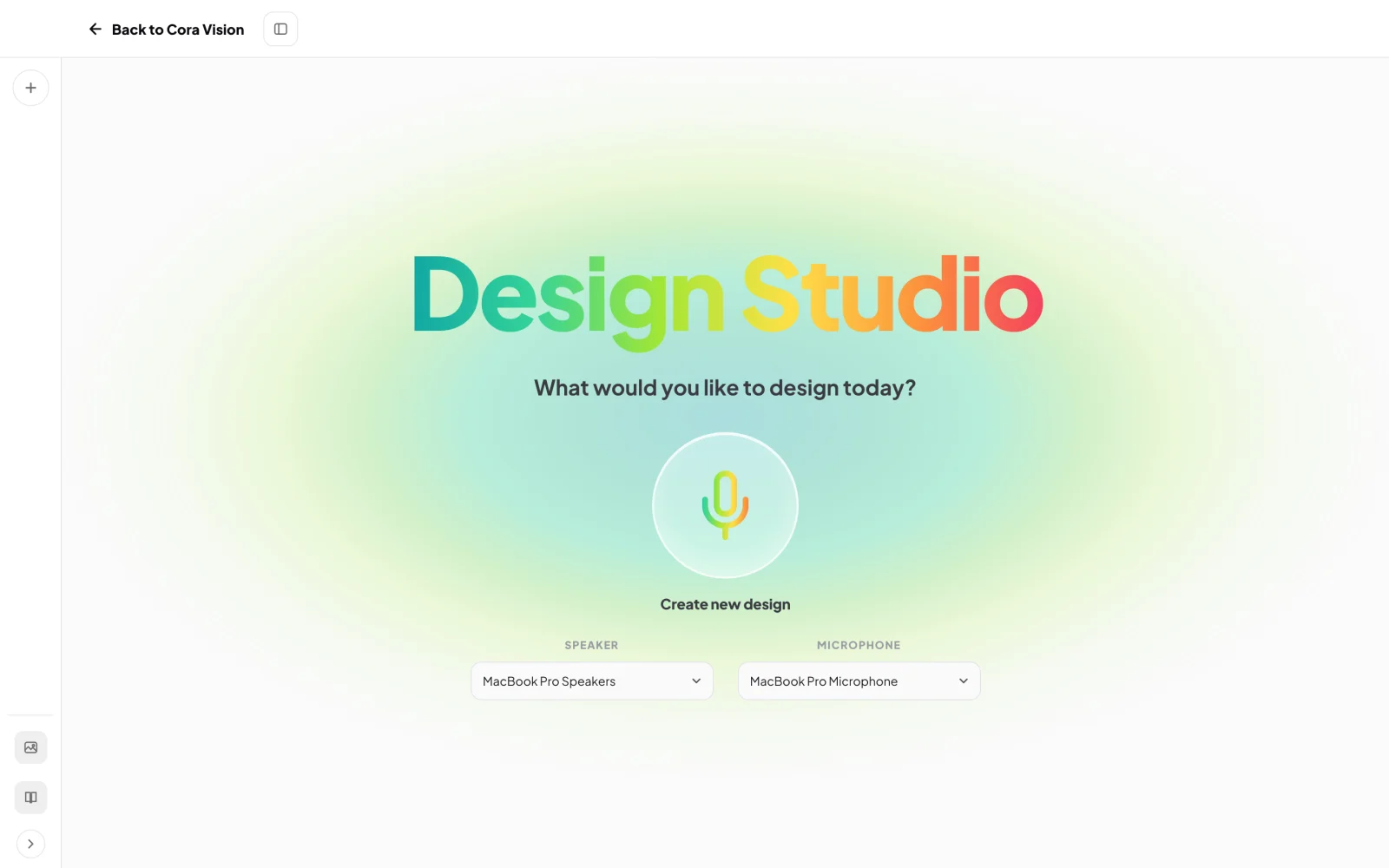
1 The microphone starts your brief with Dune. -
Dune asks what you are making. Say "an email newsletter", or click Email newsletter under What are we making? on the right.
-
Answer Dune's next questions out loud or by clicking: where it goes (Mailchimp, Klaviyo or Something else), and what people should do (Buy, Book, Sign up or Something else).
-
For the content, click Leave it to Dune to have Dune write it in your tone of voice, I'll provide it to give Dune your own words, or Upload a file to paste or upload a document. Tell Dune what the email is about.
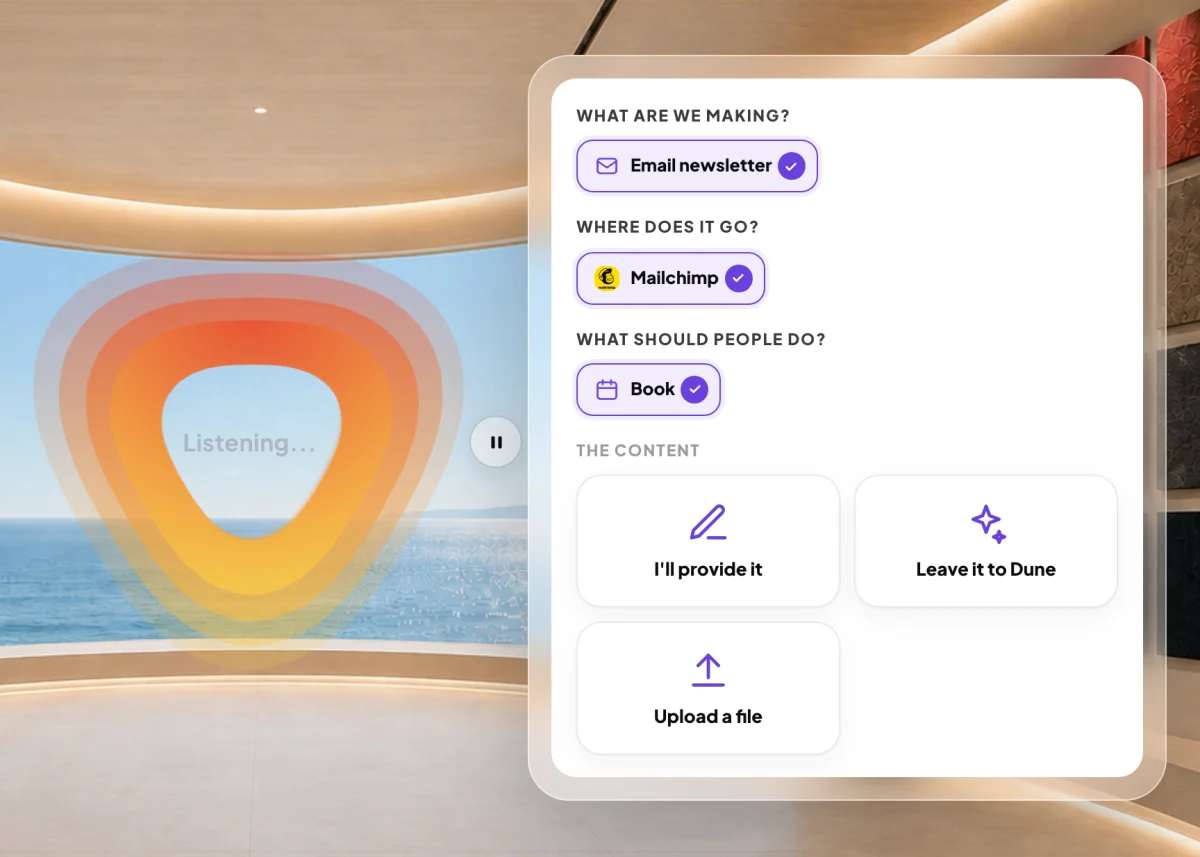
4 Dune's questions, one row at a time. -
Read The brief on the right. If it is right, click Go ahead and design. If not, click Start again.
Change it with Dune
-
Wait while Dune designs. It usually takes about half a minute, longer if Dune makes a photo for it. The design opens in the middle of the studio.
-
Click the microphone on the right, Talk to Dune. Click any part of the email and say what to change, for example "make this headline shorter". When you have said everything, click Submit feedback. To type instead, click Or type what you want changed….
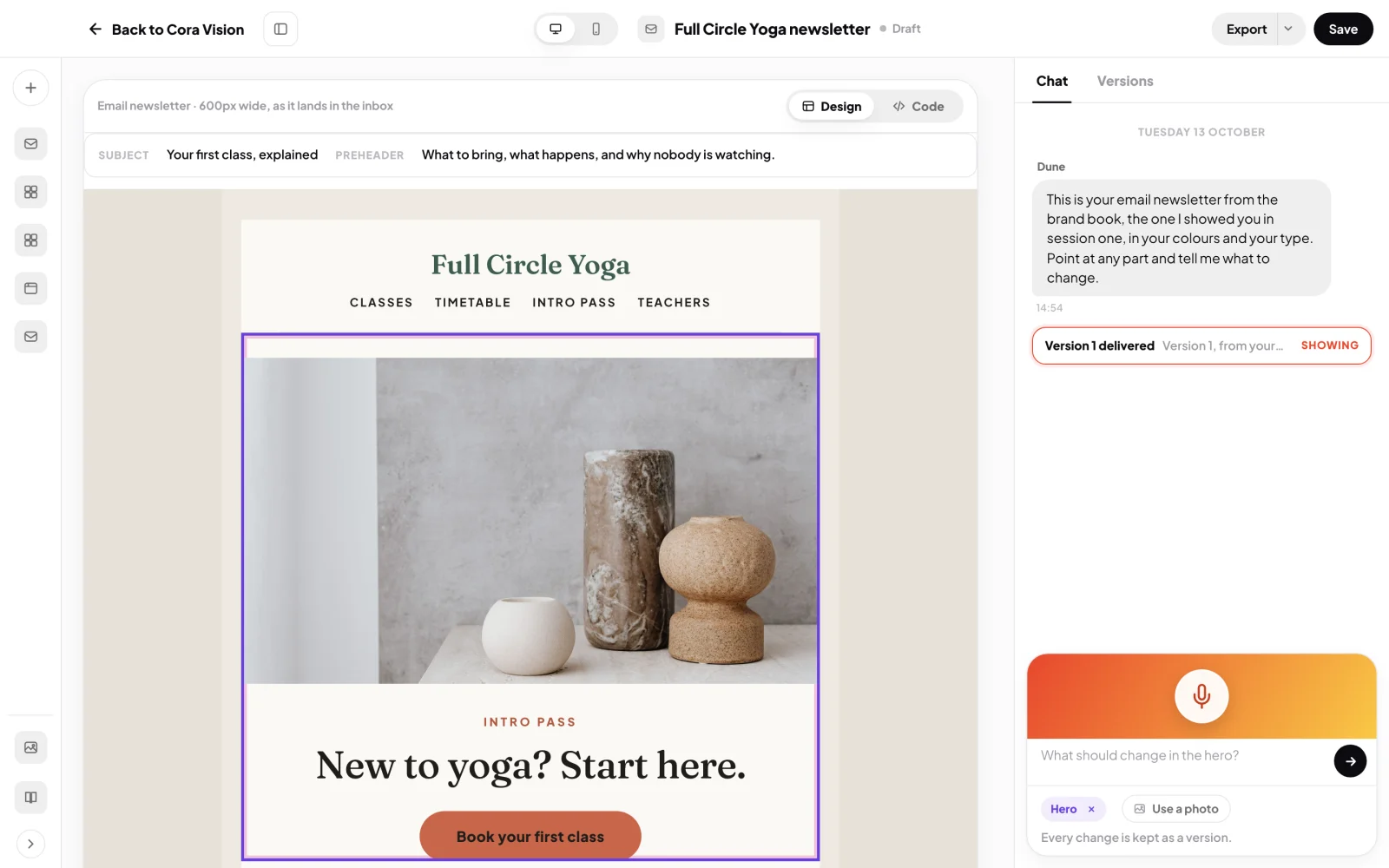
7 Point at a part and tell Dune what to change.
Save it and send it to your email tool
-
At the top right, click Save. It says Saved when the version is kept.
-
Click Export, then Copy HTML for Mailchimp or Copy HTML for Klaviyo. For another email tool, click Download HTML.
-
Paste it into your email tool. In Mailchimp: Create campaign, Code your own, Paste in code. In Klaviyo: Content, Templates, Import, then paste.
NoteSend to Mailchimp as a draft and Save to Klaviyo as a template are greyed out, because Mailchimp and Klaviyo cannot be connected to CoraVision yet. Use the copy options.
What happens next
Your newsletter stays in Your designs, with every version kept. Send it from your email tool when you are ready. See Where your designs are saved.
Common questions
Does the copied email include an unsubscribe link?
Yes. The Mailchimp and Klaviyo copies use each tool's own unsubscribe tag, and links carry tracking tags so you can see which clicks came from the email.
How do I see it on a phone?
Use the desktop and mobile switch at the top left of the design to see it at phone width.
Dune could not make the design. What now?
Dune says what went wrong and the studio goes back to its home screen. Start the brief again; if it fails twice, send us a message from the contact page.