
Projects and action plans
Projects is where your action plans live: one lane for each of the three strategies Cora presented in your strategy session, each with its action plans and how far through them you are, plus any projects you start yourself. An action plan is a short list of steps, and each step is a session with Cora or one of Cora specialists.
- Your strategies and their action plans arrive after your strategy session (session two). Before then, the page says Your strategies land after session two.
- After session two, you need a plan to open a project. Without one, a click on a project shows a pop-up with See the packages.
Open your strategies
-
In the sidebar, click Projects. The page opens on Your strategies.
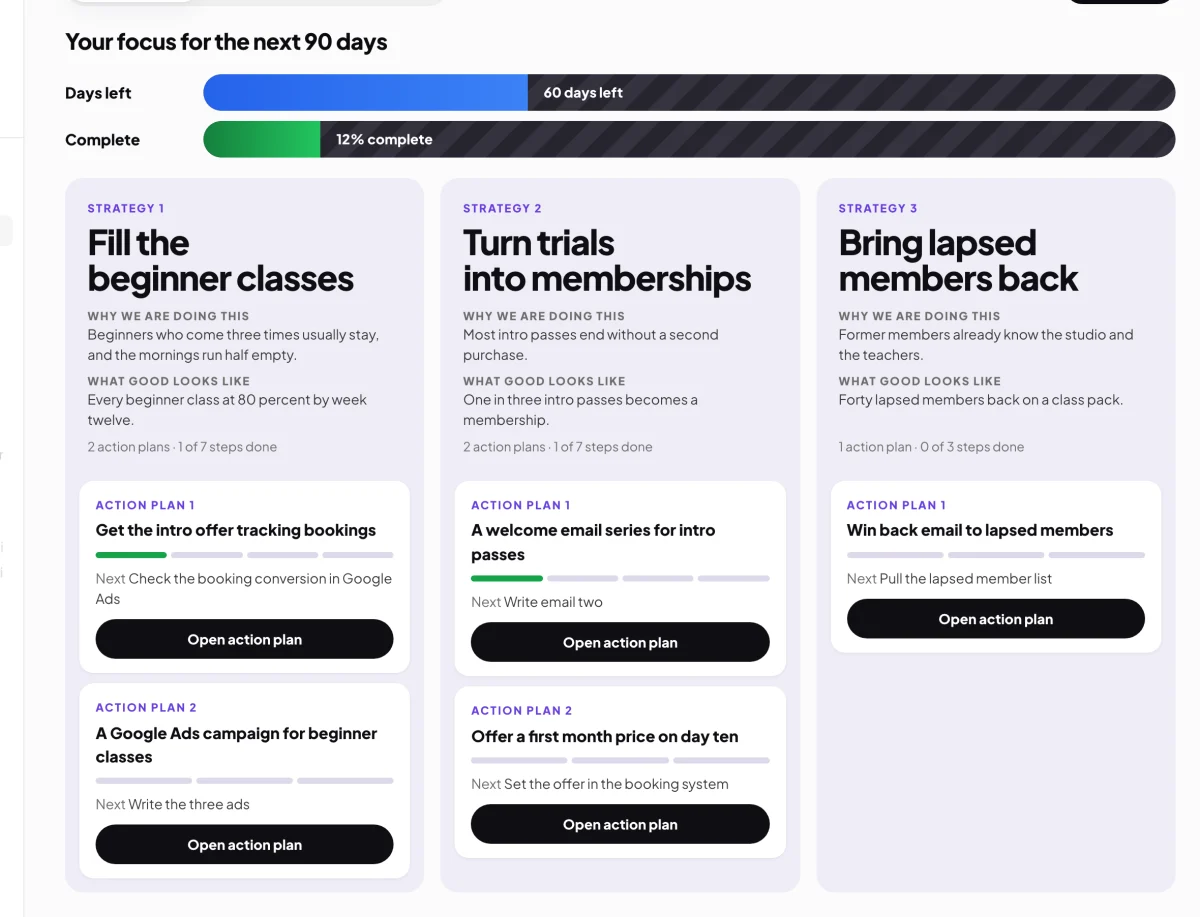
2 Your 90 days and your progress. 3 One lane per strategy. -
Read the top of the page, Your focus for the next 90 days: the blue bar shows the days left of the 90, and the green bar the share of steps done across every action plan.
-
Read each lane: Strategy 1 to 3 and its name, Why we are doing this, What good looks like, and how many steps are done.
-
On an action plan card, read the step after Next, then click Open action plan.
Read an action plan
-
On the Action plan tab, read the steps from the top. The green step is the one to do next, a tick means Done, and a clock means the step is waiting for a date. Each step names who the session is with and roughly how long it takes.
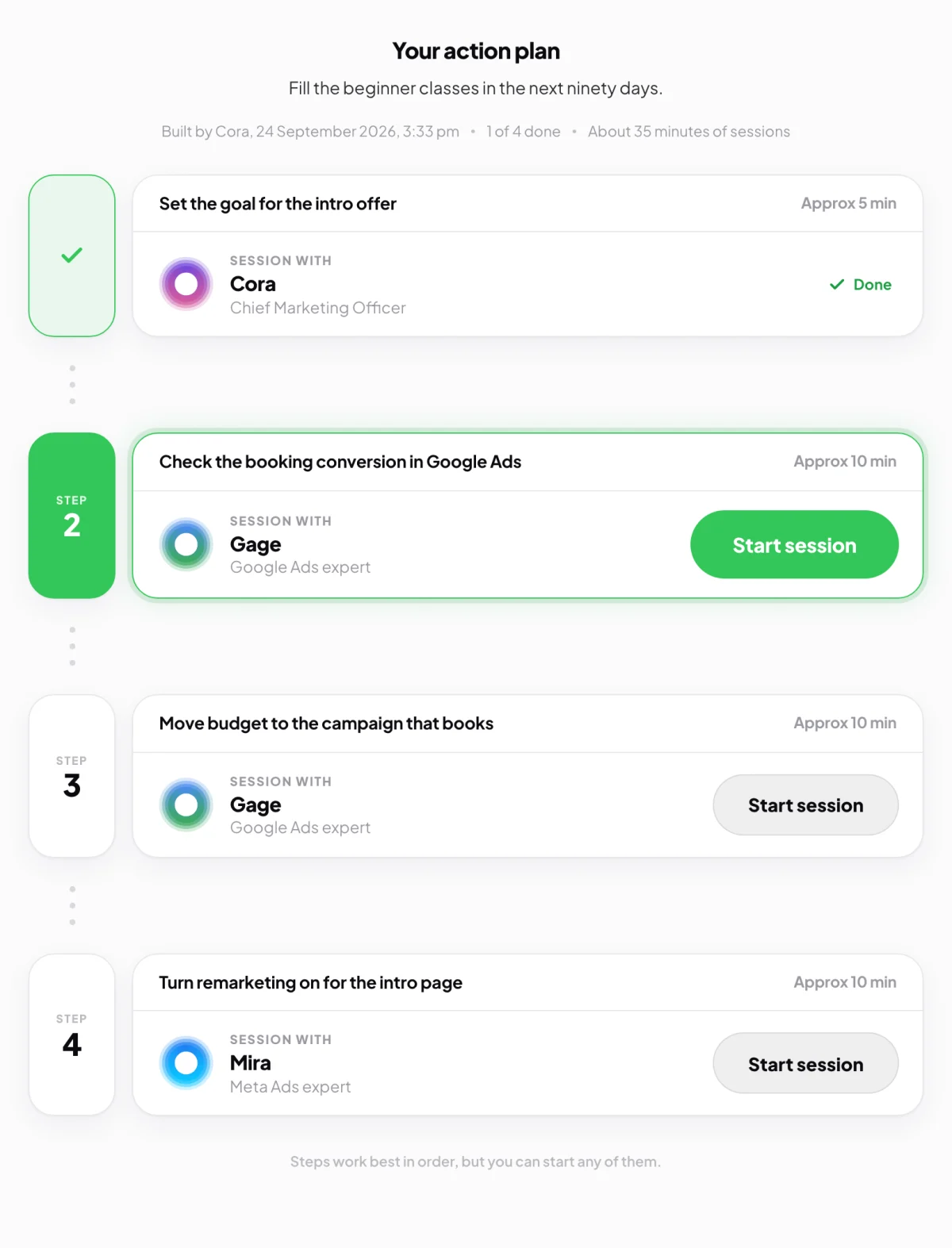
5 The green step is next. Start session begins it. -
Click the Overview tab to see the project's knowledge and its chats and calls. Under Project knowledge, click Edit to tell Cora what the project is for; Cora reads it before every chat and call in the project.
Start a project of your own
-
On the Projects page, click the Your own projects tab, then New project.
-
Type a Name and, under What’s it for?, what you are trying to do. Click Create project. The new project opens.
-
To get an action plan for it, on its Action plan tab click Start a call with Cora. In the call, Cora builds the plan on screen with you, and when you agree it Cora saves it.

9 A call with Cora builds the plan.
What happens next
Each step you finish ticks off on the plan and moves the green bar on the Projects page. The step to do next across all your plans is also on your dashboard: see Your next step. To do a step, see Mark a step done.
Common questions
How do I rename, pin or archive a project?
On the project's page, click the three dots at the top right and choose Rename, Pin or Archive. Archived projects are under the Archived tab, where you can restore them.
Do I have to do the steps in order?
No, but they work best in order. If you start a later step, Cora says why Cora put it there, and you choose Go back or Start anyway.
Can I file a chat or call in a project?
Yes. On the project's Overview tab, start a chat or a call from the box at the top, and it is filed there. An existing chat or call can be moved with Move to project in its menu in the sidebar.