
The New button: chats and calls
The New button at the top of the sidebar starts something with Cora: Create new chat opens a chat in the pill while you work, and Create new call starts a call now or books one for later. Either way, it is kept in your sidebar afterwards.
- Use a chat for help with something on your screen. Use a call for a full session with Cora that ends with an action plan.
- Your onboarding call and your strategy session are not started here: they start from your dashboard.
Open the New menu
-
At the top of the sidebar, click New. A menu opens with Create new chat and Create new call.
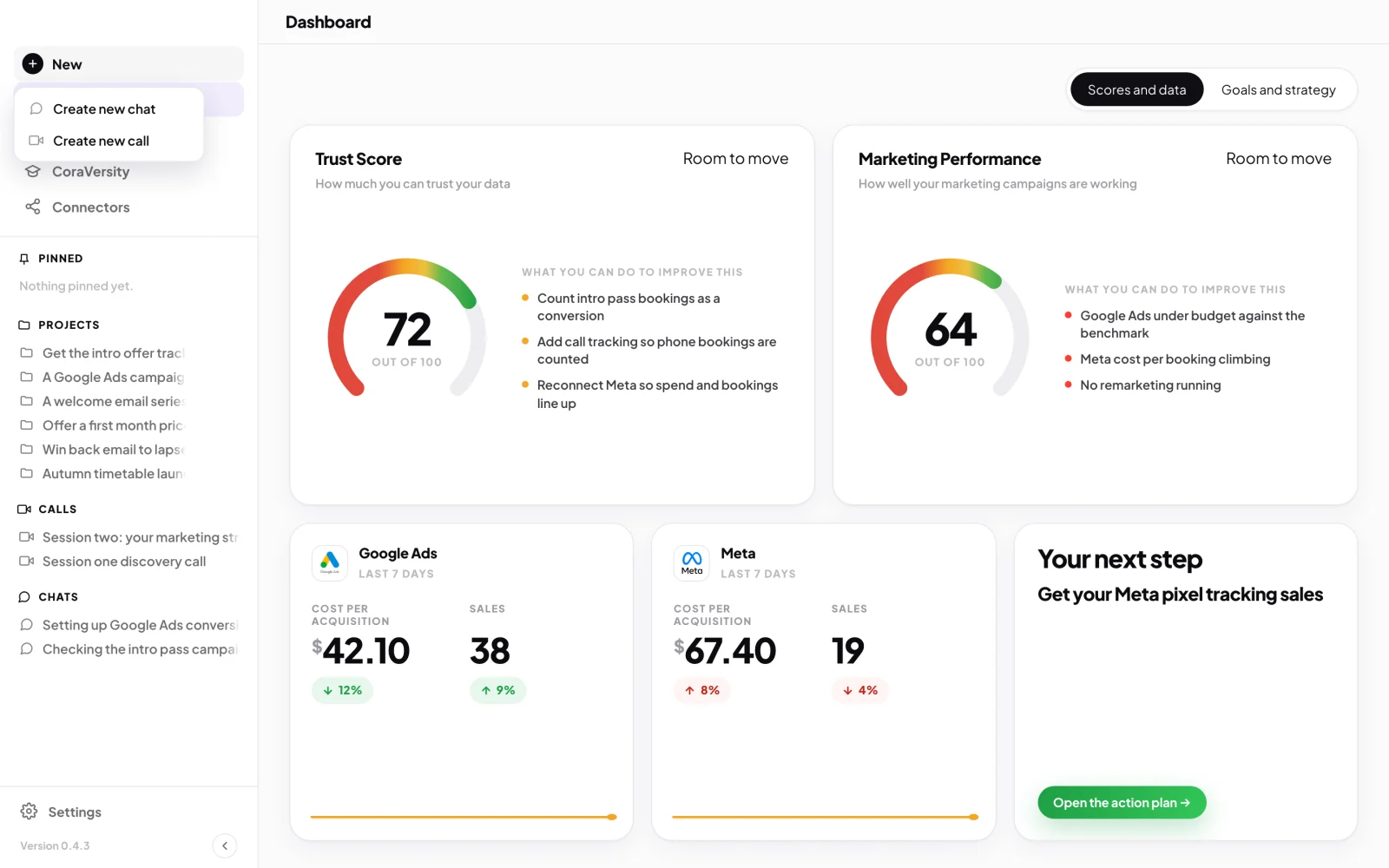
1 New sits at the top of the sidebar. -
To chat, click Create new chat, choose who you want to talk to and, if you like, a project, then click Start chat. Cora folds down into the pill. See Start a chat in pill mode.
Start or book a call
-
Click New, then Create new call.
-
On When would you like to talk?, click Have it now or Book it for later.
-
On What is the call for?, click Call with Cora - Create an action plan. The other two choices are marked Coming soon.
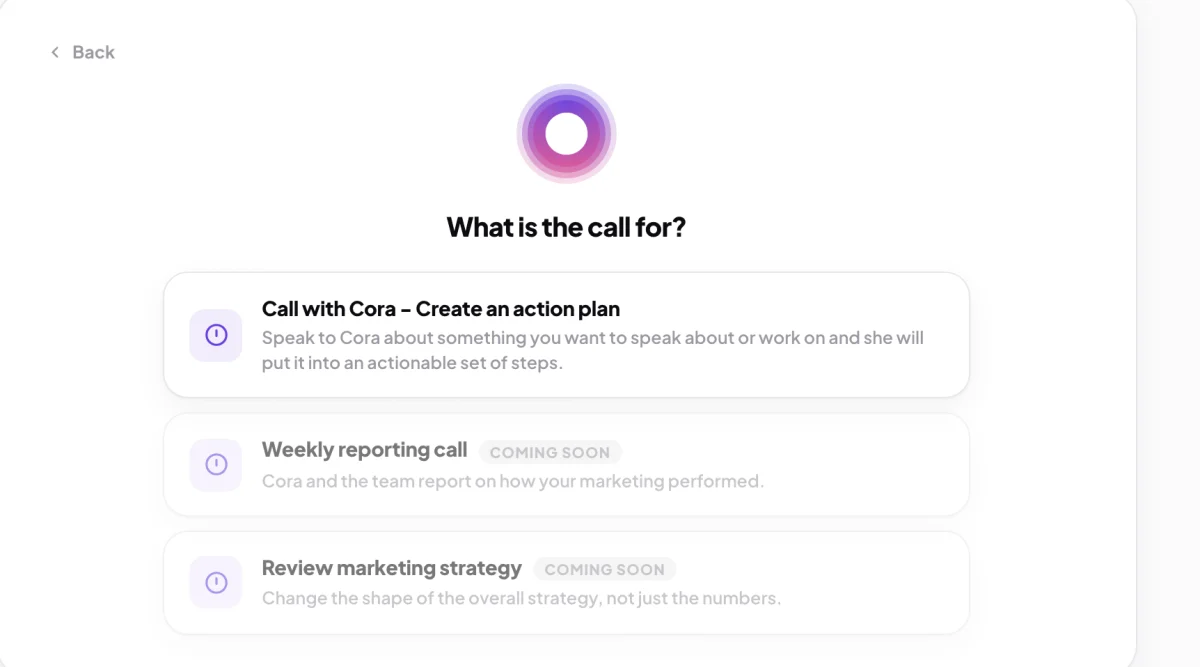
5 One kind of call is open today. -
If you chose Have it now, wait while it says Starting your call. The call window opens. See Join a call.
-
If you chose Book it for later, fill in the form: Title, Date, Time, Length, and if you like Add to a project, Recurring, Agenda and Who’s coming. Cora always comes. Click Make appointment.
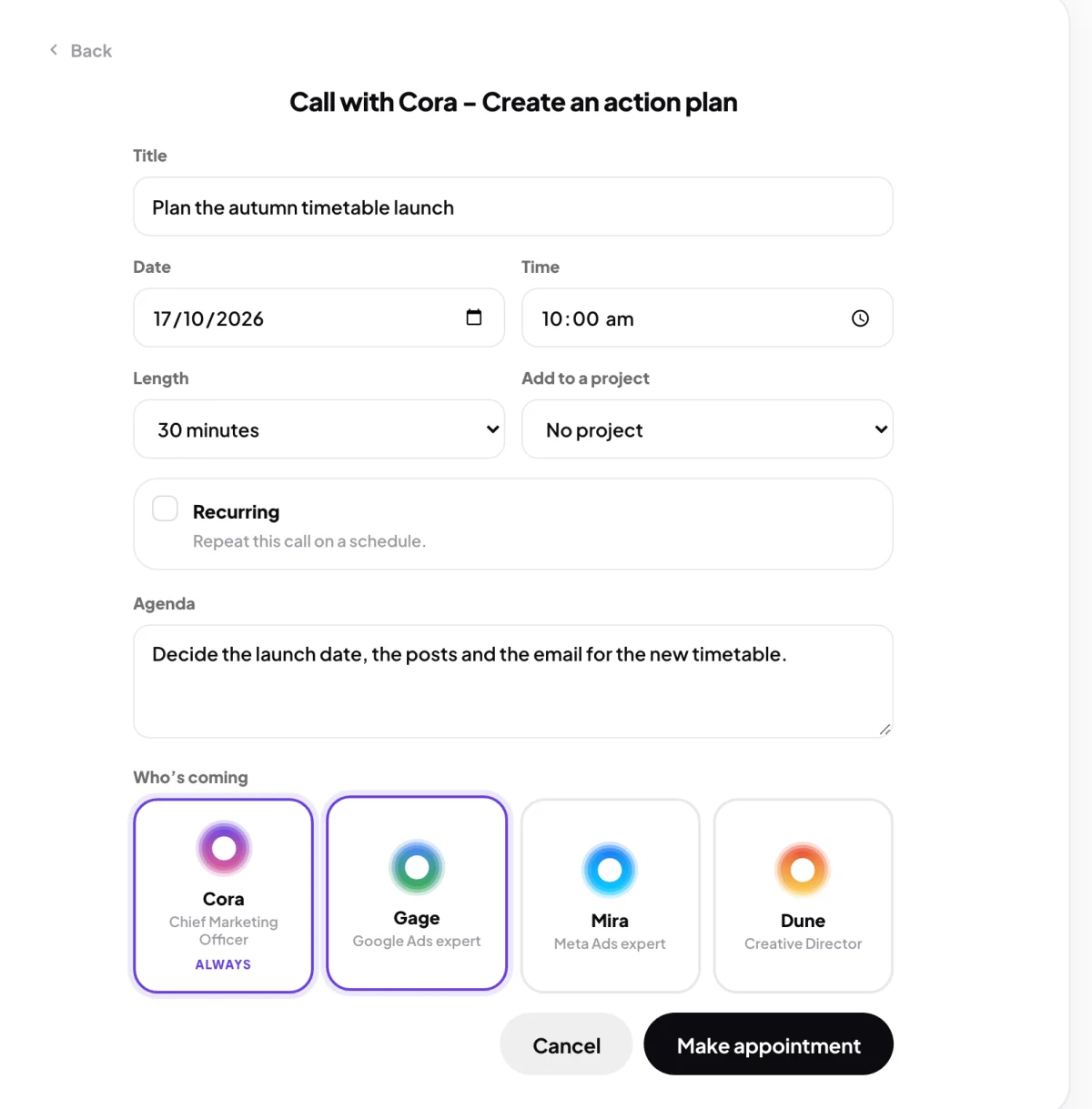
7 Fill in the form, then Make appointment.
What happens next
A booked call shows Appointment made, and a calendar invitation is sent to your email address. Click View the appointment to see it; when the time comes, open it from Calls and click Join call. A chat or a call you have had is kept under Chats or Calls: see Your calls and chats.
Common questions
Is there a quicker way?
Yes. Point at Chats, Calls or Projects in the sidebar and click the plus beside it to start a new chat, book a call or make a project.
Can I book my strategy session here?
No. Book it from the countdown on your dashboard after your onboarding call, with Book session two. See Book your strategy session (session two).
What time zone is my booking in?
Your own. The time zone comes from your account, which you chose when you signed up.