
Your calls and chats
Every call and chat you have with Cora is kept in your sidebar under Calls and Chats, with its transcript, and a call also gets a summary written by Cora. From there you can read it back, pick a chat up where you left off, and pin, rename, file or archive it.
- A call booked for later is listed under Calls from the moment you book it, so you can join it from there.
Open your calls
-
In the sidebar, click the Calls heading. The list shows who was in each call, its type, date, length, title and status, newest first.
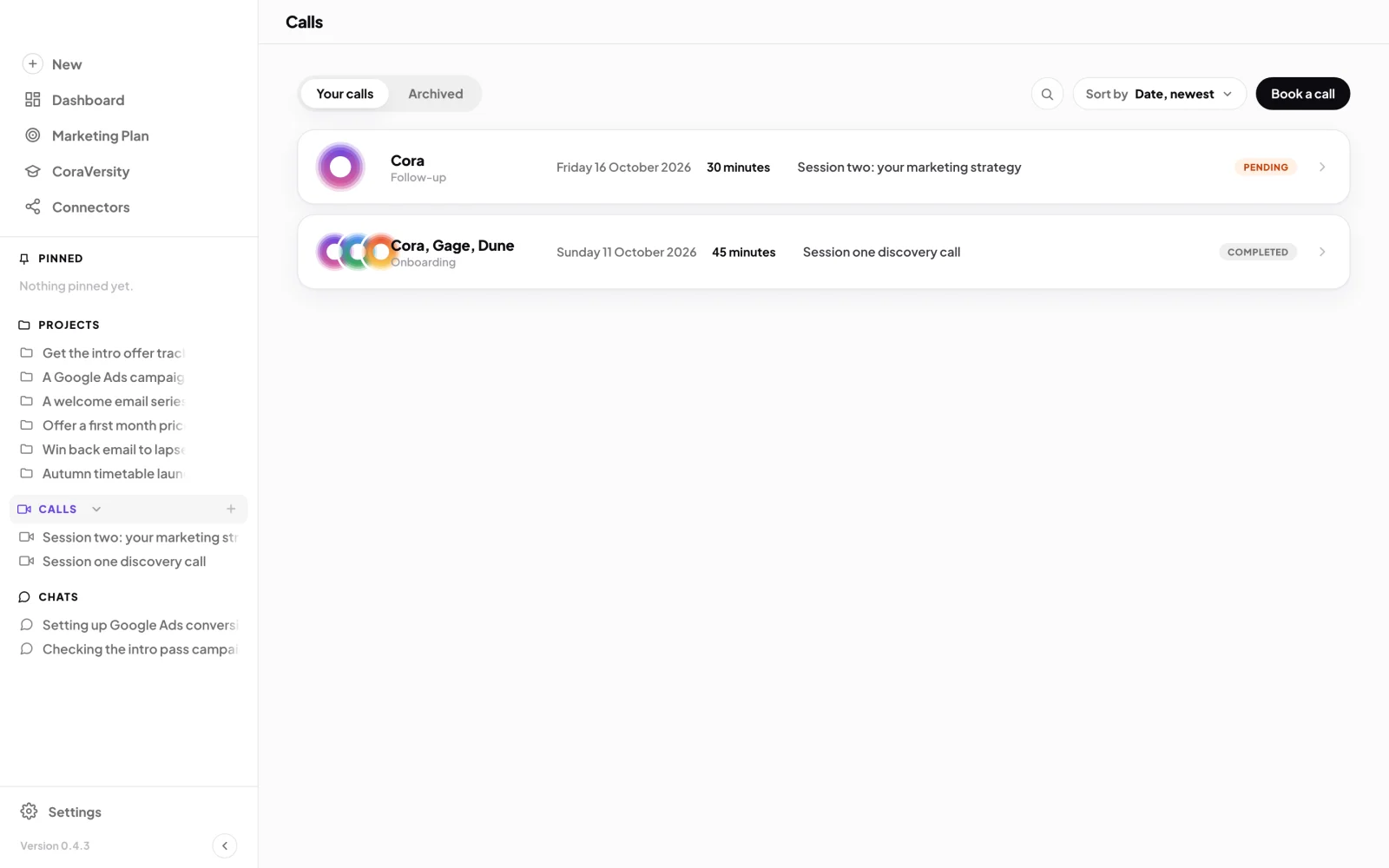
1 Calls in the sidebar opens the full list. -
Click a call. A past call shows Call summary, written by Cora after the call, with Copy summary, and the Transcript. A call still to come shows Join call, Edit and Cancel; a cancelled one shows Rebook.
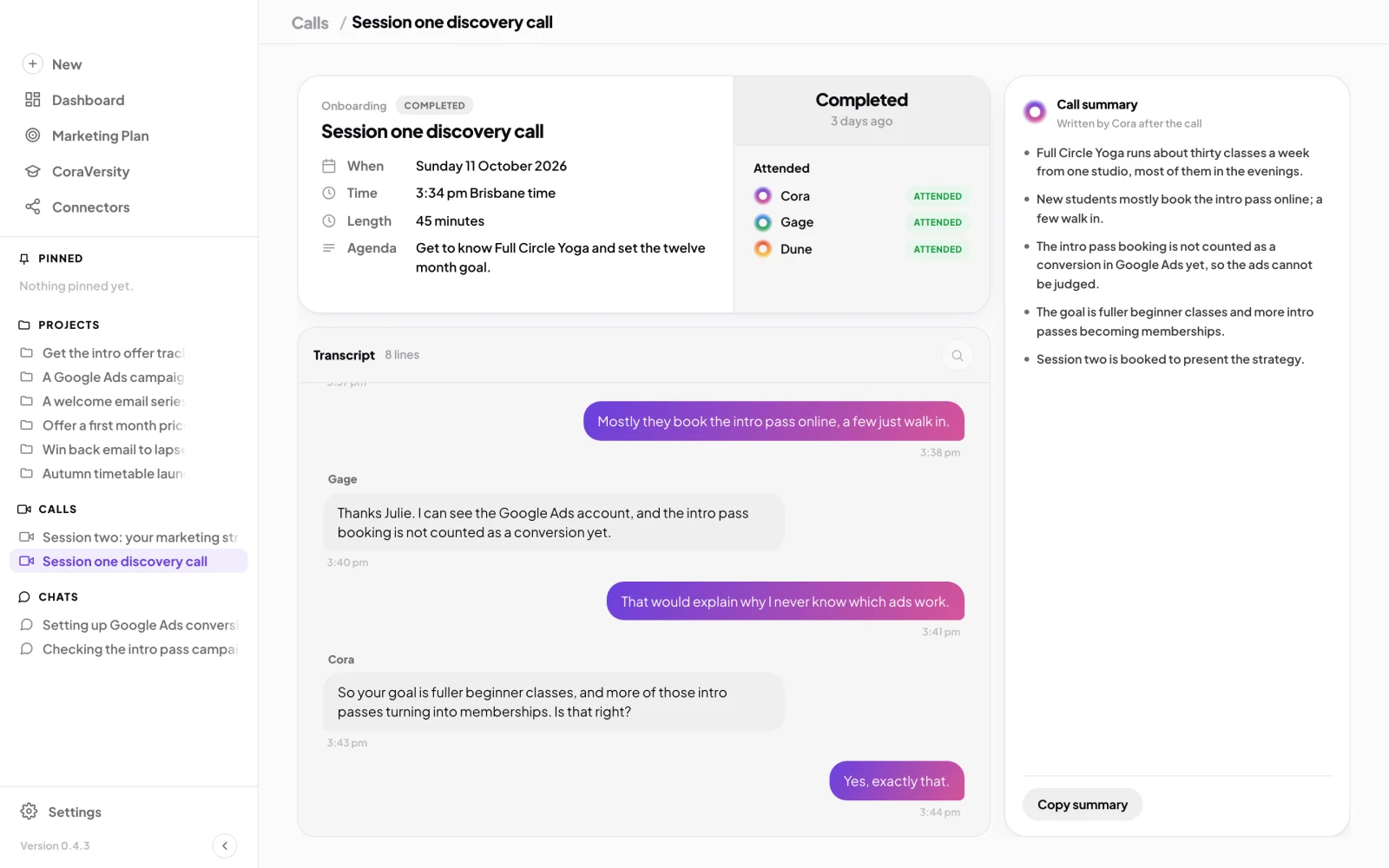
2 Cora's summary and the full transcript.
Open your chats
-
In the sidebar, click the Chats heading, then click a chat. Its transcript fills the page.
-
To pick it up again, click Continue chat at the bottom. The pill opens with the same expert, who has the conversation so far in mind.
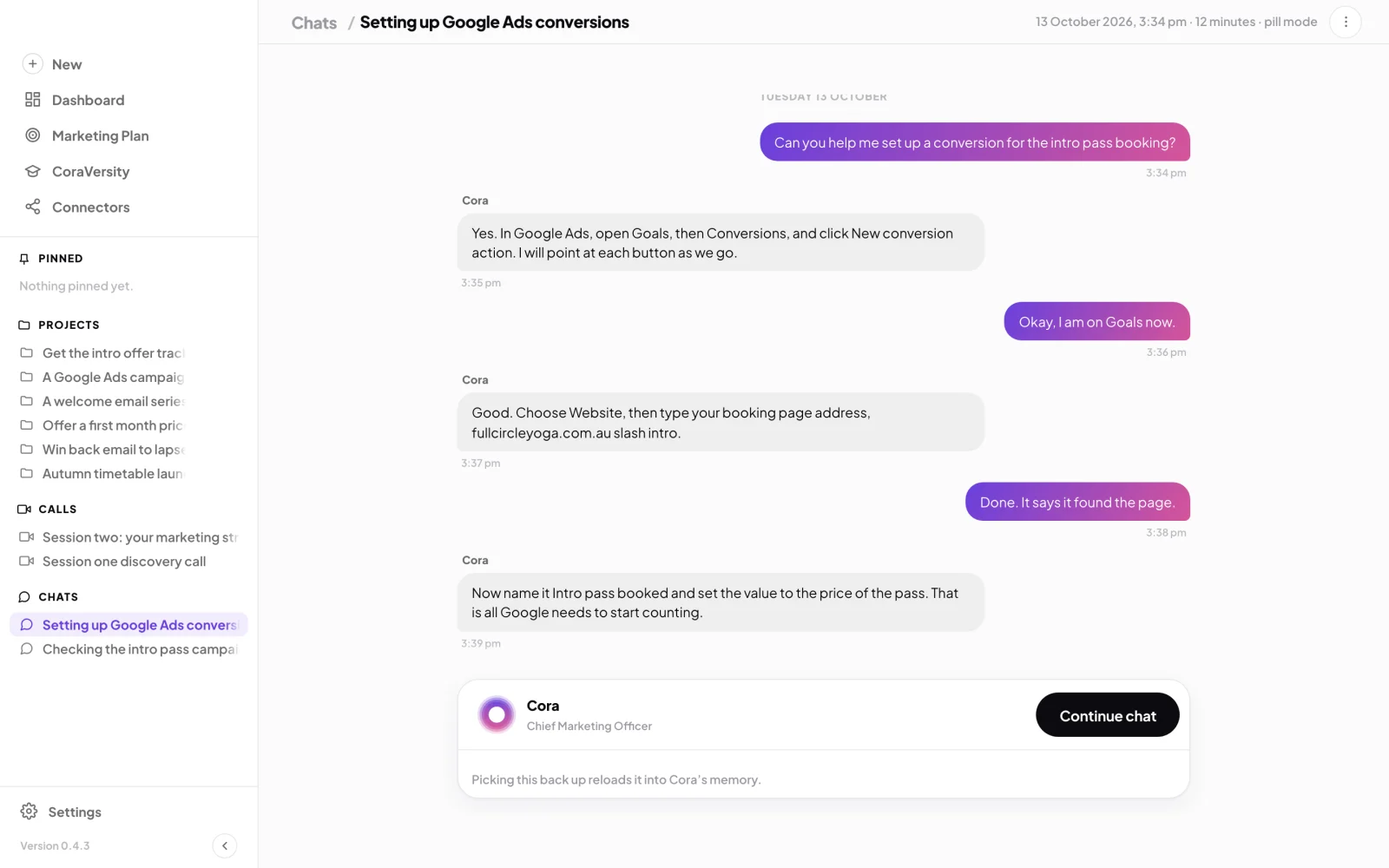
4 Continue chat picks it up in the pill.
Organise them
-
In the sidebar, point at a call or chat and click its three dots. Choose Pin to keep it at the top under Pinned, Rename, Move to project, or Archive.
-
To find an older one, open the list and use the search at the top, or sort by date. Archived calls and chats are under the Archived tab.
What happens next
Archived items can be restored or deleted for good from the Archived tab: see Delete archived projects, chats and calls. To start something new, see The New button: chats and calls.
Common questions
Why can't I archive my onboarding call?
Your session one onboarding call is the record Cora builds everything else on, so it cannot be archived or deleted. Its menu says so.
A chat says part of it was not saved. What happened?
Some of the conversation did not reach your account, for example because the connection dropped while you were talking. The rest of the chat is kept, and you can continue it.
Why does a call have no summary?
Cora writes it after the call ends, so a call that has not happened yet, or ended a moment ago, says No summary yet.