
Create your CoraVision account
You create your CoraVision account inside the app, in three short steps: who you are, where you are, and the terms. It takes about five minutes, and you confirm both your email and your mobile with a 6-digit code.
Step 1 of 3: you and your email
-
On Have we met before?, under I'm new here, click Create my account.
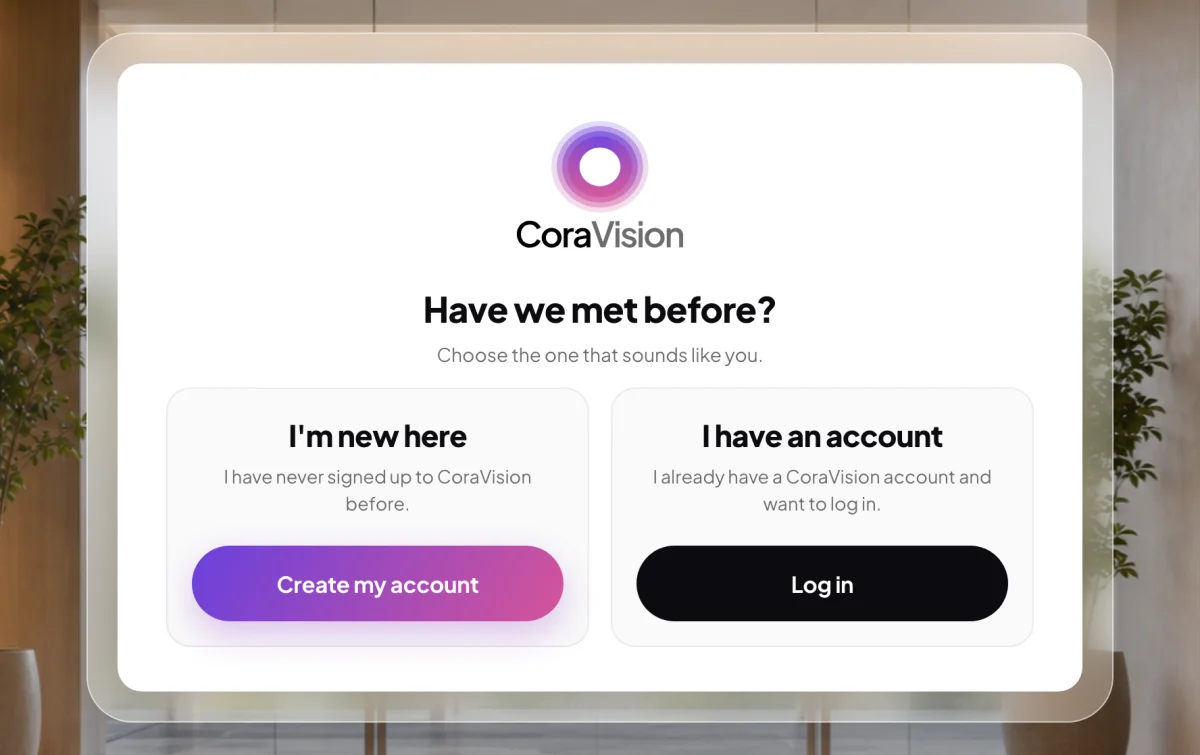
1 New to CoraVision? Choose Create my account. -
Type your First name, Last name and Business name.
-
Type your email address, then click Verify beside it.
-
Find the email with your code and type the six digits into the boxes. CoraVision checks the code by itself as soon as the sixth digit is in, and the button changes to Verified ✓.
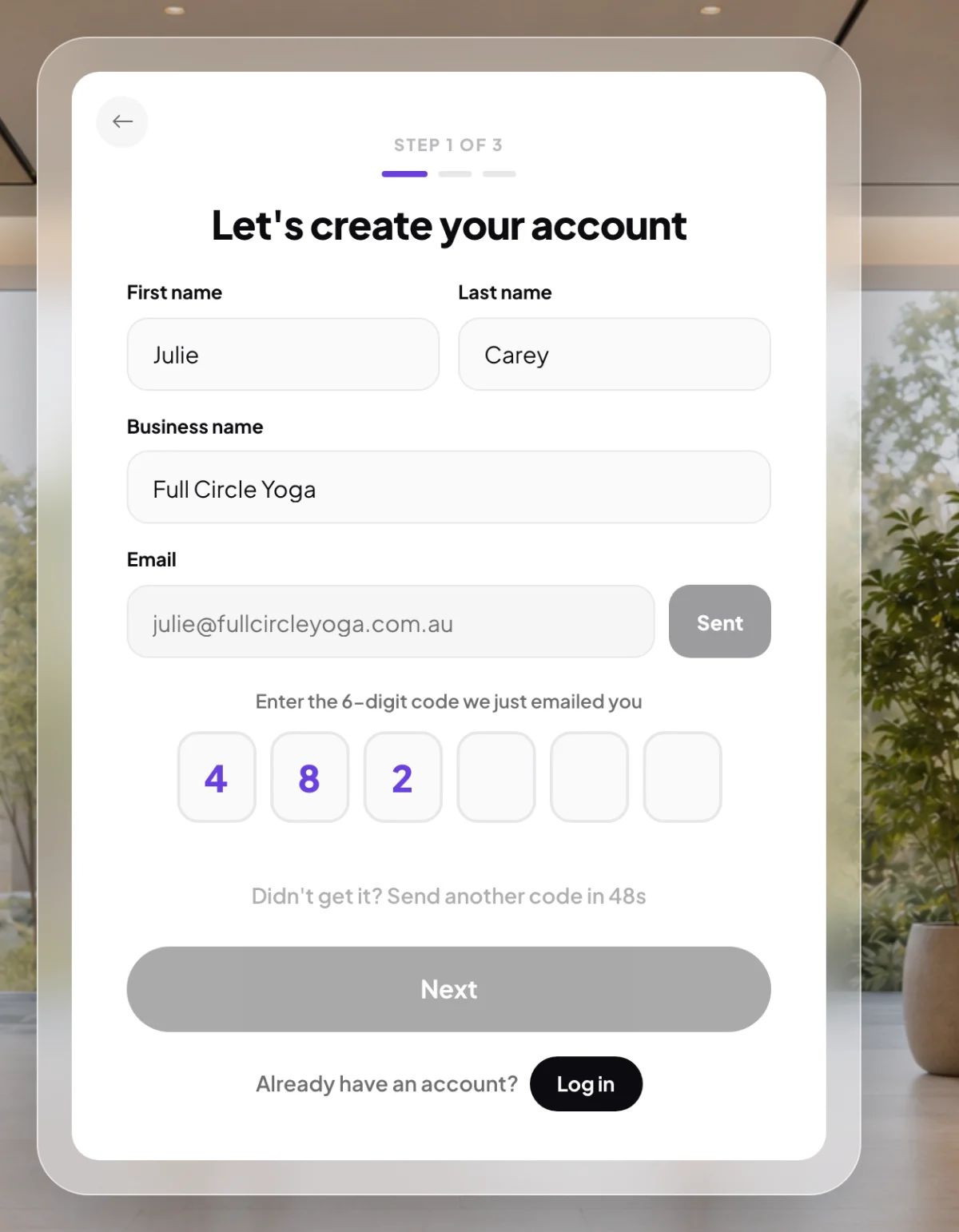
4 Type the code. There is no button to press. TipNo email after a minute? Check your spam or junk folder. Once the countdown under the boxes ends, click Didn't get it? Send another code.
-
Click Next.
Step 2 of 3: where you are, and your mobile
-
Check Country and Timezone. CoraVision fills them in from your computer's clock; change them if they are wrong. Then type your Post / zip code.
-
Type a Password with at least 6 characters, one lowercase letter, one uppercase letter and one number. Each rule under the box ticks as you meet it.
-
Type your Mobile number, click Verify, then type the 6-digit code from the text message. Next lights up once your mobile is verified.
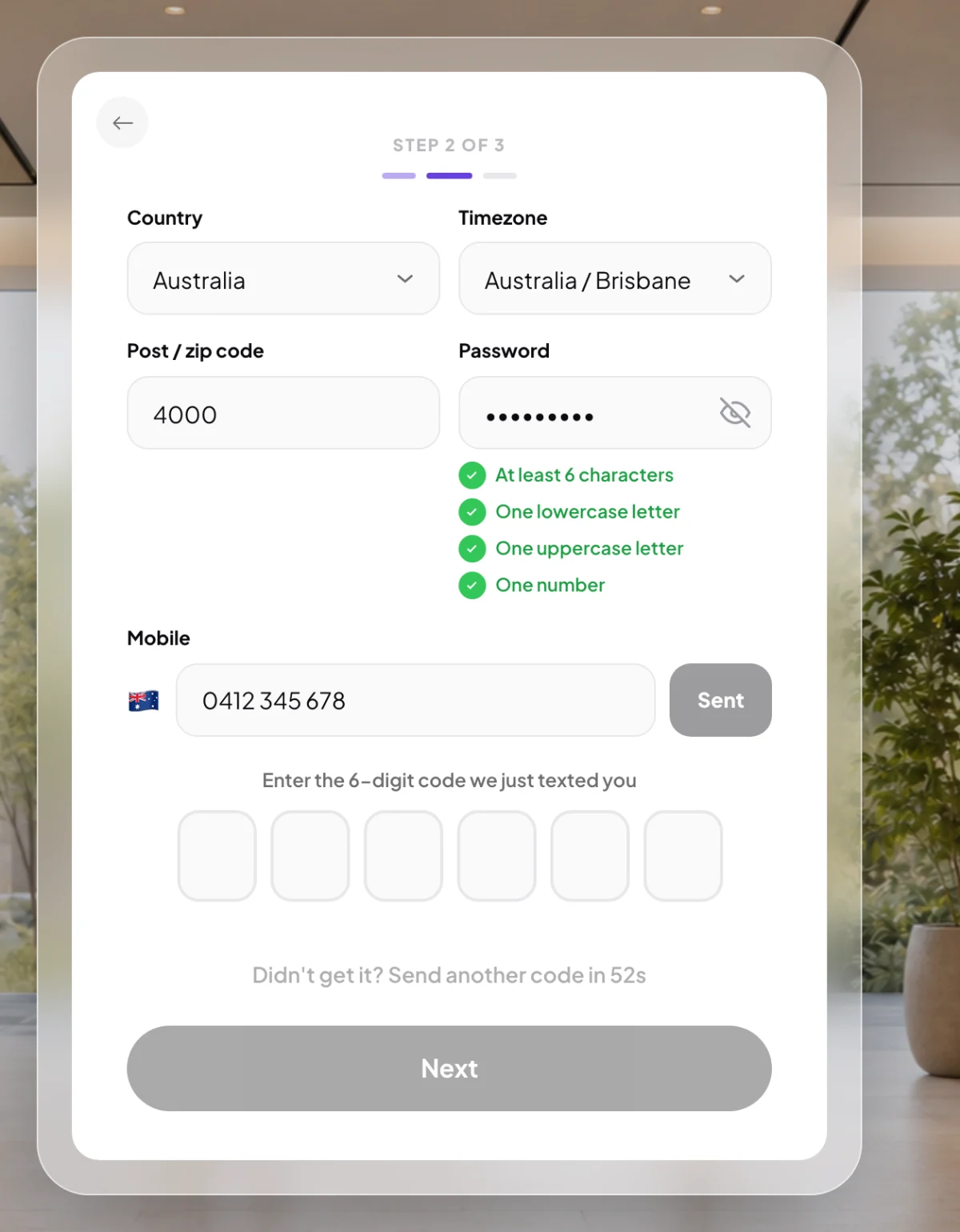
8 Verify your mobile to unlock Next. -
Click Next.
Step 3 of 3: the terms
-
Read the Terms of use, tick the box that says you agree to them, then click Submit. The second box, for marketing material, is optional.
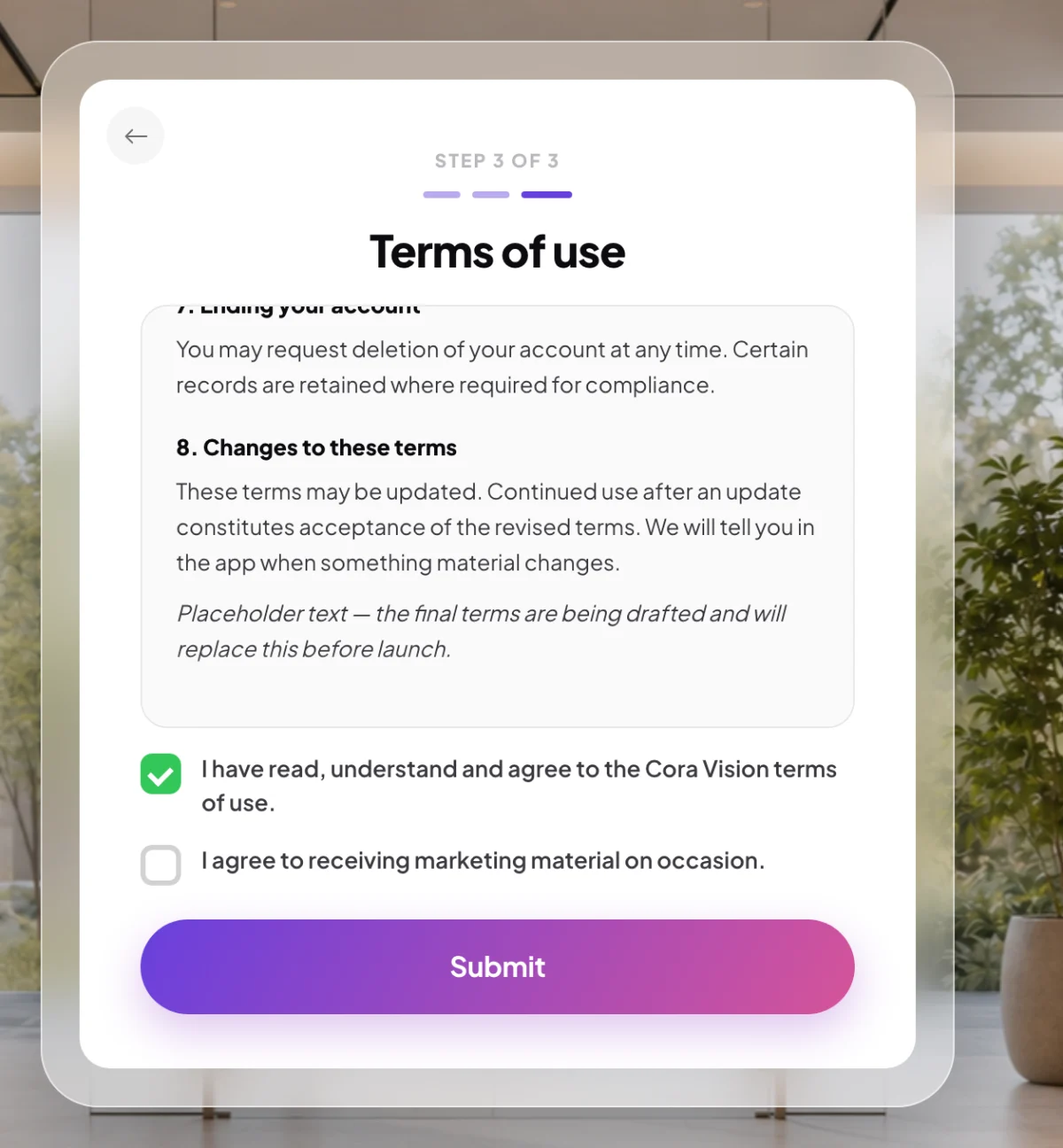
10 Only the first tick box is required.
What happens next
CoraVision welcomes you by name. Click Go to my dashboard. It shows Cora works best in a quiet place, then runs two short audio checks, then opens your dashboard, where Cora gives you a welcome tour. About ten minutes after you sign up, Cora sends you a short welcome email.
Common questions
Can I sign up without a mobile number?
No. Next on step 2 stays off until your mobile is verified with its code. Log in codes always go to your email, never to your phone.
I typed the wrong email. Can I change it?
Yes. Point at the email box and click Change email, then Proceed. CoraVision sends a new code to the new address.
I closed CoraVision halfway through. Do I start again?
No. CoraVision saves each step as you go. Choose Log in, enter your email, password and the emailed code, and you land back on the step you left with your details filled in. If you had not set a password yet, use Forgot password? on the log in screen.
What if the code does not match?
The boxes turn red, say the code didn't match, and clear themselves. Type the code again, or wait for the countdown and send another one.