
Download and install CoraVision on Windows
CoraVision is a desktop app. On Windows you download one installer, run it, and CoraVision opens on its own when it finishes, which takes about five minutes. Windows shows a warning on the way, and this guide shows you how to get past it.
- A 64-bit Windows 10 or Windows 11 computer.
- About 400 MB of download.
- The access code we sent you, for the download page.
Download the installer
-
Go to coravision.ai/download, type the access code we sent you, and click Download for Windows.
-
In File Explorer, open your Downloads folder and double-click the CoraVision Setup file that ends in .exe.
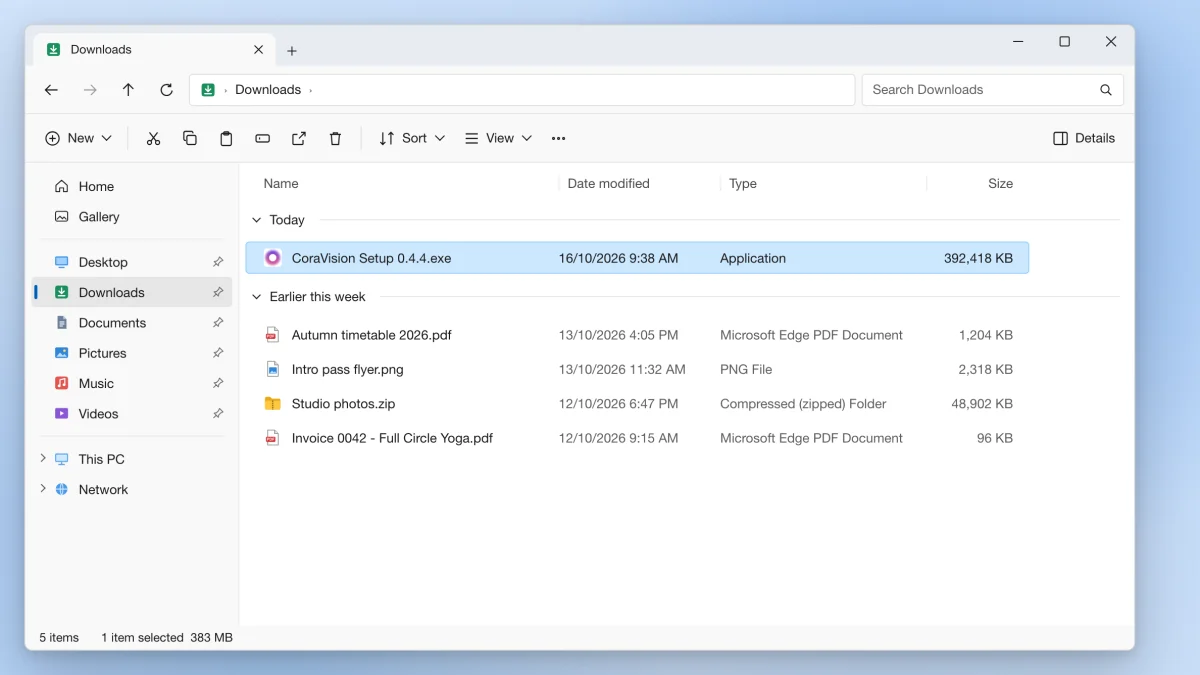
2 The installer is the Setup file that ends in .exe.
Get past the Windows warning
-
Windows may show a blue box that says Windows protected your PC. Click More info.
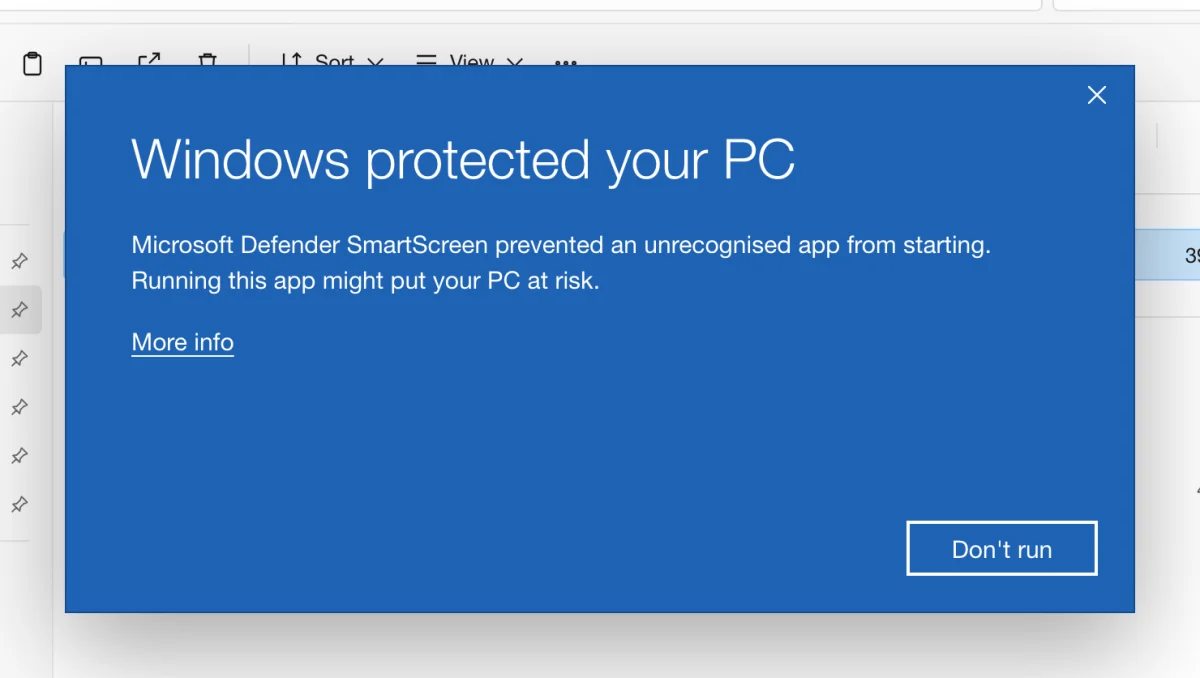
3 More info sits under the warning text. -
Windows now shows the installer's file name and Unknown publisher. Click Run anyway.
Why Windows warns youThe Windows installer is not yet signed with a code signing certificate, so Windows does not recognise the publisher. Only click Run anyway for the file you downloaded from the link we sent you. If you got the file anywhere else, delete it.
Install and open
-
The installer runs on its own. There are no options to choose. When it finishes, CoraVision opens.
-
CoraVision plays a short intro with sound, then shows its first card. Keep the app open and carry on with the next guide.
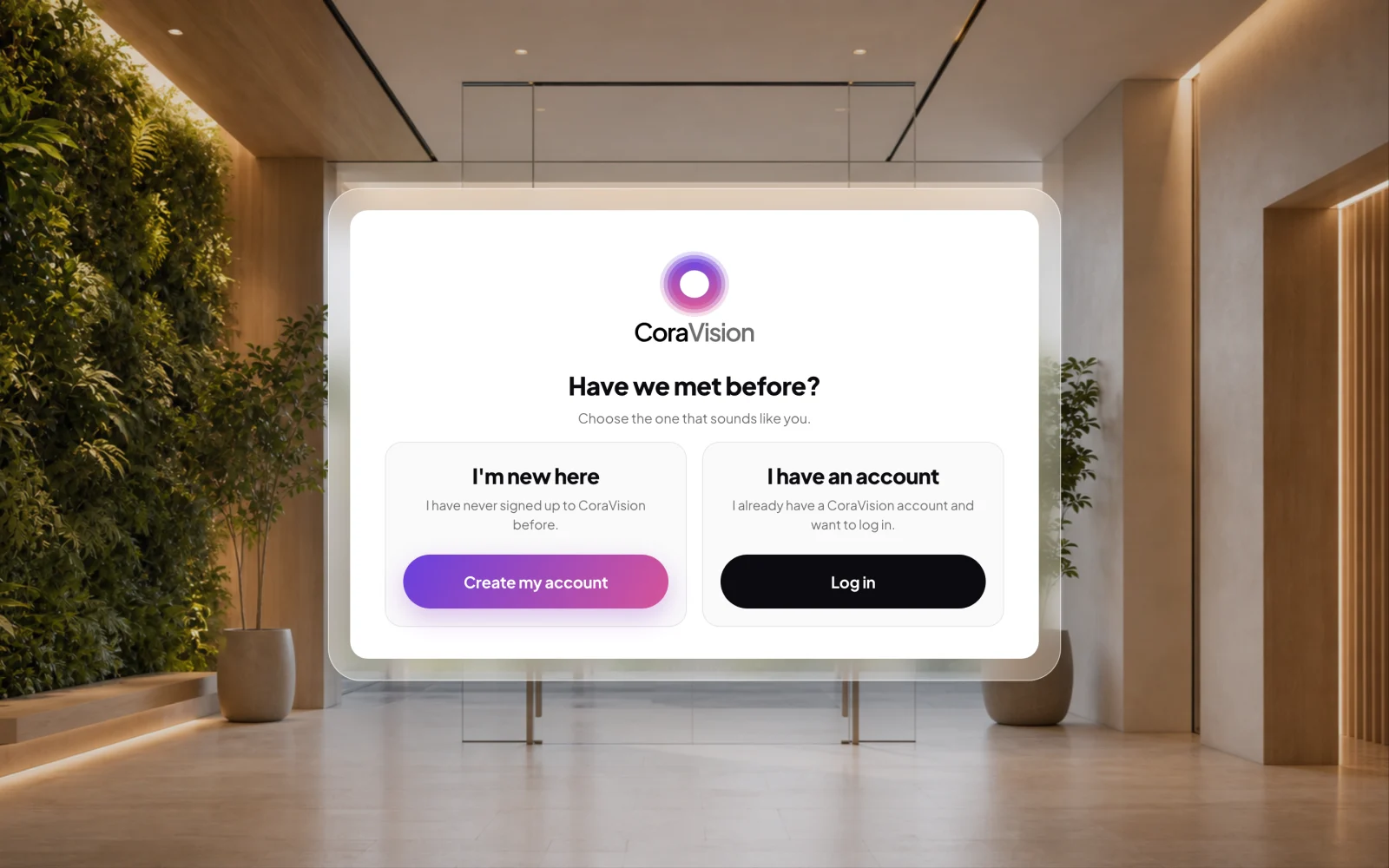
6 The first card appears after the intro. -
Next time, open CoraVision from the Start menu or the shortcut on your desktop.
What happens next
If Windows has not yet allowed apps to use your microphone, the first card is Welcome to CoraVision with one row, Microphone. See Allow the microphone and camera. Windows needs no screen permission (why). Then you reach Have we met before?, where you create your CoraVision account or log in.
Common questions
Is it safe to click Run anyway?
Yes, for the installer from the link we sent you. The warning appears because the Windows installer is not signed yet, not because Windows found a problem in the file.
Do I need to download every new version?
No. CoraVision downloads updates in the background. When one is ready, a New version pill appears in the dashboard sidebar under Settings. Click it and CoraVision installs the update and reopens, with no installer window.
How do I remove CoraVision?
Open Start, then Settings, Apps, Installed apps. Find CoraVision, click the three dots beside it and choose Uninstall. Your account and everything saved to it stay as they are.