
Sign in with your email code
Every time you sign in to CoraVision you type your email and password, then a 6-digit code we send to your email. It takes about a minute, and after that CoraVision stays signed in on that computer until you sign out.
- You already have a CoraVision account. If not, create your CoraVision account first.
- Your email inbox open on this computer or your phone.
Log in with your email and password
-
Open CoraVision. On Have we met before?, under I have an account, click Log in.
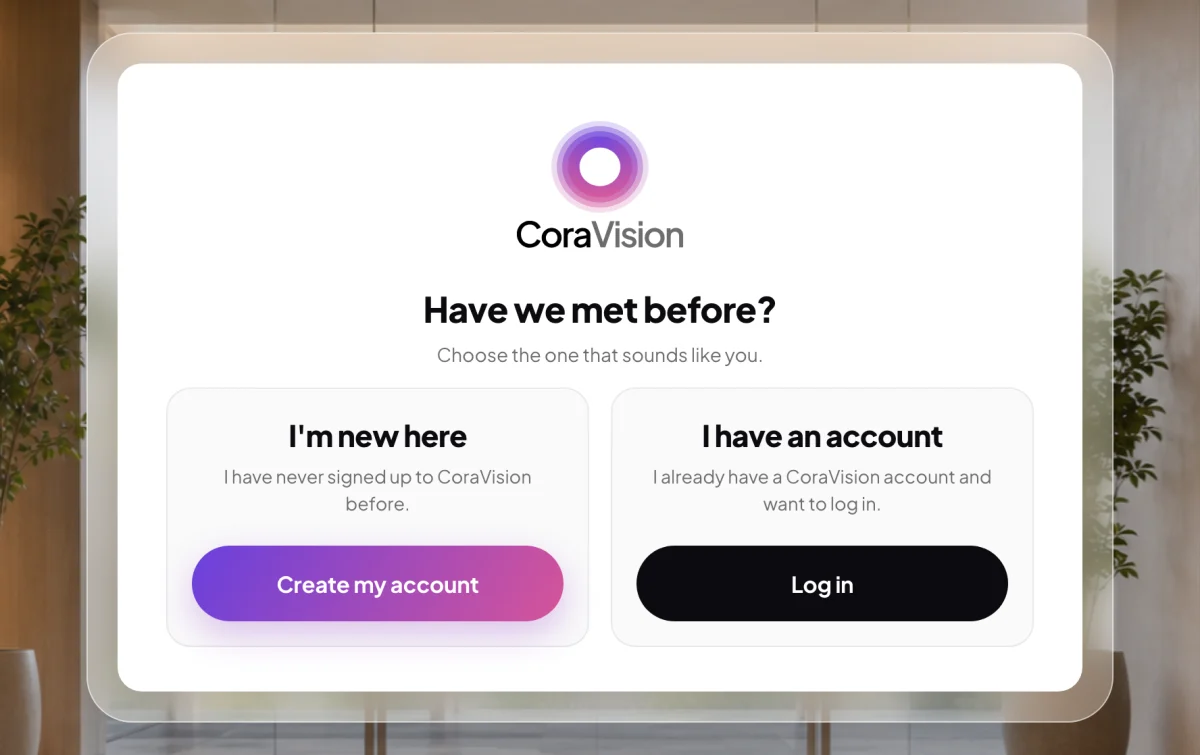
1 Already have an account? Choose Log in. -
Type your Email and Password, then click Log in. Pressing Enter does the same.
Type the code from your email
-
CoraVision shows Enter your code with the address it sent the code to. Open that email.
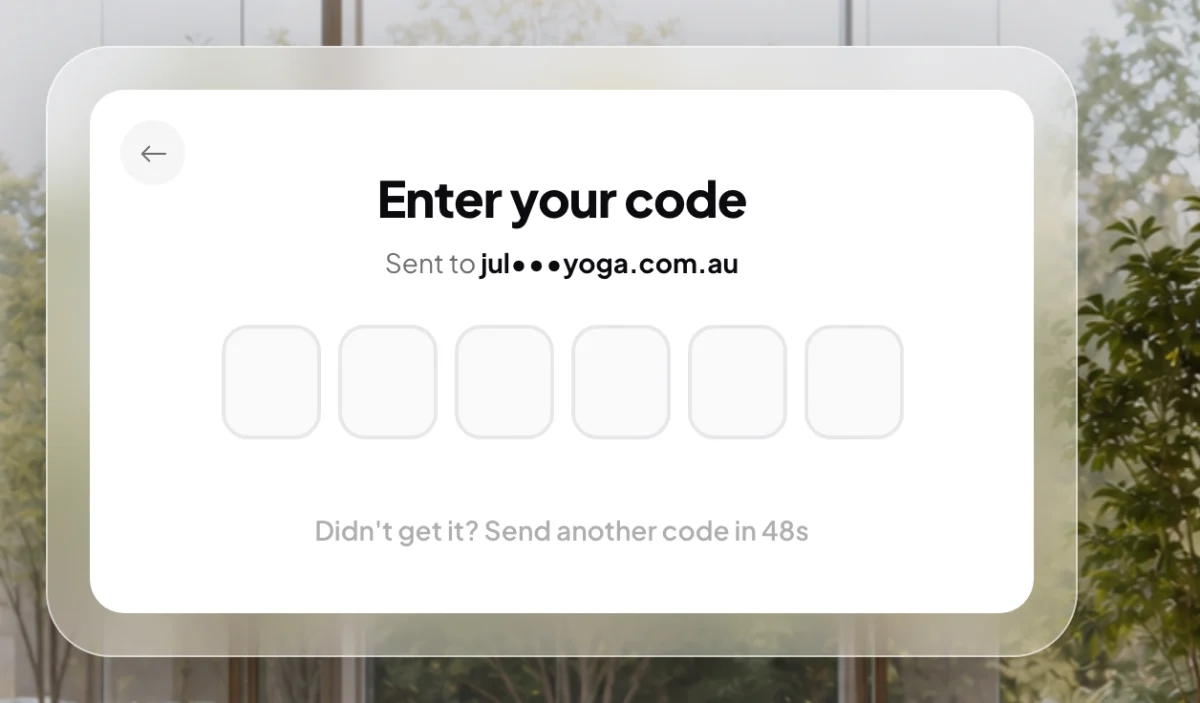
3 The code goes to the email on your account. -
Type the six digits into the boxes. CoraVision checks the code by itself as soon as the sixth digit is in, and shows Code confirmed. You can also paste the whole code into the first box.
-
CoraVision runs the speaker and microphone checks, then opens your dashboard. See the audio checks.
If the code does not arrive
-
Check your spam or junk folder.
-
When the countdown under the boxes reaches zero (it starts at 60 seconds), click Didn't get it? Send another code.
NoteLog in codes always go to your email. CoraVision does not send them by text message.
What happens next
CoraVision remembers you on this computer. The next time you open it, it goes straight to your dashboard with no password and no code. You see the log in screen again only after you sign out (in Settings, Sign out) or on a different computer. A new computer also asks for its own permissions first.
Common questions
Why do I need a code as well as my password?
So a password alone is never enough to get into your account. Someone who learns your password still needs access to your email.
It says my email or password didn't match
Check both for typing mistakes. If you have forgotten your password, or never finished setting one, click Forgot password? under the Log in button. CoraVision emails you a code and then lets you choose a new password.
I typed the code and the boxes turned red
The code did not match. The boxes clear themselves after a moment; type the code again, or send a new one when the countdown ends.
It took me back to the sign up form
Your sign up was not finished, for example the terms were never accepted. CoraVision puts you back on the step you left, with your details filled in. Finish it and you reach your dashboard.