
The audio checks, and teaching Cora your voice
After you create your account or log in, CoraVision runs two short checks: first that you can hear Cora, then that Cora can hear you. It takes about a minute, and the speakers and microphone you pick here are the ones your calls use.
- Headphones or a headset if you have them. See Cora works best in a quiet place.
- Somewhere you can speak out loud.
- The microphone allowed on the welcome card. See Allow the microphone and camera.
Check your speakers
-
On We just need to do a few quick audio checks before we start, choose your speakers or headphones in the Speaker list, if it is shown.
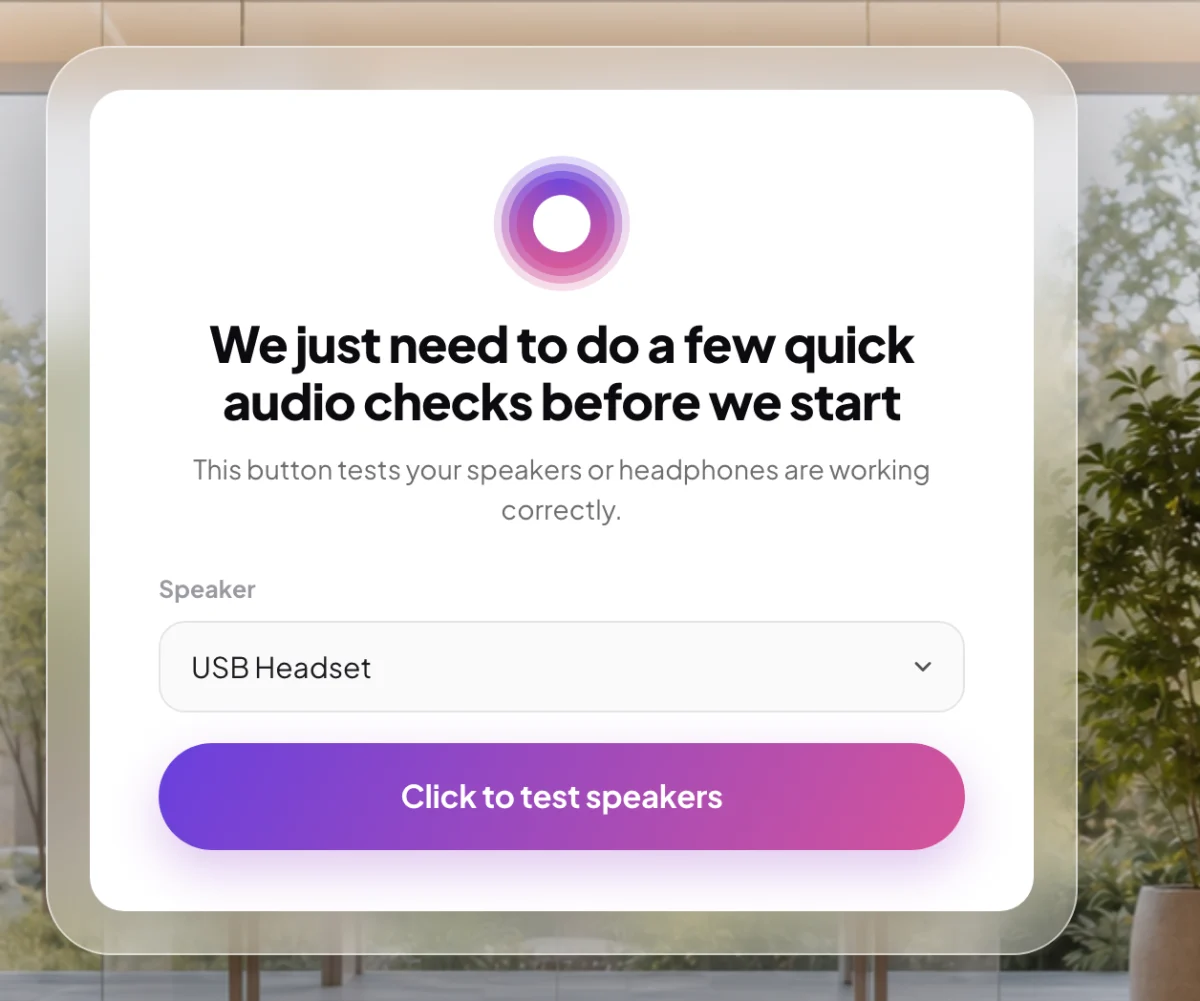
1 Pick the speakers or headphones you will use for calls. -
Click Click to test speakers. Cora says hello to you by name and asks if you can hear.
-
If you heard Cora, click Yes. If you did not, click No, try the suggestions on screen and click Retry audio test.
-
On Speakers test successful, click Next.
Check your microphone
-
Choose your microphone in the Microphone list.
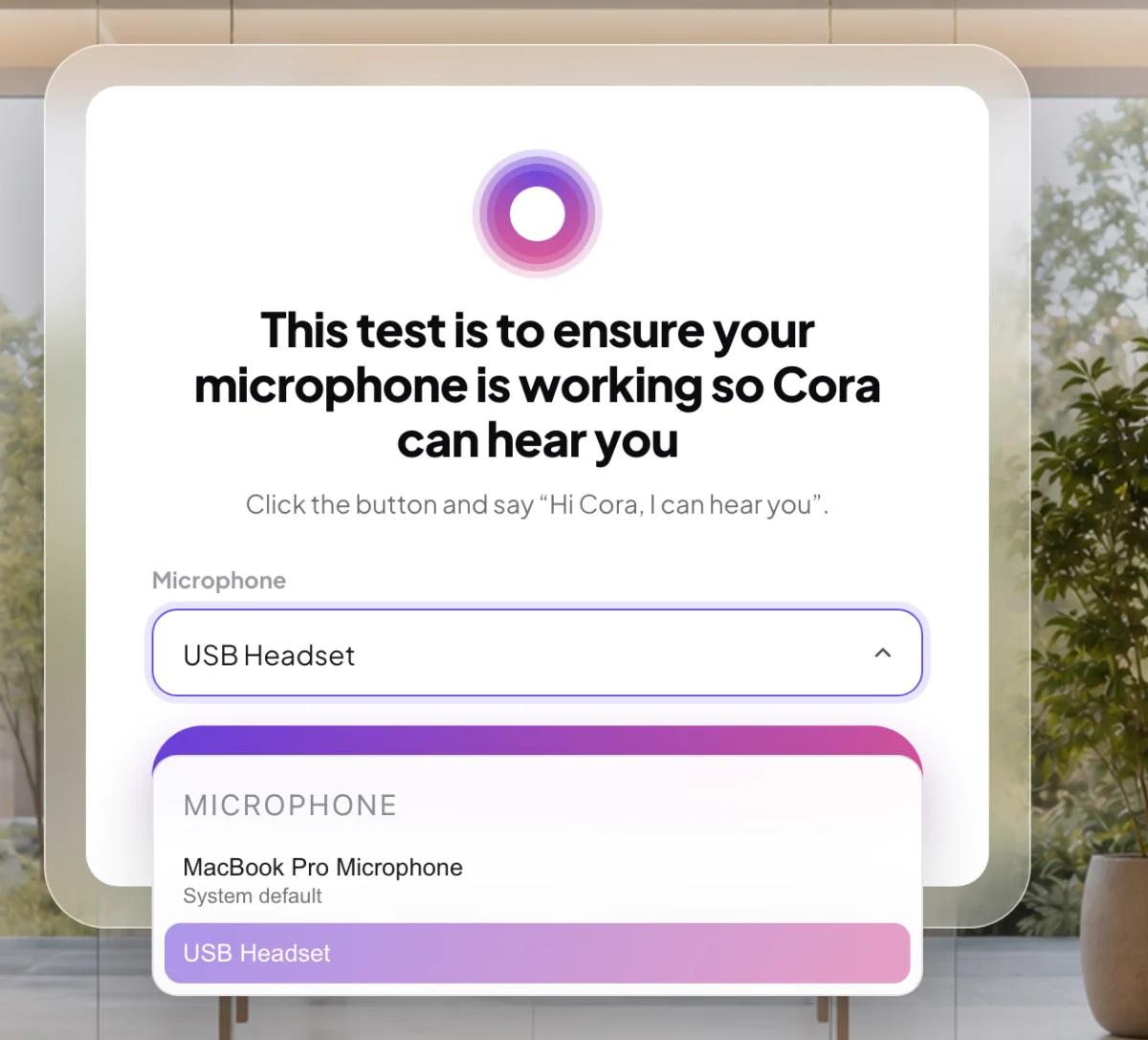
5 Choose the microphone closest to your mouth. -
Click Test microphone and, when the card says Listening…, say "Hi Cora, I can hear you" at your normal volume.
NoteThe microphone test only checks that sound is coming in. It runs on your computer, and nothing you say here is sent anywhere.
-
Cora answers you. On Audio tests successful, click Next. Your dashboard opens.
If Cora couldn't hear you
-
If CoraVision hears nothing for 20 seconds, it shows Cora couldn't hear you. Check that your microphone is plugged in and not muted, and that CoraVision is allowed to use it.
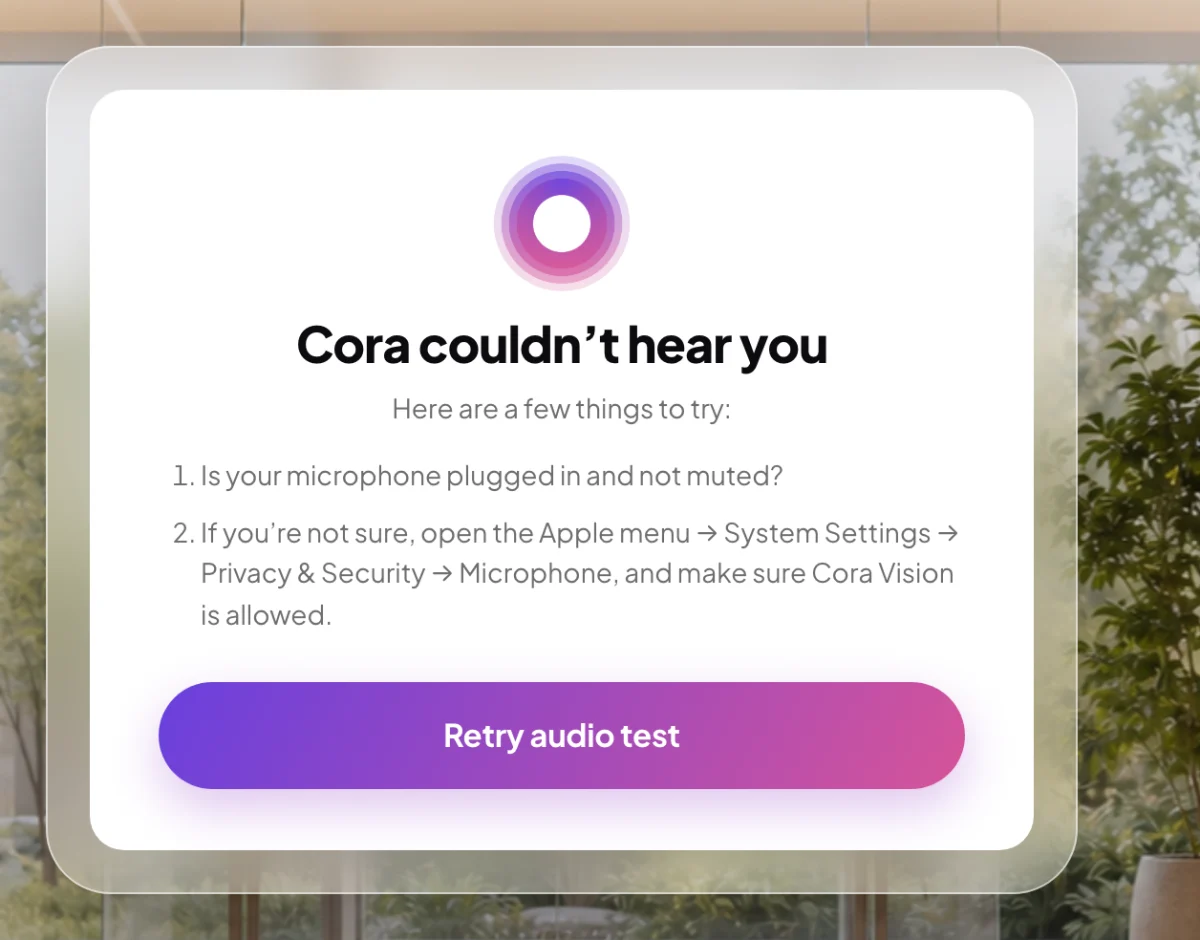
8 Fix the cause, then retry. -
Click Retry audio test and say the sentence again. If it still fails, follow Cora can't hear me: fix your microphone.
What happens next
Your dashboard opens. On a new account, CoraVision asks how you want it to look, then Cora gives you a welcome tour. CoraVision remembers the speakers and microphone you chose on this computer and uses them in your calls.
Common questions
Do I do these checks every time?
You do them after you create your account and each time you log in. When CoraVision opens already signed in, it skips them and goes straight to your dashboard.
Does Cora learn my voice?
Not yet. Some test versions of CoraVision add a step called Now let Cora learn your voice, where you read a short passage aloud so Cora can tell your voice from other people in the room. It is switched off in version 0.4.2, so after the microphone test you go straight to Audio tests successful.
Can I change my speakers or microphone later?
Yes. In Settings, open Audio & Camera, choose new devices and click Save. You can also change them on Ready to join? before a call.
I heard nothing at all
Check the volume, and that the right output is selected: on a Mac in System Settings, Sound; on Windows in Settings, System, Sound. Then click Retry audio test. See I can't hear Cora: fix your speakers.