
Download and install CoraVision on a Mac
CoraVision is a desktop app. On a Mac you download one file, drag the app into your Applications folder and open it, which takes about five minutes. Nothing on your Mac changes until you open CoraVision and choose what to allow.
- A Mac with Apple silicon (M1 or later). CoraVision does not run on Macs with an Intel processor. To check, open the Apple menu, choose About This Mac and look for an Apple M chip.
- About 300 MB of download.
- The access code we sent you, for the download page.
Download the installer
-
Go to coravision.ai/download, type the access code we sent you, and click Download for Mac.
-
In Finder, open your Downloads folder and double-click the CoraVision file that ends in .dmg.
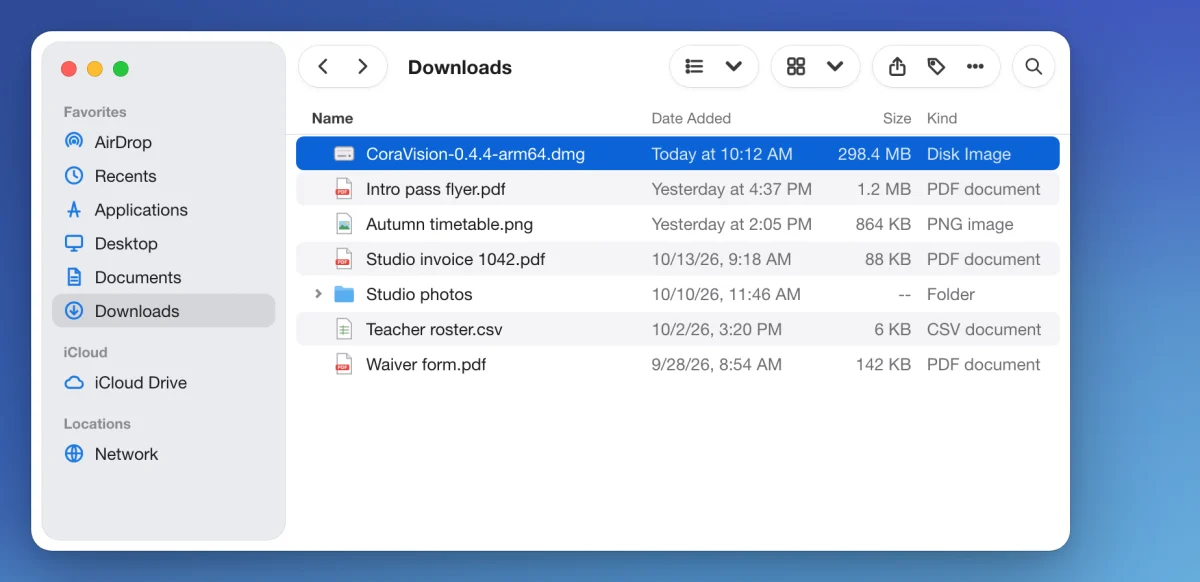
2 The installer is the file that ends in .dmg.
Install the app
-
In the window that opens, drag the CoraVision icon onto the Applications folder beside it.
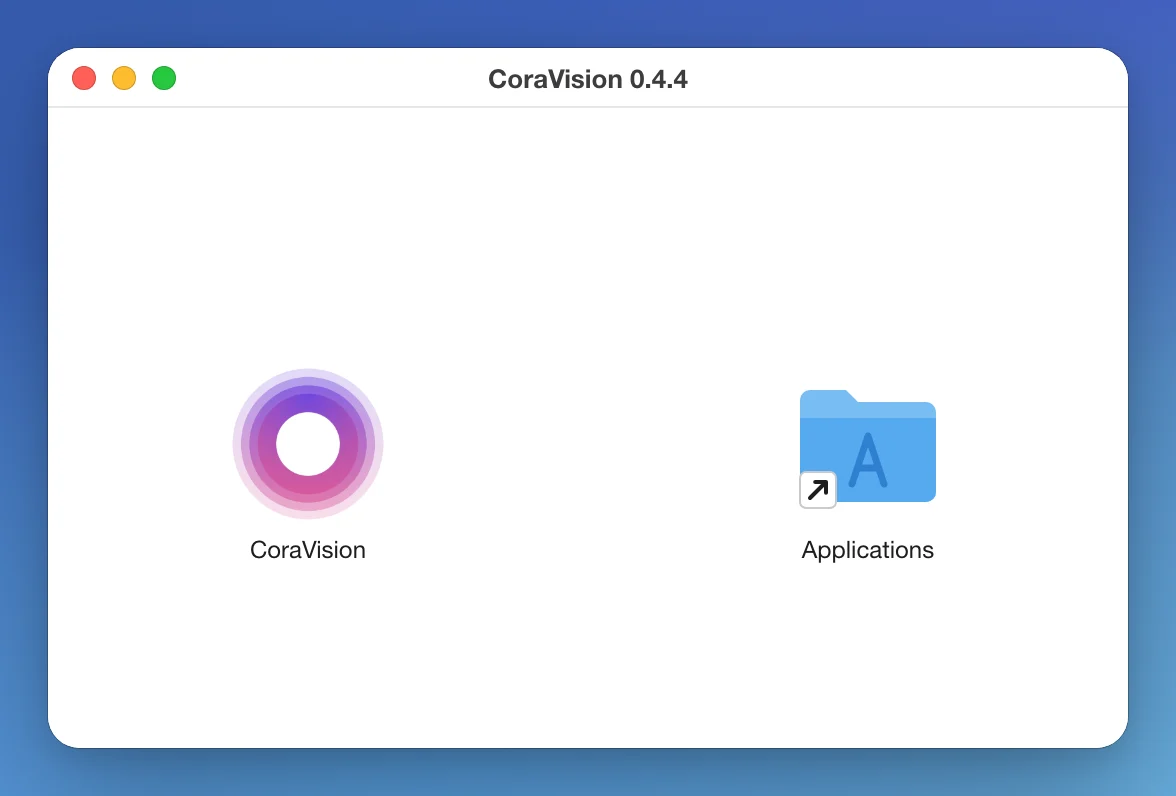
3 Drag CoraVision onto Applications. -
When the copy finishes, close the window. In the Finder sidebar, click the eject button next to the CoraVision disk to put the installer away.
Open CoraVision for the first time
-
Open your Applications folder and double-click CoraVision.
-
macOS asks whether you are sure you want to open an app downloaded from the internet. Click Open.
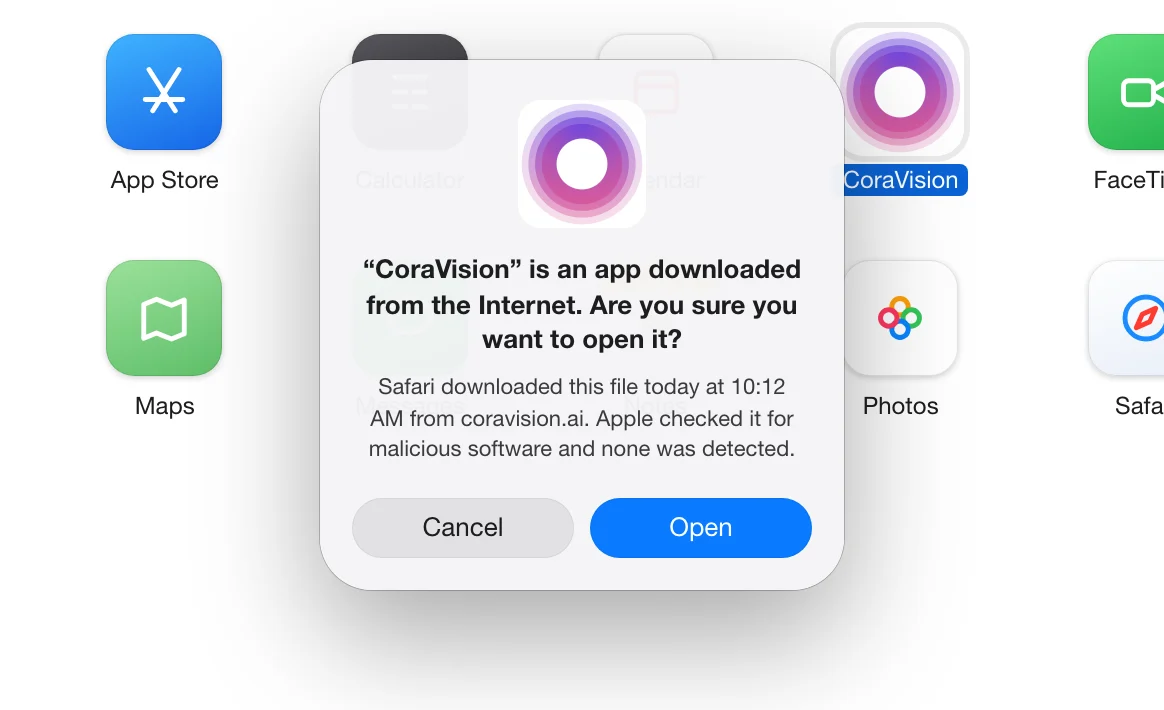
6 Click Open. macOS asks this only the first time. NoteThe Mac app is signed and notarized by Apple, so macOS does not block it and asks this question only once. If macOS says the app cannot be opened, check that your Mac has Apple silicon.
-
CoraVision plays a short intro with sound, then shows its first card. Keep the app open and carry on with the next guide.
What happens next
On a Mac that has never run CoraVision, the first card is Welcome to CoraVision, which asks for three permissions: Screen Recording, Microphone and Accessibility. Follow Allow CoraVision to see your screen on a Mac. After that you reach Have we met before?, where you create your CoraVision account or log in.
Common questions
Does CoraVision run on an Intel Mac?
No. Version 0.4.2 is built for Apple silicon only (M1 or later). On an Intel Mac, macOS refuses to open it.
Do I need to download every new version?
No. CoraVision checks for updates while it is open and downloads them in the background. When one is ready, a New version pill appears in the dashboard sidebar under Settings. Click it and CoraVision restarts on the new version. You can also check at any time in Settings, under Check for updates.
How do I see which version I have?
The version number sits at the bottom of the dashboard sidebar, and at the bottom of the log in screen.
How do I remove CoraVision?
Quit CoraVision, then drag it from your Applications folder to the Bin. This removes the app from your Mac. Your account and everything saved to it stay as they are.