
Allow CoraVision to see your screen on Windows
On Windows there is nothing to allow: Windows has no screen recording permission for desktop apps, so Cora can see your main display as soon as you start a session with Cora. The only permission CoraVision asks for on Windows is the microphone.
- CoraVision is installed. See Download and install CoraVision on Windows.
What you see the first time
-
Open CoraVision. If the Welcome to CoraVision card appears, it lists one row only, Microphone. There is no Screen Recording row on Windows.
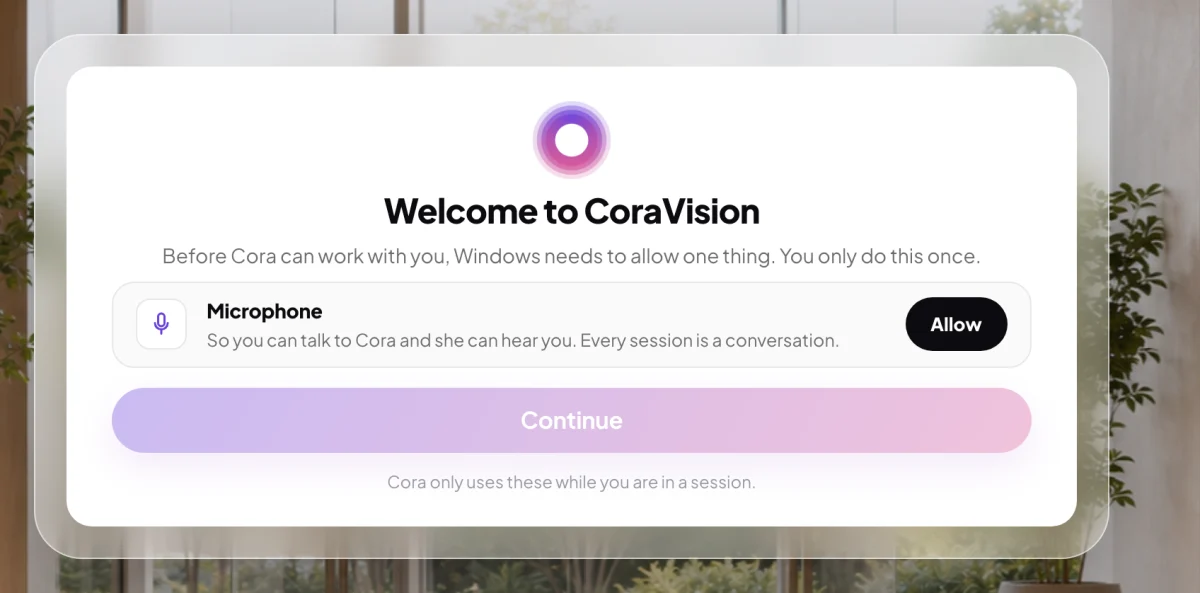
1 On Windows the card asks for the microphone only. -
Click Allow next to Microphone, then Continue. If Windows already allows apps to use your microphone, CoraVision skips the card and opens on Have we met before?.
If you use more than one display
-
Cora sees your main display. To check which one that is, open Start, then Settings, System, Display.
-
Click the display you work on, open Multiple displays and tick Make this my main display.
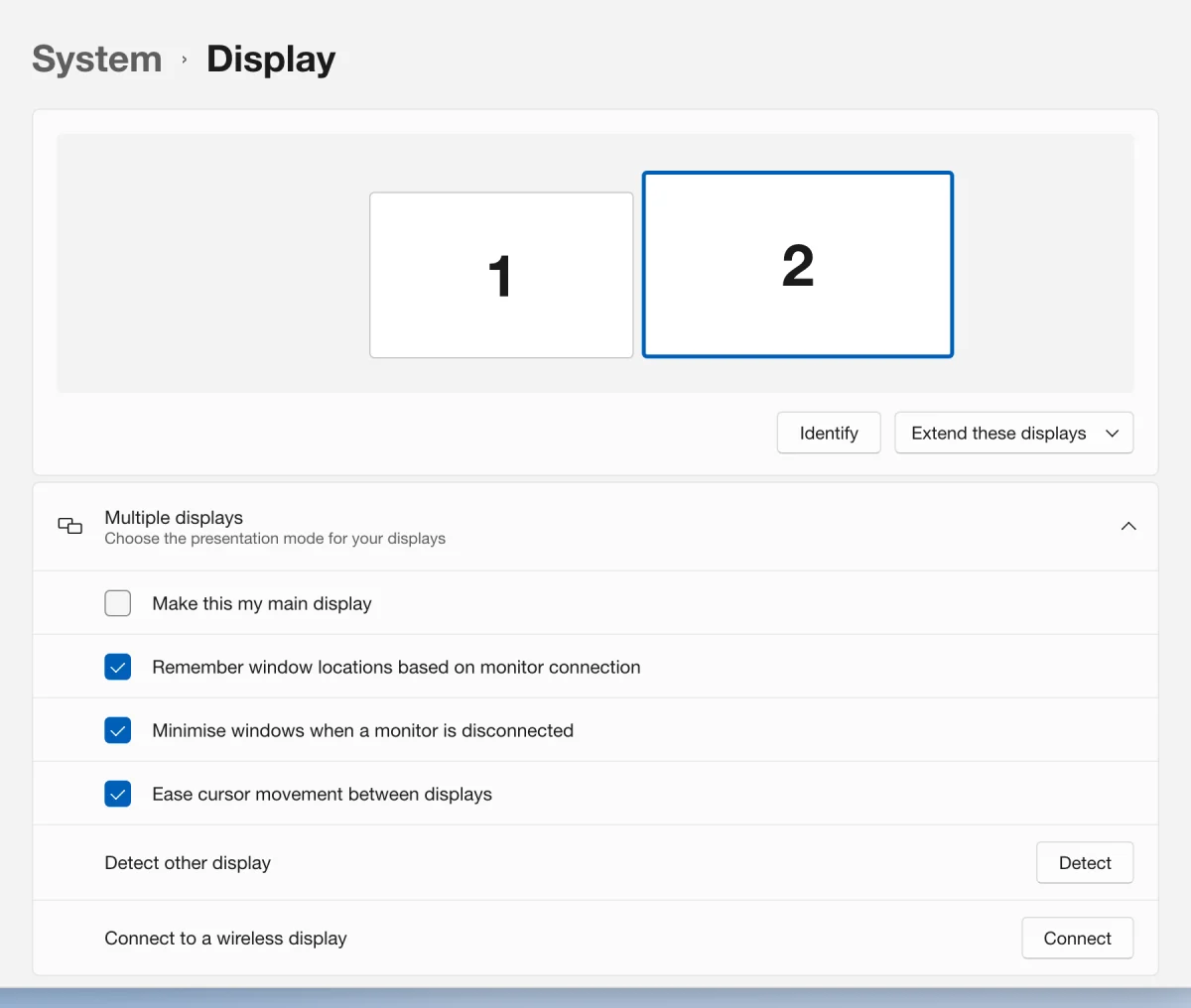
4 The main display is the one Cora sees. -
Keep the window you want help with on that display when you start a session.
What happens next
Cora looks at your screen only during a session you start. Cora takes still images of your main display so Cora's guidance matches what is in front of you, and they are not saved to your account. End the session and Cora stops. See What Cora sees, and when.
Common questions
Why is there no screen permission on Windows?
Windows does not ask before a desktop app captures the screen. macOS does, which is why the Mac card has a Screen Recording row and the Windows card does not.
Cora says Cora can't see my screen
Check that the window is on your main display, then follow Cora can't see my screen.
How do I stop Cora seeing my screen?
End the session. Outside a session nothing on your screen is captured.