
Allow the microphone and camera
Cora needs your microphone for every session, because every session is a conversation. You allow it once on the card CoraVision shows the first time it opens; the camera is optional, and your computer asks for it only the first time you switch your camera on in a call.
Allow the microphone
-
On Welcome to CoraVision, next to Microphone, click Allow.
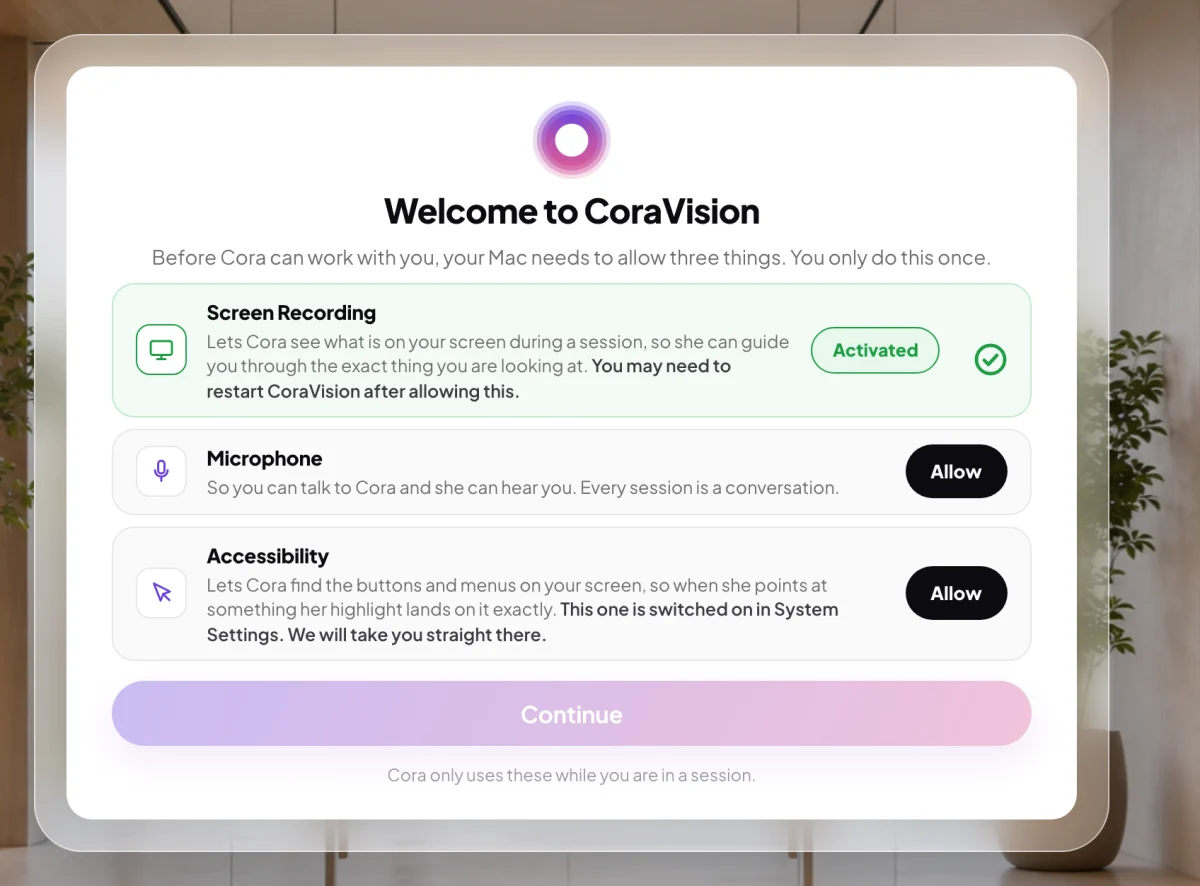
1 Microphone is the second row on a Mac. -
macOS asks whether CoraVision may use the microphone. Allow it. The row changes to Activated.
-
If System Settings opens instead, you said no to the microphone before. Under Privacy & Security, Microphone, switch CoraVision on, then come back to CoraVision.
-
On Welcome to CoraVision, next to Microphone, click Allow. The row changes to Activated. If Windows already allows apps to use your microphone, CoraVision skips this card.
-
If Windows Settings opens instead, microphone access is switched off there. Turn on Microphone access and Let desktop apps access your microphone, then come back to CoraVision.
-
On One thing we recommend, click Open Sound settings, click your microphone under Input and turn on Noise suppression (some computers call it Noise cancellation or Voice Clarity). Then come back and click Done. This step is optional; Skip for now moves on.
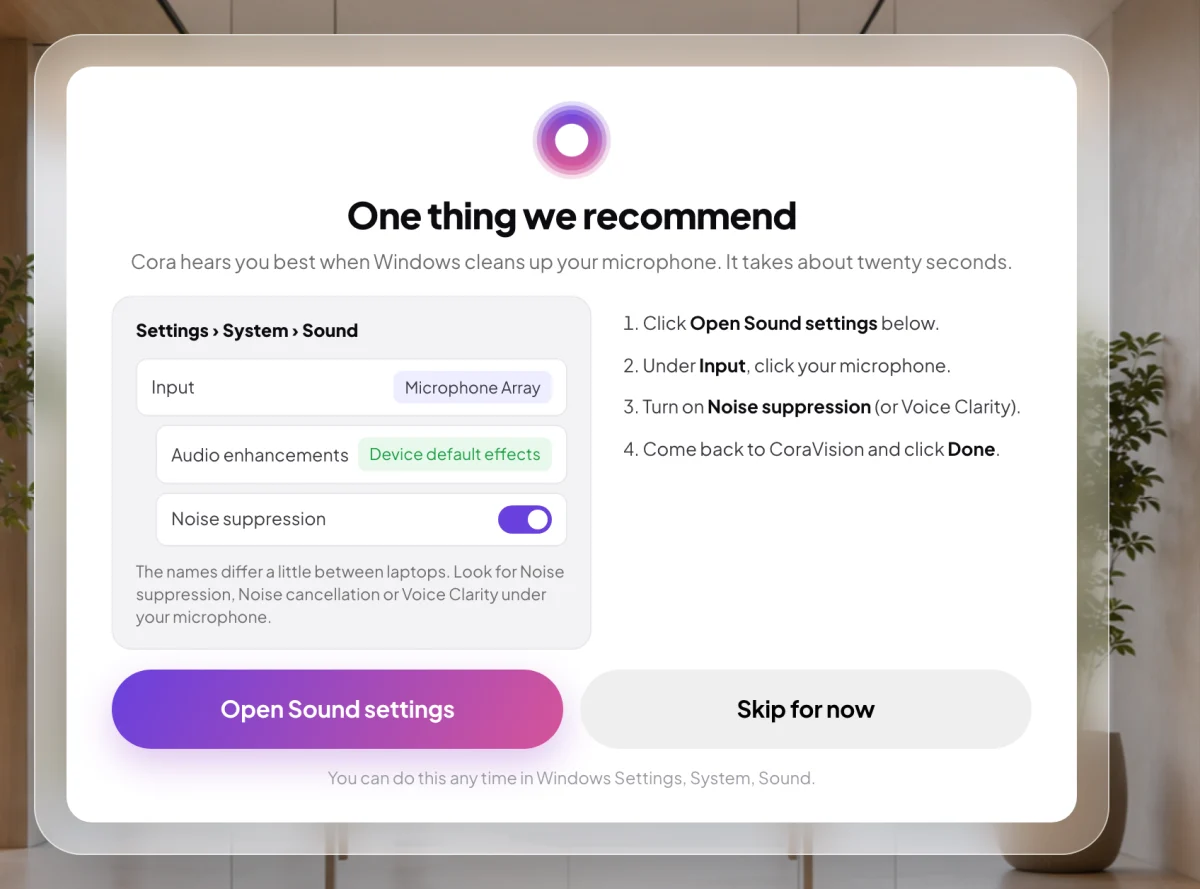
3 Recommended, not required. CoraVision shows it once.
Allow the camera, when you want it
-
When you join a call, on Ready to join?, click the camera button under your preview. Your camera starts off.
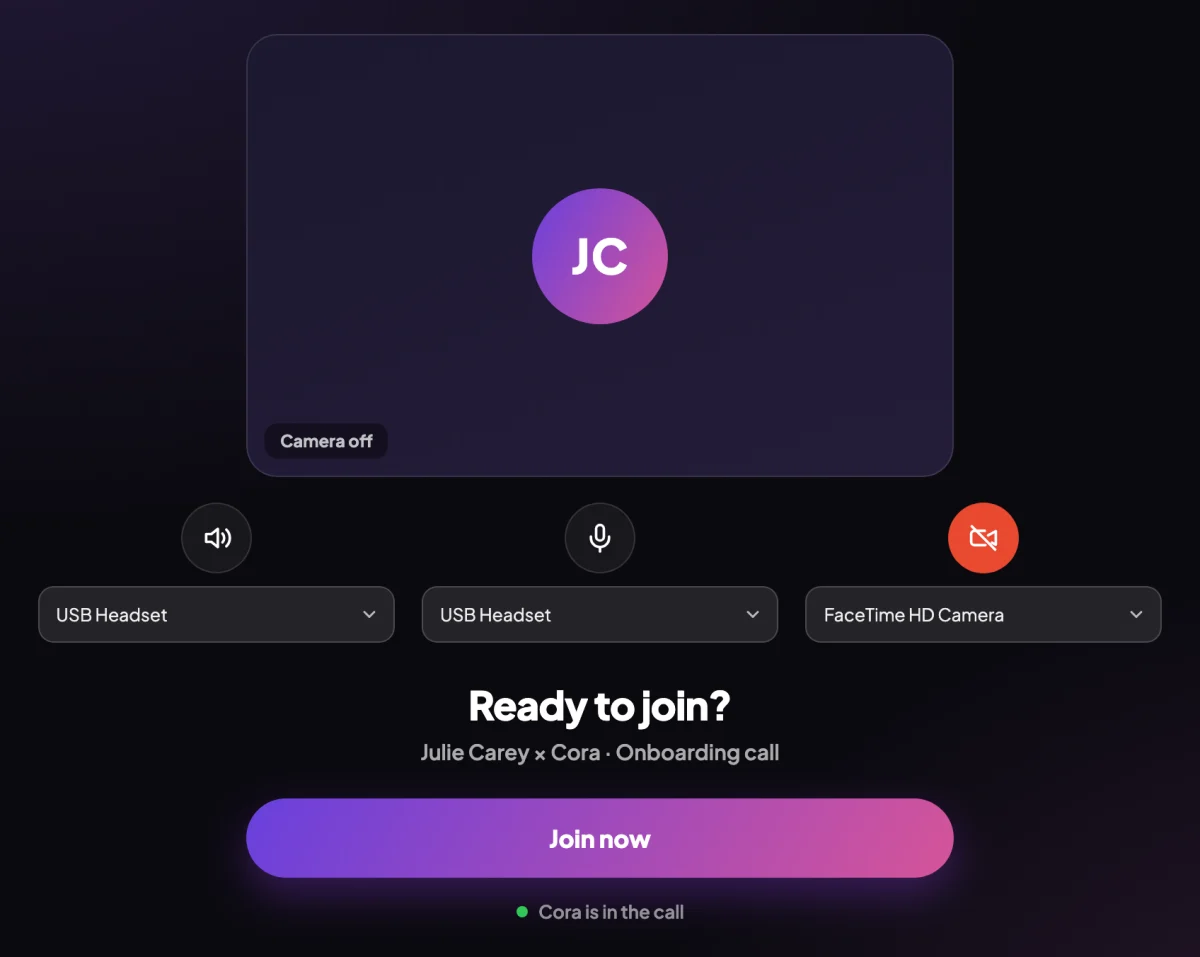
4 The camera button is the third of the three. -
The first time, your computer asks whether CoraVision may use the camera. Allow it. Your preview appears. No restart is needed.
-
To use a different camera, open the list next to the camera button and choose one.
What happens next
After the card you reach Have we met before?. Once your account is made or you log in, CoraVision runs the audio checks to make sure Cora can hear you through the microphone you allowed.
Common questions
Do I have to turn my camera on?
No. The camera is off when you join, and calls work without it. Your avatar shows in its place.
I said no by mistake. How do I fix it?
On a Mac, open the Apple menu, then System Settings, Privacy & Security, and switch CoraVision on under Microphone or Camera. On Windows, open Start, then Settings, Privacy & security, Microphone or Camera, and turn on access for desktop apps. If CoraVision says Camera blocked, this is the fix.
How do I choose which microphone or camera Cora uses?
In Settings, open Audio & Camera, choose your speaker, microphone and camera, and click Save. You can also change them on Ready to join? before a call.
It says the camera is in use by another app
Another app, often a video meeting app, has the camera. Close it, then switch your camera on again.