
Cora can't hear me: fix your microphone
If Cora does not answer when you speak, the microphone check says Cora couldn't hear you, or a call says your microphone could not be opened, one of the steps below almost always fixes it. Most people are talking to Cora again within two minutes, and nothing in your account changes.
- Know which microphone you want Cora to use: your computer's own, a headset, or earbuds with a microphone.
- If it is a headset or earbuds, plug them in or connect them to this computer first.
Try this first
-
If you are in a call, look at the control bar at the bottom of the call window. If the first button shows a red microphone with a line through it (its label, Unmute, appears when you point at it), your microphone is off. Click it.

1 The crossed-out microphone means you are muted. Click it to unmute. -
If the call shows Meeting paused, click Resume meeting. While a call is paused, your microphone and Cora's audio are both off.
-
Check the microphone itself. Many headsets have their own mute switch on the cable or the earcup, and earbuds can be connected to your phone instead of your computer.
If that did not work: choose the right microphone
-
In the sidebar of your dashboard, click Settings, then click Audio & Camera.
-
Under Microphone, open the list, choose the microphone you want, and click Save. You see Settings saved.
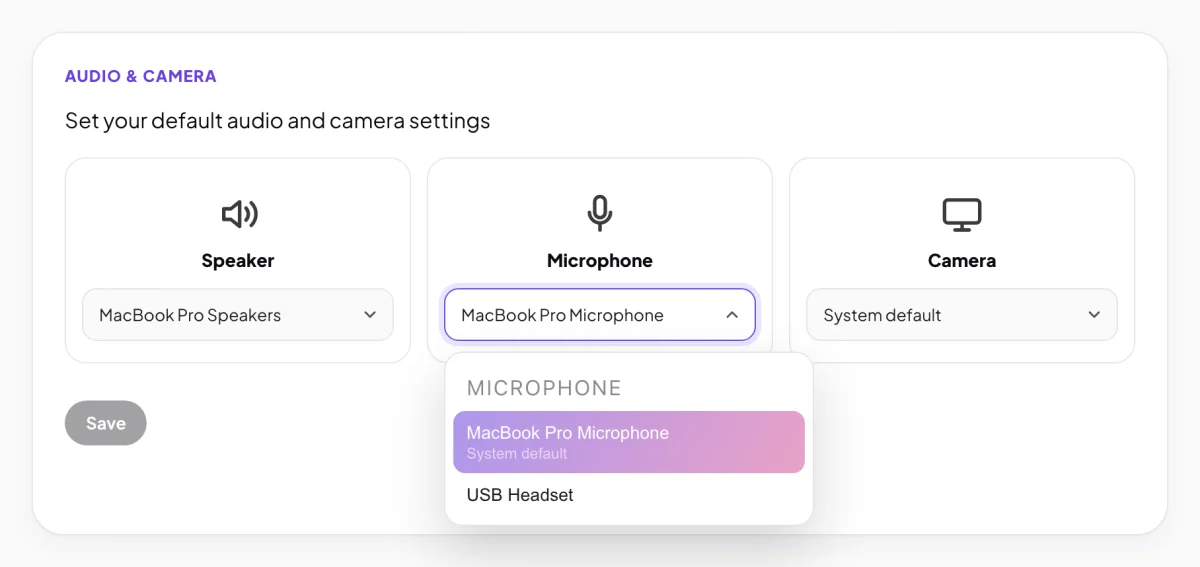
1 The microphone Cora listens to. 2 Save keeps your choice. TipYou can also choose a microphone on the Ready to join? screen before a call, or in pill mode from Menu, then Speaker & Microphone. In pill mode the change applies straight away.
Still not working: allow microphone access
-
Open the Apple menu, click System Settings, then click Privacy & Security, then Microphone.
-
Find CoraVision in the list and switch it on.
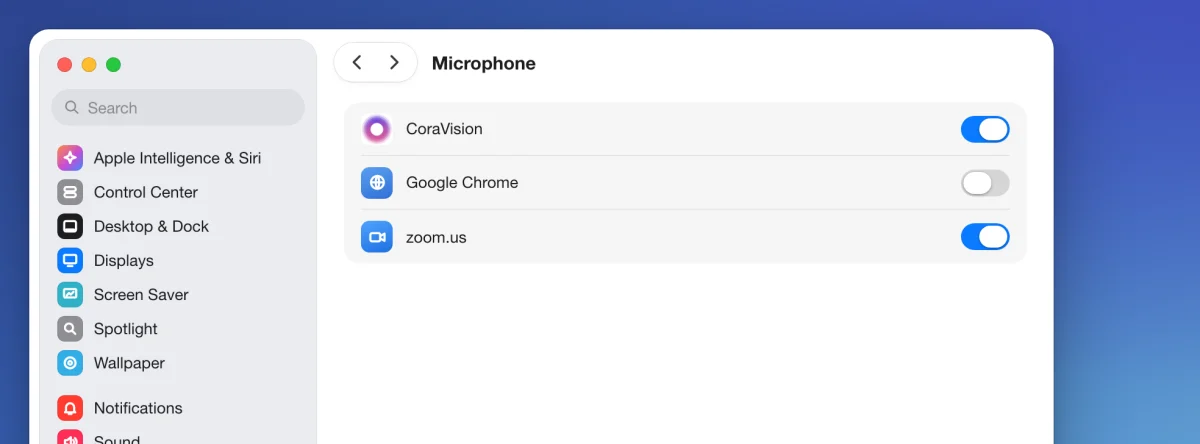
7 The switch must be on for Cora to hear you. -
Open Sound in System Settings and click Input. Choose your microphone and speak: the input level should move.
-
Click Start, then Settings, then Privacy & security, then Microphone.
-
Turn on Microphone access, and turn on Let desktop apps access your microphone. CoraVision is a desktop app, so the second switch is the one that matters.
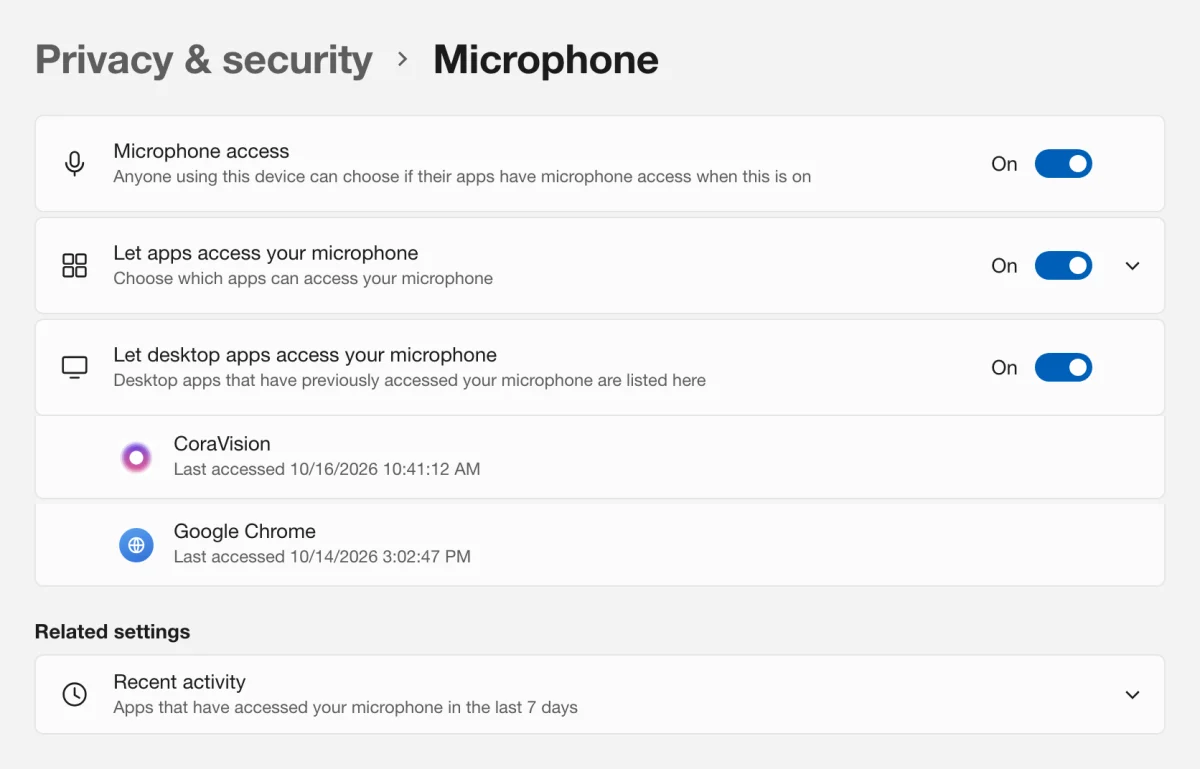
7 Desktop apps need this switch on to use your microphone. -
Click System, then Sound. Under Input, choose your microphone and check its Input volume is not at zero.
Still not working
-
Quit CoraVision completely and open it again (on a Mac, press Command and Q; on Windows, close the CoraVision window). If a microphone permission is missing, CoraVision opens on its Welcome to CoraVision card. Click Allow on the Microphone row, then Continue.
-
If Cora still cannot hear you, send us a message from the contact page. Tell us your computer (Mac or Windows), your microphone, and the version shown at the bottom of your dashboard's sidebar.
What happens next
Once Cora can hear you, Cora answers as soon as you finish speaking. In a call, your name tile shows the same mute state as the Mute button, so you can check at a glance that you are live. Your microphone choice is saved on this computer only, so a second computer starts on its own default.
Common questions
Background noise keeps interrupting Cora. What can I do?
In a call, use the slider at the bottom left of the control bar. Slide it towards Noisy Room and a sound has to be louder before it cuts Cora off. A headset with a microphone helps most.
Does the microphone check record me?
No. The microphone check you do when you sign in listens on your computer only, to see that your voice arrives. Nothing from it is sent anywhere.
I unplugged my headset. Which microphone does Cora use now?
If the microphone you chose is not connected, Cora listens through your computer's default microphone. Plug the headset back in and Cora uses it again from your next call or chat.