
Join a call
You join every call with Cora from your dashboard: the call window opens over your whole screen, you check your sound in the lobby, and you click Join now. It takes under a minute, and Cora does not start talking until you press Join now.
- CoraVision is open and you are signed in.
- You have allowed the microphone and camera.
- You have headphones on, if you can. See Cora works best in a quiet place.
Open the call window
-
On your dashboard, click the call's button: Join now for your onboarding call, or Start call when your session two call is ready.
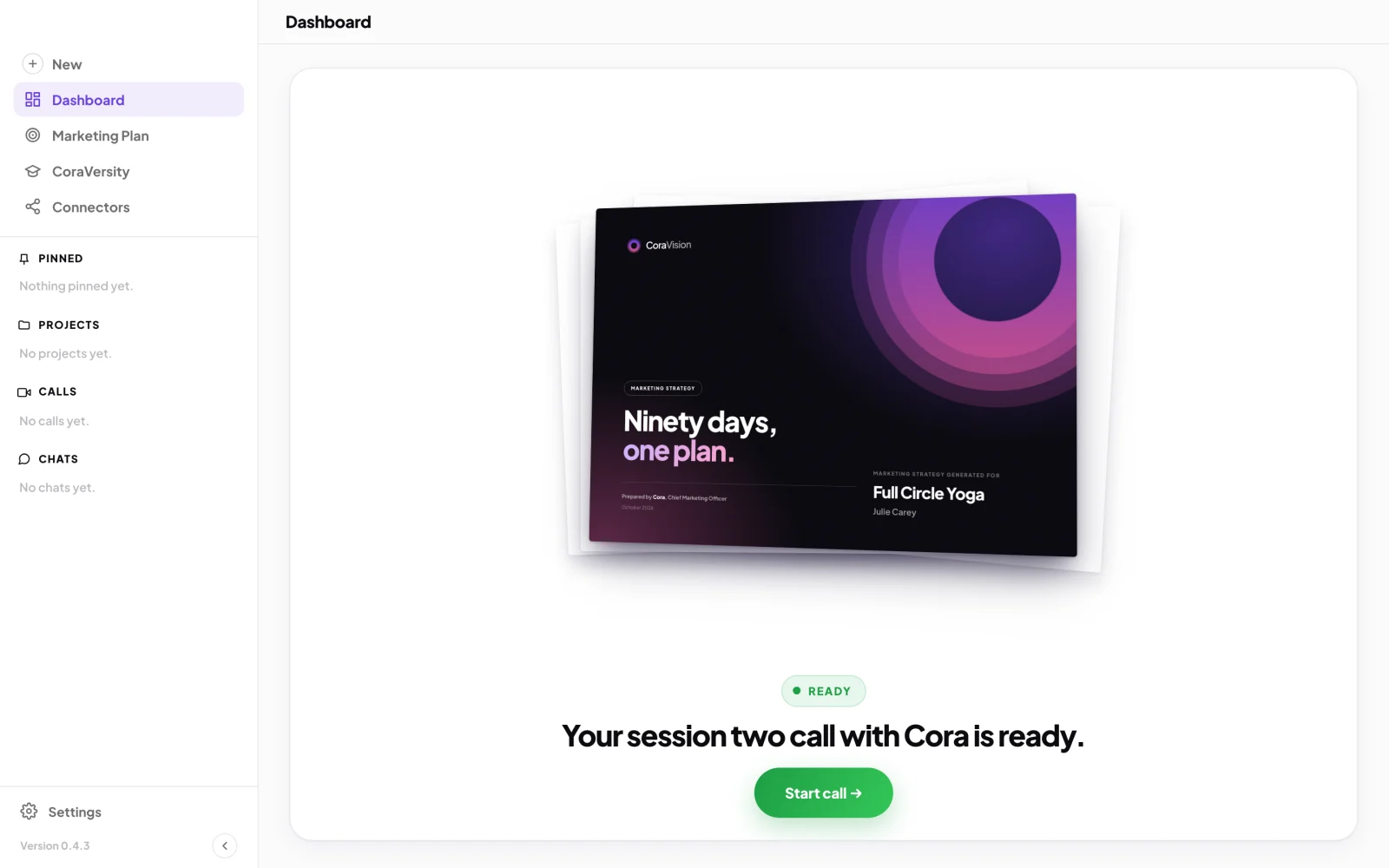
1 The button sits under the call's title on your dashboard. -
The call window opens on Cora works best in a quiet place. Click Continue. Your onboarding call shows one more screen about your Google and Meta ad accounts; click Continue there too.
Get ready in the lobby
-
Wait while the button shows that the call is loading. When the call is ready, the button changes to Join now.
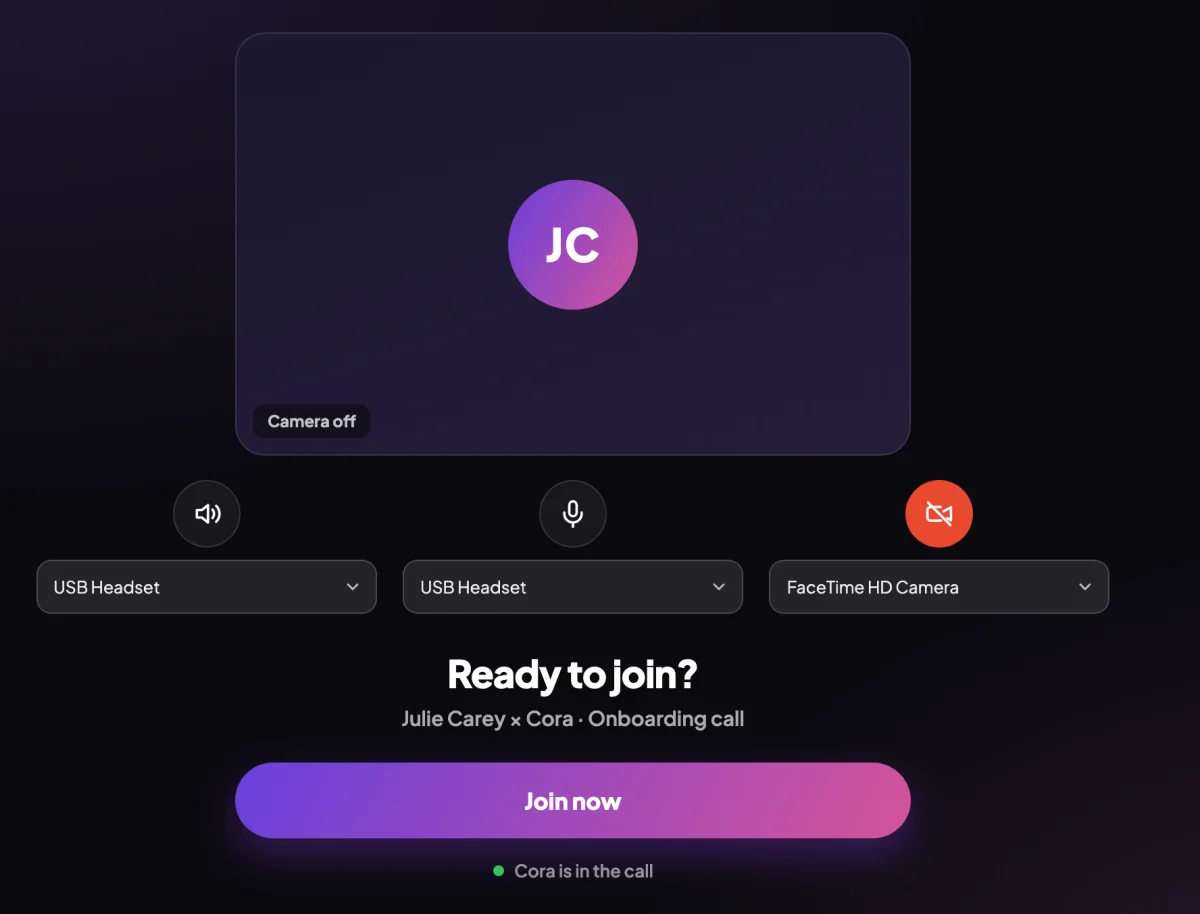
4 Your speaker, microphone and camera. 5 Join now. -
Under the preview, check your speaker and microphone in their dropdowns. To see yourself, click the camera icon.
-
Click Join now. If your camera is off, CoraVision asks once: click Turn camera on, or Continue without camera on. With the camera on, check your picture and click Join now again.
Use the call
-
Use the buttons along the bottom of the window (each is an icon; its name appears when you point at it): Mute, Start video, Pause meeting in the middle, Transcript, and End call on the right.

6 Pause meeting is the large button in the middle. -
To leave, click End call, then Yes, end call. Click No, stay if you pressed it by mistake.
NotePressing the Esc key on your keyboard ends the call straight away, without asking first.
What happens next
When the call ends, the call window closes and you are back on your dashboard. The call and its transcript are listed under Calls in the sidebar. If the call stopped before the end, see Rejoin a call that dropped.
Common questions
Why can't I start session two yet?
Session two opens 24 hours after your onboarding call, once Cora has prepared your strategy. If you press the button early, a line under it tells you when it opens or what is still needed.
Can I start a call with Cora at any time?
Yes. In the sidebar, click New, then Create new call, and choose Have it now or Book it for later.
Can I leave the lobby without joining?
Yes. Click Back to dashboard at the top left. You go back to your dashboard, and the call's button is still there when you are ready.