
Cora can't see my screen
If Cora says Cora cannot see what you are looking at, describes a different screen, or points at the wrong place, Cora is either looking at another display or your computer has not given CoraVision permission to see the screen. The steps below take a few minutes, and on a Mac the usual fix is one switch in System Settings and a restart of the app.
- Cora only looks at your screen during a session you start, such as pill mode. If no session is running, Cora cannot see anything, by design.
- On a Mac, you may need your Mac's administrator password to change a privacy setting.
Try this first: check which screen Cora is looking at
-
If you have more than one display, move the window you want help with onto your main display. Cora looks at your main display only.
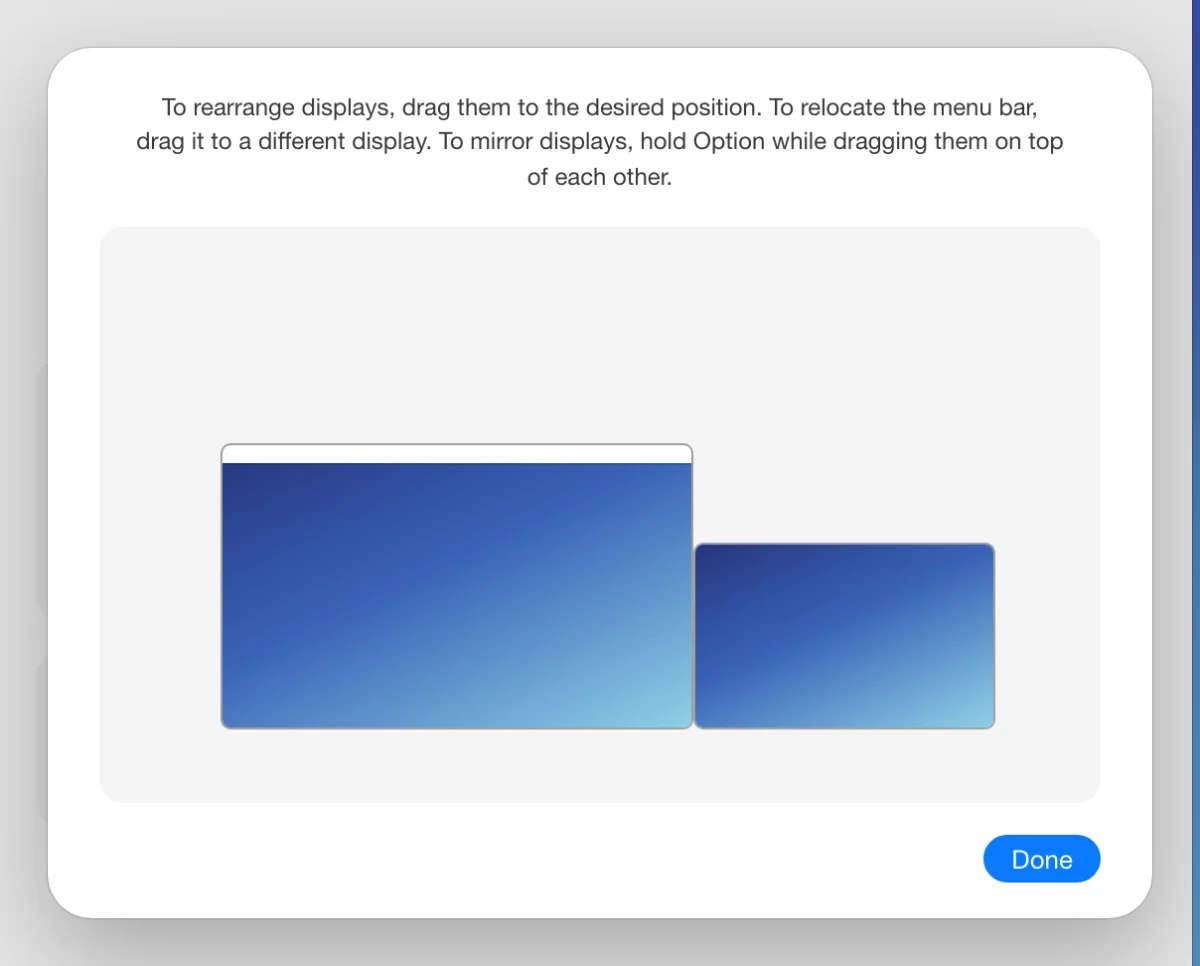
1 On a Mac, the main display is the one with the menu bar. TipTo see which display is your main one: on a Mac, open System Settings, then Displays. On Windows, open Settings, then System, then Display, and look for Make this my main display.
If that did not work: quit and open CoraVision again
-
Quit CoraVision completely. On a Mac, press Command and Q. On Windows, close the CoraVision window.
-
Open CoraVision again. If a permission is missing, it opens on the Welcome to CoraVision card. Click Allow on each row that is not yet Activated, then click Continue.
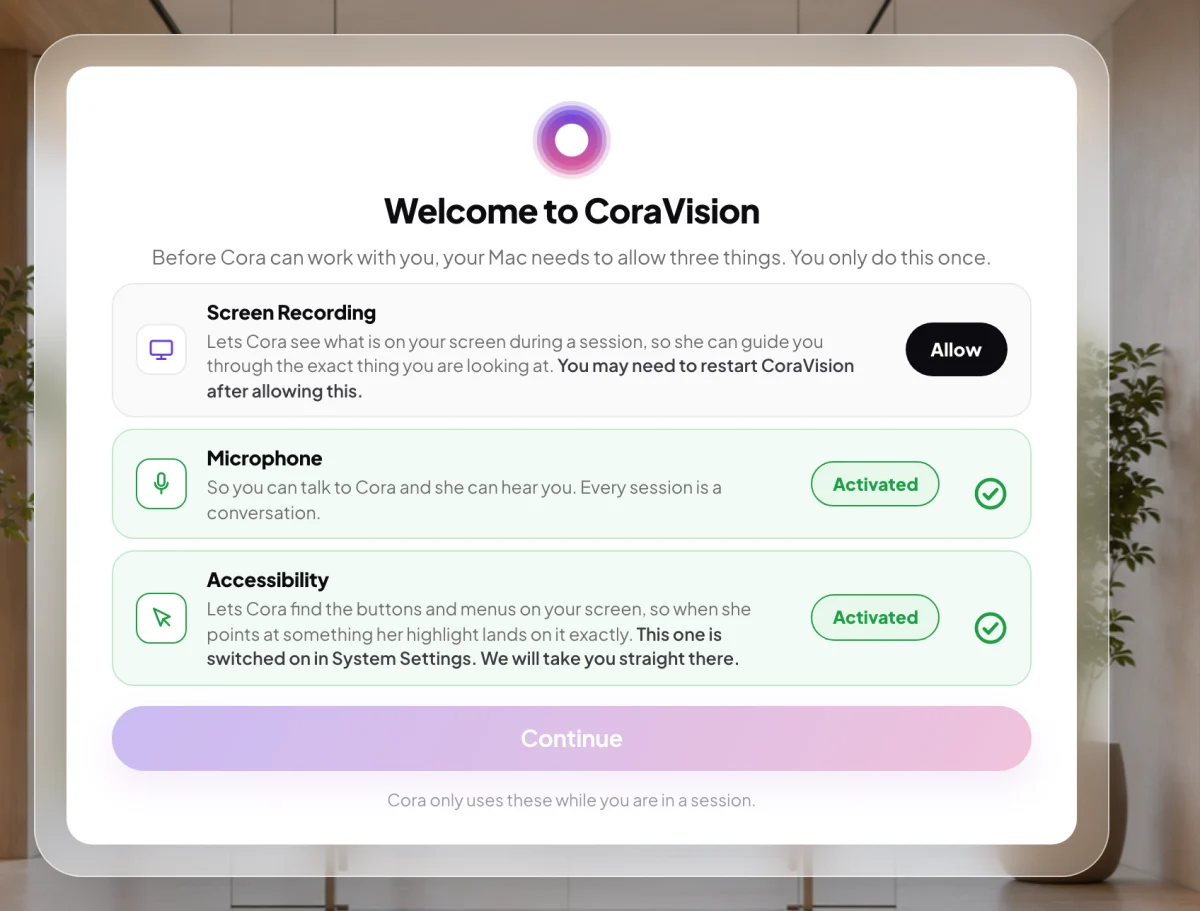
3 A row with Allow still needs your permission. NoteOn a Mac, allowing Screen Recording makes CoraVision restart once. That is normal. CoraVision asks you to restart after a permission walks you through it.
Still not working on a Mac: switch on Screen Recording
On WindowsWindows has no screen recording permission, so there is nothing to switch on. Go to step 7.
-
Open the Apple menu, click System Settings, then click Privacy & Security, then Screen & System Audio Recording. On macOS 14 and earlier it is called Screen Recording.
-
Find CoraVision in the list and switch it on.
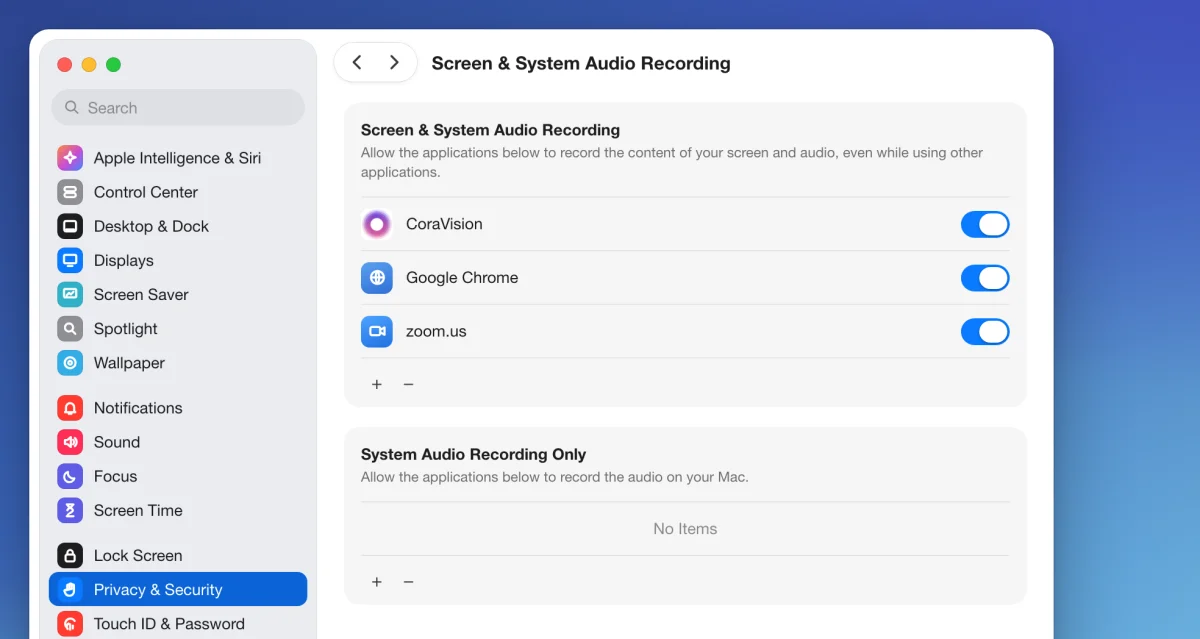
5 CoraVision needs this switch on to see your screen. -
macOS tells you CoraVision must quit before the change applies. Click Quit & Reopen. If macOS does not ask, quit CoraVision and open it again yourself.
NoteOn macOS 15 and later, macOS may ask again whether CoraVision can keep seeing your screen: the first time it looks after you allow it, after a macOS update, and every so often. Click Allow. CoraVision cannot switch this question off.
Still not working
-
Send us a message from the contact page. Tell us your computer (Mac or Windows), how many displays you use, what Cora said, and the version shown at the bottom of your dashboard's sidebar.
What happens next
The next time you start a session, Cora sees your main display again, and when Cora points at something Cora's highlight lands on it. On a Mac, the screen recording indicator in the menu bar shows while a session is running.
Common questions
Does Cora keep a recording of my screen?
No. During a session Cora takes still images of your main display so Cora's guidance matches what is in front of you. They are used to answer you in the moment and are not saved to your CoraVision account.
Why did Windows never ask me for permission?
Windows has no screen recording permission for desktop apps. CoraVision still only looks during a session you start, and stops when you end it.
Can Cora see both of my displays?
Not yet. Cora sees your main display only, so keep the window you are working in there while Cora helps you.