
Start a chat in pill mode
To start a chat, click New on your dashboard, then Start chat, and Cora folds down into the pill so you can talk to Cora over whatever you are working on. It takes about a minute, and the conversation is saved under Chats when you finish.
- You have allowed CoraVision to see your screen and use your microphone. On a Mac, see Allow CoraVision to see your screen on a Mac.
- The tool you want help with, such as your Google Ads account, is open or ready to open.
Start the chat
-
In the sidebar, click New, then Create new chat.
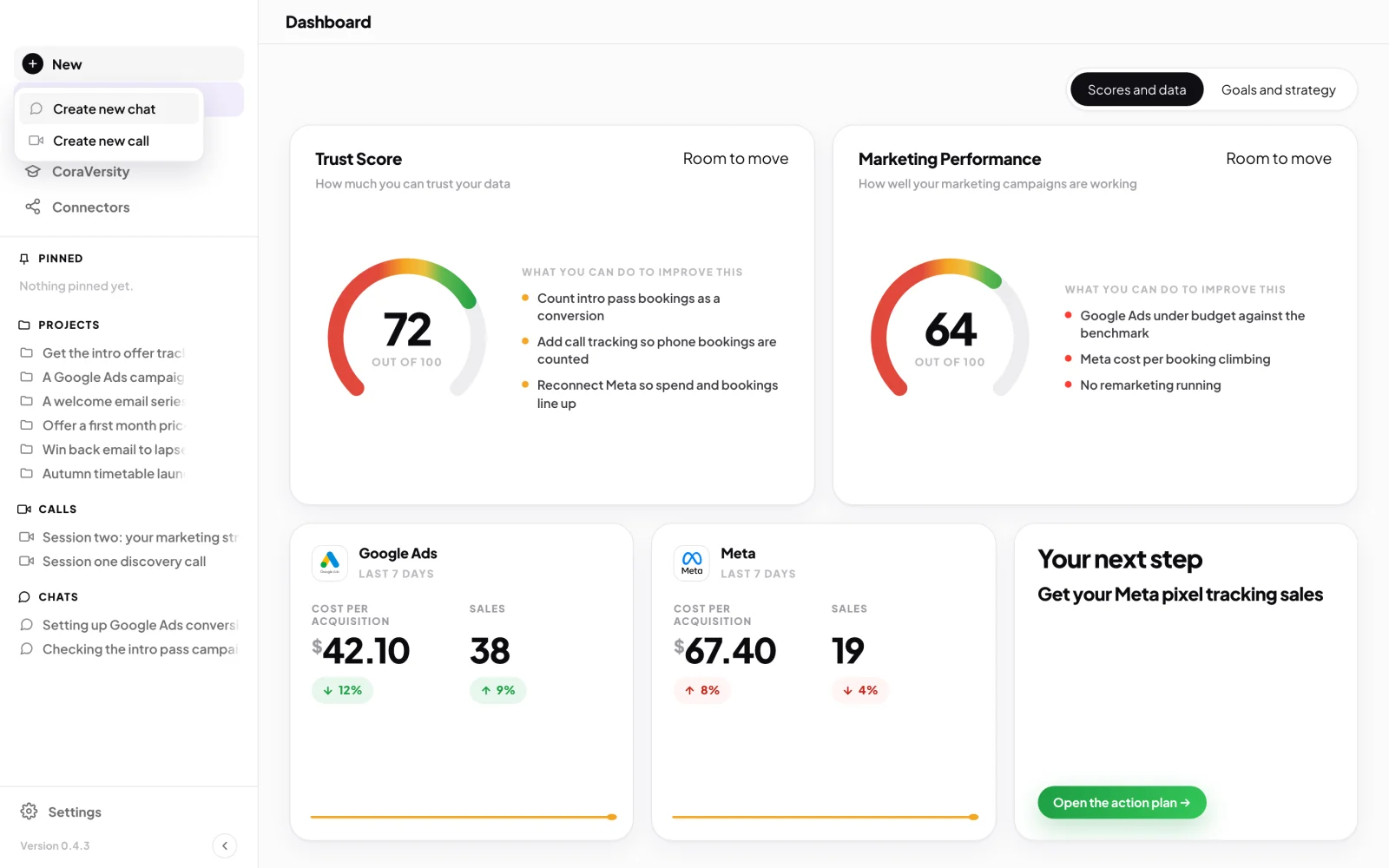
1 You can also click the plus beside Chats. -
On What are we working on?, leave Cora selected, or click Cora's name to choose another expert from the list.
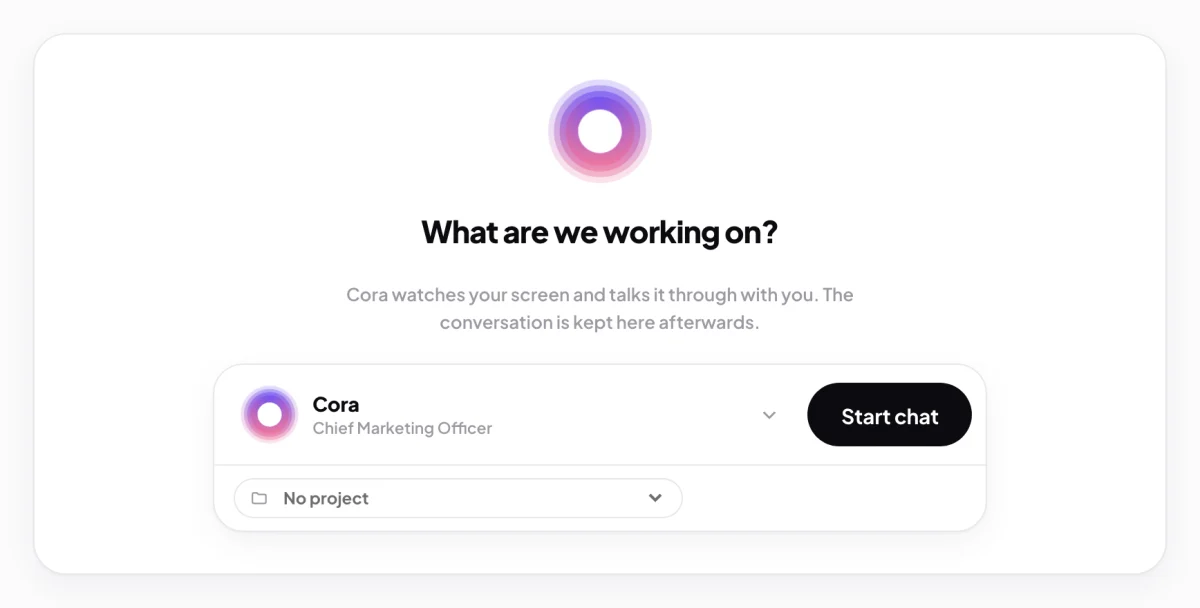
2 Who you talk to. 3 The project. 4 Start chat. -
If the chat belongs to a project, choose it from the No project dropdown. Otherwise leave it as it is.
-
Click Start chat. The dashboard folds away and the pill appears over your screen.
Talk to Cora
-
If the pill is purple and reads Click to activate, click the round button on its left.
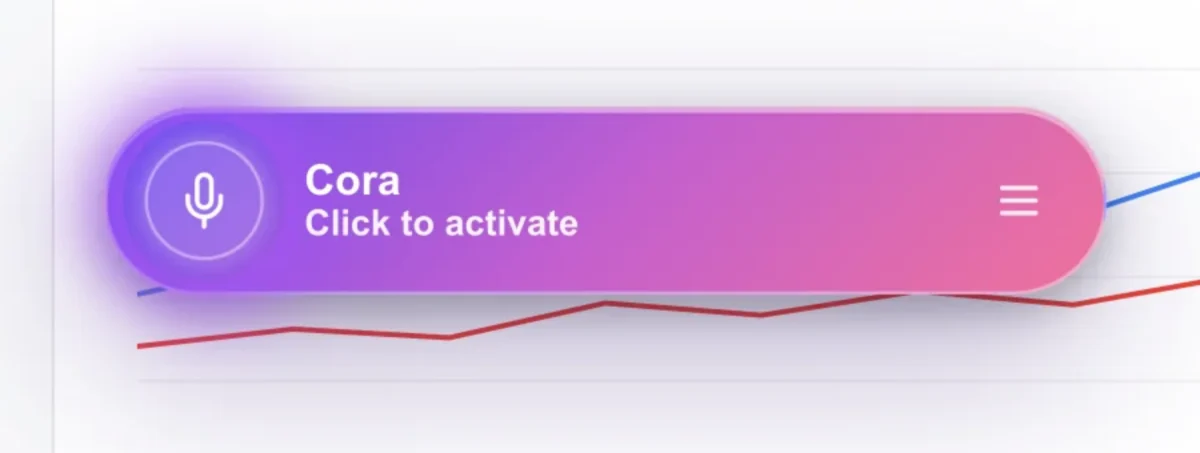
5 The pill turns green when Cora is on. -
When the pill is green and reads Listening..., open the tool you want help with and tell Cora what you are trying to do.
-
To take a break, click Pause Cora. The pill reads Paused. Click the same button, now Resume Cora, to carry on.
Finish the chat
-
When you are done, click End conversation. The pill goes back to purple.
-
To go back to your dashboard, click the menu button on the right of the pill, then Close Pill Mode.
What happens next
You are back on your dashboard. The chat and its transcript stay in the sidebar under Chats, and you can pick it up again later with Continue chat.
Common questions
How do I change my microphone or speaker in the pill?
Click the menu button on the pill, then Speaker & Microphone. The change applies to the chat you are in straight away.
Does Close Pill Mode end the chat?
Yes. Close Pill Mode and Back to Dashboard do the same thing: they end the conversation and take you to the dashboard.
What if Cora cannot see my screen?
Your computer may not have given CoraVision permission to record the screen. Work through Cora can't see my screen.