
Change the speaker and microphone in the pill
You can change which speaker Cora talks through and which microphone Cora hears you on without leaving the pill. It takes a few seconds, works in the middle of a conversation, and CoraVision remembers your choice for next time.
- Your headphones or headset are plugged in or connected.
- CoraVision is allowed to use the microphone. See Allow the microphone and camera.
Open the menu
-
On the right of the pill, click the menu button.
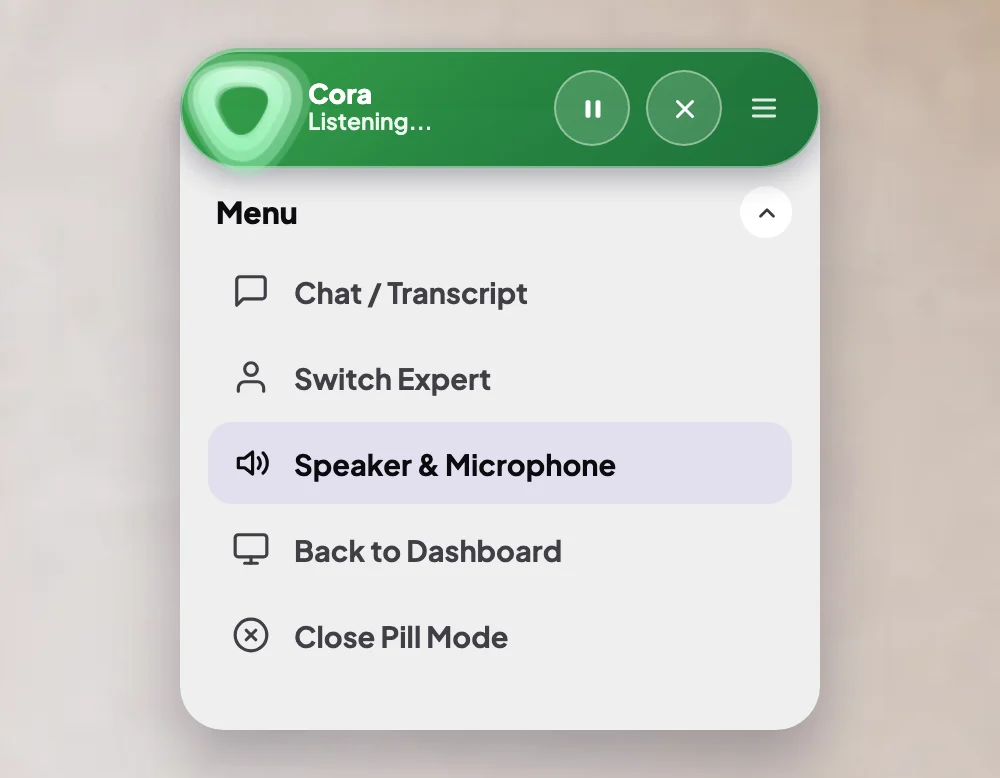
1 Speaker & Microphone is the third item. -
Click Speaker & Microphone.
Choose your devices
-
Under Speaker, open the dropdown and click the speaker or headphones you want Cora to talk through. The panel says Speaker changed.
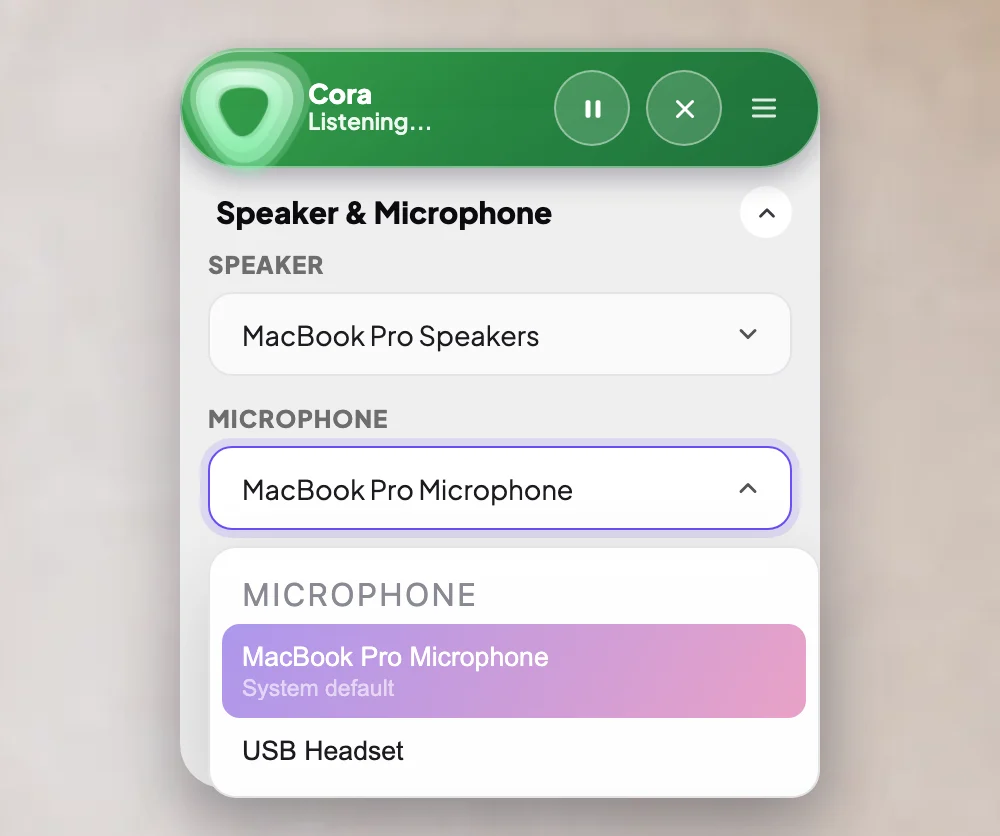
3 Speaker. 4 Microphone. -
Under Microphone, open the dropdown and click the microphone in your headset or headphones. The panel says Microphone changed.
-
Say something to Cora to check you are heard.
What happens next
The change applies to the conversation you are in straight away. If the panel says Saved for your next session., the microphone takes effect the next time you turn Cora on. If it says it could not use that microphone, CoraVision has gone back to the one you had; try another, or check the device is connected.
Common questions
Does this change my default devices?
Yes. The pill and Settings, Audio & Camera share one setting, so what you choose here is used next time too, in chats and calls.
My headset is not in the list. What do I do?
Close the panel and open it again: the list is read fresh each time. If the headset is still missing, check it is connected and switched on, and that your computer can see it.
What does System default mean?
It follows whatever your computer is set to use, so if you change the sound device in your computer's settings, CoraVision follows.
Is there a mute button in the pill?
Not a separate one. Click Pause Cora to turn off your microphone and stop Cora talking. See Pause Cora in the pill.