
Cora works best in a quiet place: setting up for a call
Cora hears you best in a quiet place with headphones on, because Cora's voice coming out of laptop speakers can reach your microphone, and Cora stops or takes those words for yours. Setting up takes a couple of minutes, and you can still choose your speaker and microphone in the lobby before you join.
- You have allowed CoraVision to use your microphone. See Allow the microphone and camera.
- You have earbuds, headphones or a headset with a microphone to hand.
Choose your spot and your headphones
-
Find a quiet spot, away from other people talking, music and the TV.
-
Put on your headphones. Every call opens with the Cora works best in a quiet place screen, which ranks the three setups: laptop speakers are Not ideal, earbuds or headphones are Better, and a headset with a microphone is Best.
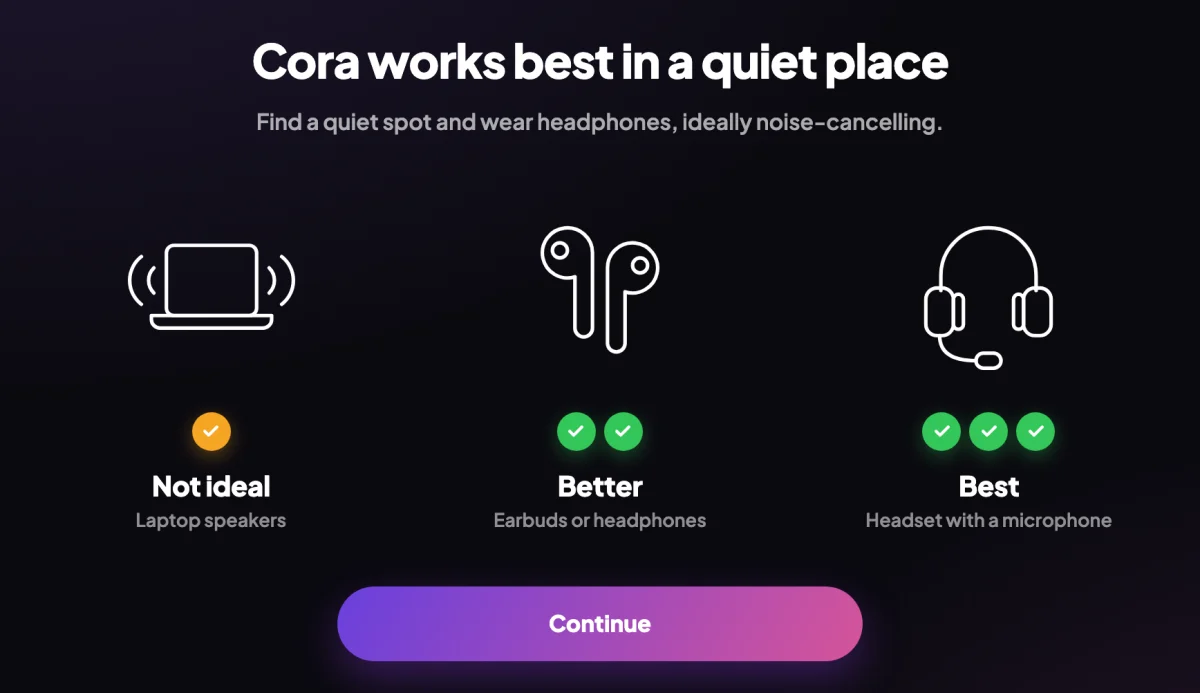
2 Laptop speakers, earbuds or headphones, and a headset. NoteAny headphones stop Cora's voice reaching your microphone. A headset is best because its microphone sits closest to your mouth. Noise cancelling is a bonus: it protects your ears from the room, but it does not stop room noise reaching your microphone.
Check your sound in the call window
-
On the Cora works best in a quiet place screen, click Continue. The lobby opens with Ready to join? above the Join now button.
-
Under your preview, open the dropdown beside the speaker icon and choose your headphones.
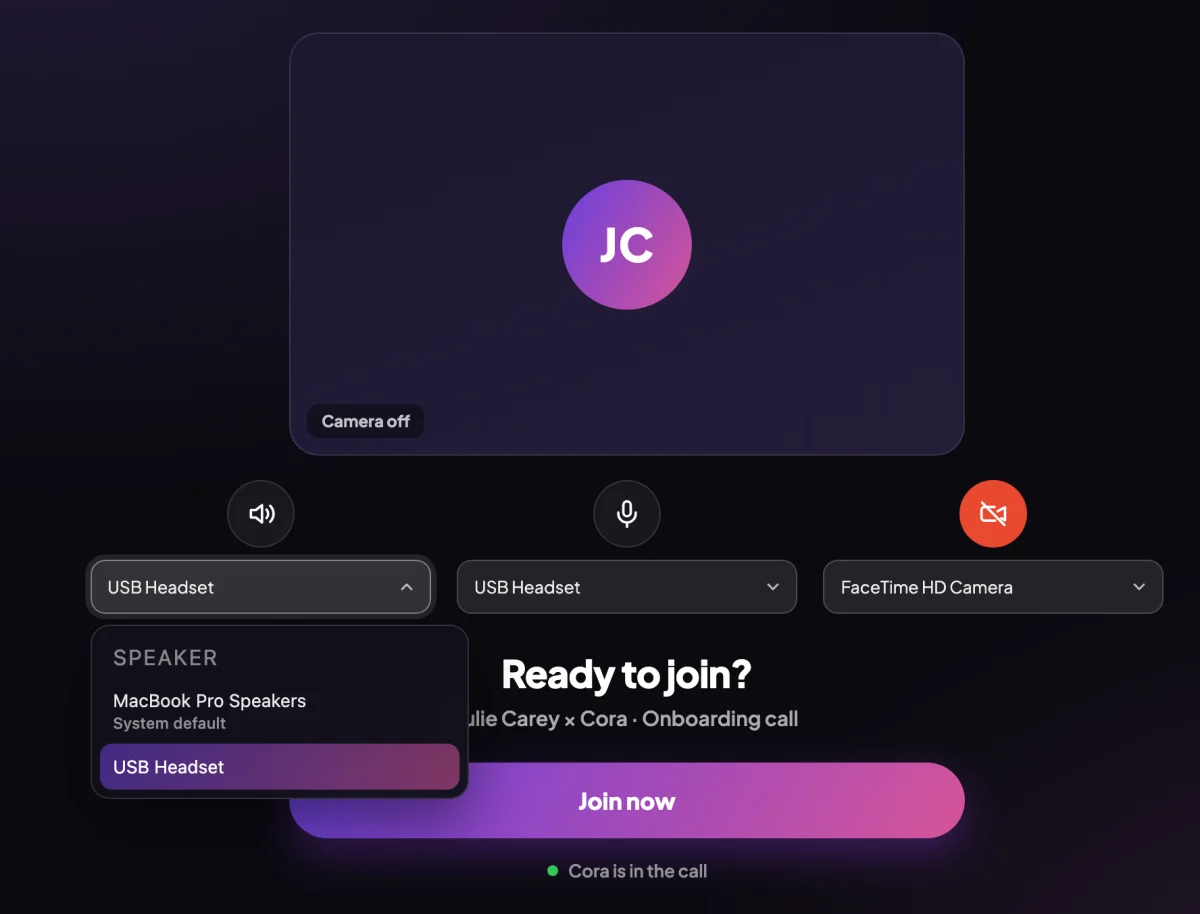
4 Speaker. 5 Microphone. Camera is the third. -
Open the dropdown beside the microphone icon and choose the microphone in your headset or headphones.
-
Click Join now.
If background sound keeps interrupting Cora
-
In the call, at the bottom of the window to the left of the buttons, drag the slider from Quiet Room towards Noisy Room. The further right it sits, the louder a sound has to be before it cuts Cora off. The change works straight away, mid-sentence, and is kept for your next call.

7 Slide towards the room you are actually in. TipMove it only as far as you need. The same setting applies to your voice, so the further right it sits, the louder you have to speak to interrupt Cora.
What happens next
Once you click Join now, the call starts. If Cora still cuts out or cannot hear you, work through Cora can't hear me: fix your microphone.
Common questions
Why are laptop speakers "Not ideal"?
On laptop speakers, Cora's voice leaks into the laptop's own microphone. Cora hears that voice, stops mid-sentence, or treats it as your answer. Any headphones close that gap.
Are Bluetooth headphones OK?
Yes, they are better than laptop speakers. While a Bluetooth headset's microphone is in use, your computer switches it to a call mode with lower sound quality. A wired headset avoids that.
Will I see the quiet place screen every time?
Yes. It opens at the start of every call, including when you rejoin a call. Click Continue to move on, or Back to dashboard to leave without joining.