
I can't hear Cora: fix your speakers
If Cora's orb moves or the words appear in the transcript but you hear nothing, or you answered No when the speaker check asked whether you heard Cora, Cora's voice is going to the wrong place or the sound is off. The steps below take a minute or two, and nothing in your account changes.
Try this first
-
Turn your computer's volume up and check the sound is not muted. Play any other sound, such as a video, to check you can hear it.
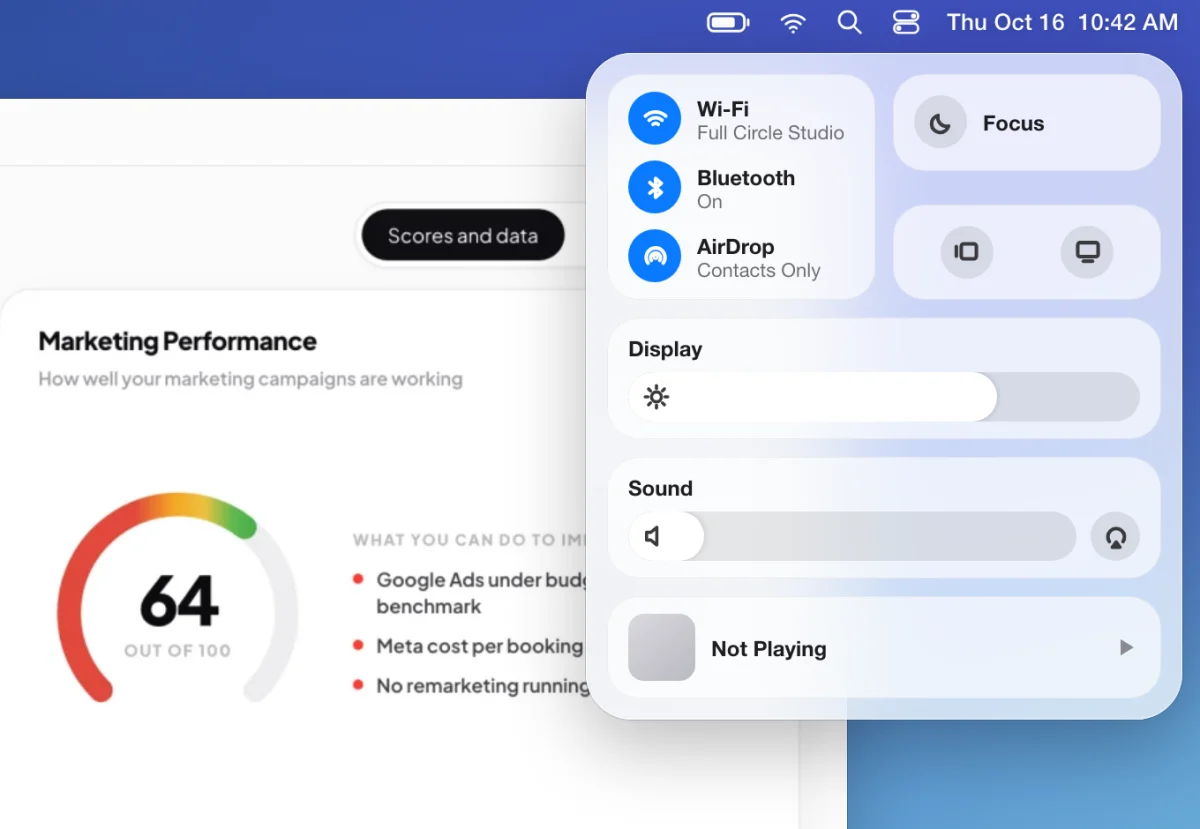
1 On a Mac the volume is in Control Center. On Windows, click the speaker icon in the taskbar. -
If you are in a call and it shows Meeting paused, click Resume meeting. While a call is paused, Cora's audio is off.
-
If you use Bluetooth headphones, check they are connected to this computer and not to your phone.
If that did not work: choose the right speaker
-
In the sidebar of your dashboard, click Settings, then click Audio & Camera.
-
Under Speaker, open the list, choose the speakers or headphones you want, and click Save. You see Settings saved.
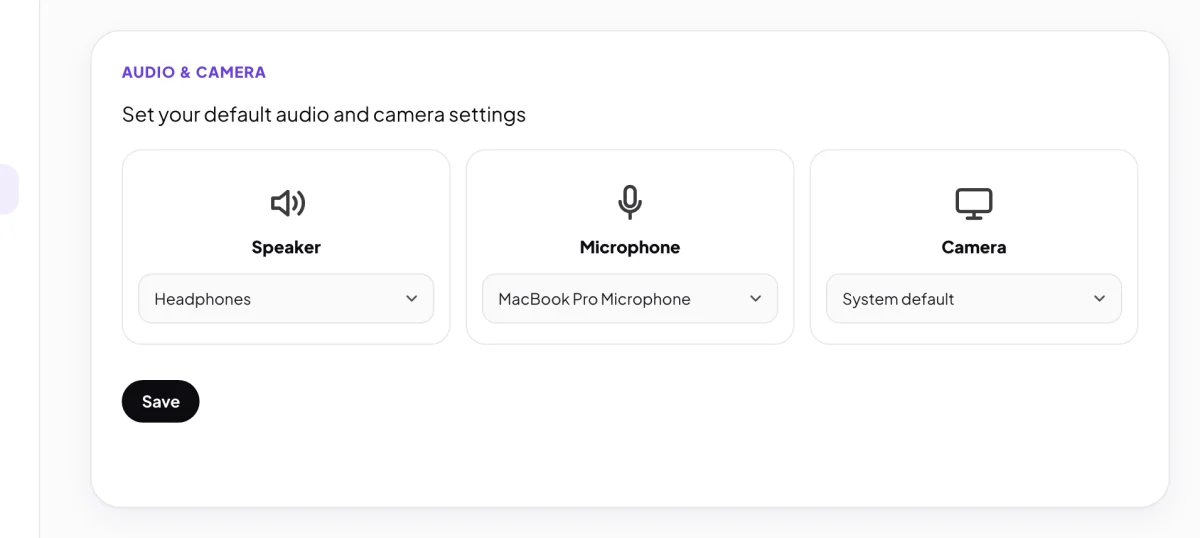
1 Where Cora's voice plays. 2 Save keeps your choice. TipIn pill mode, click Menu, then Speaker & Microphone, and choose a speaker there. Cora's voice moves to it straight away. Before a call, the Ready to join? screen has the same choice.
Still not working: check your computer's sound output
-
Open the Apple menu, click System Settings, then click Sound.
-
Under Output, choose the device you want to hear Cora on, and check the output volume is up and not muted.
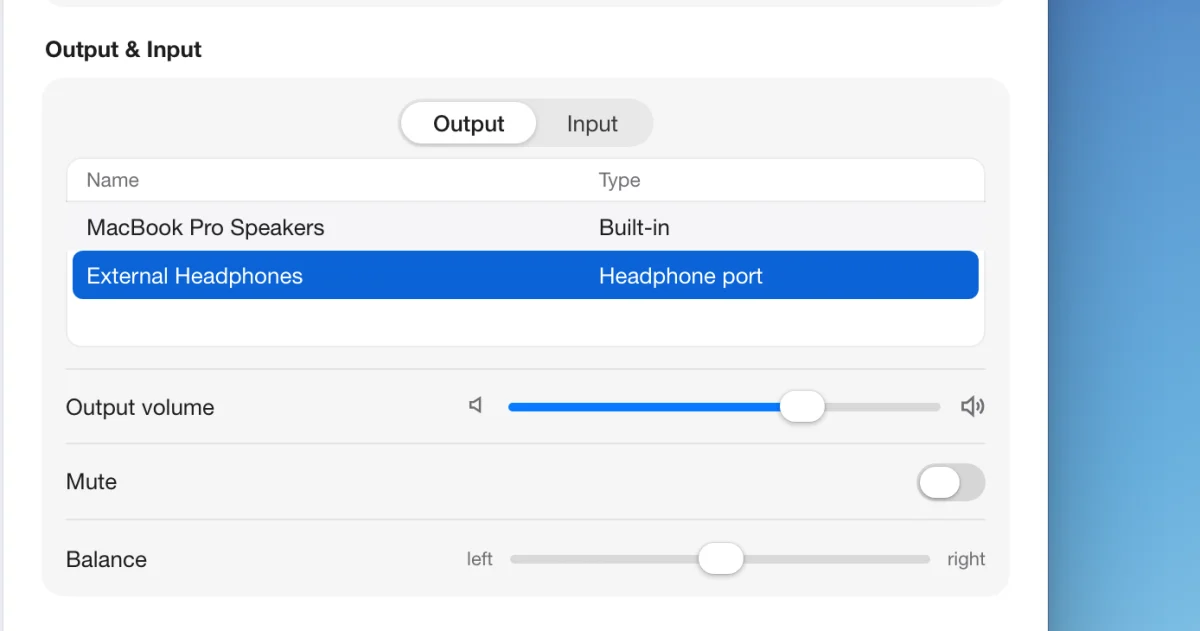
7 The ticked device is where your Mac plays sound.
-
Click Start, then Settings, then System, then Sound. Under Output, choose the device you want to hear Cora on, and turn the volume up.
-
Further down the same page, click Volume mixer. Find CoraVision in the list of apps, and check its volume is up and its output device is the one you want. Windows can send one app's sound to a different device from everything else.
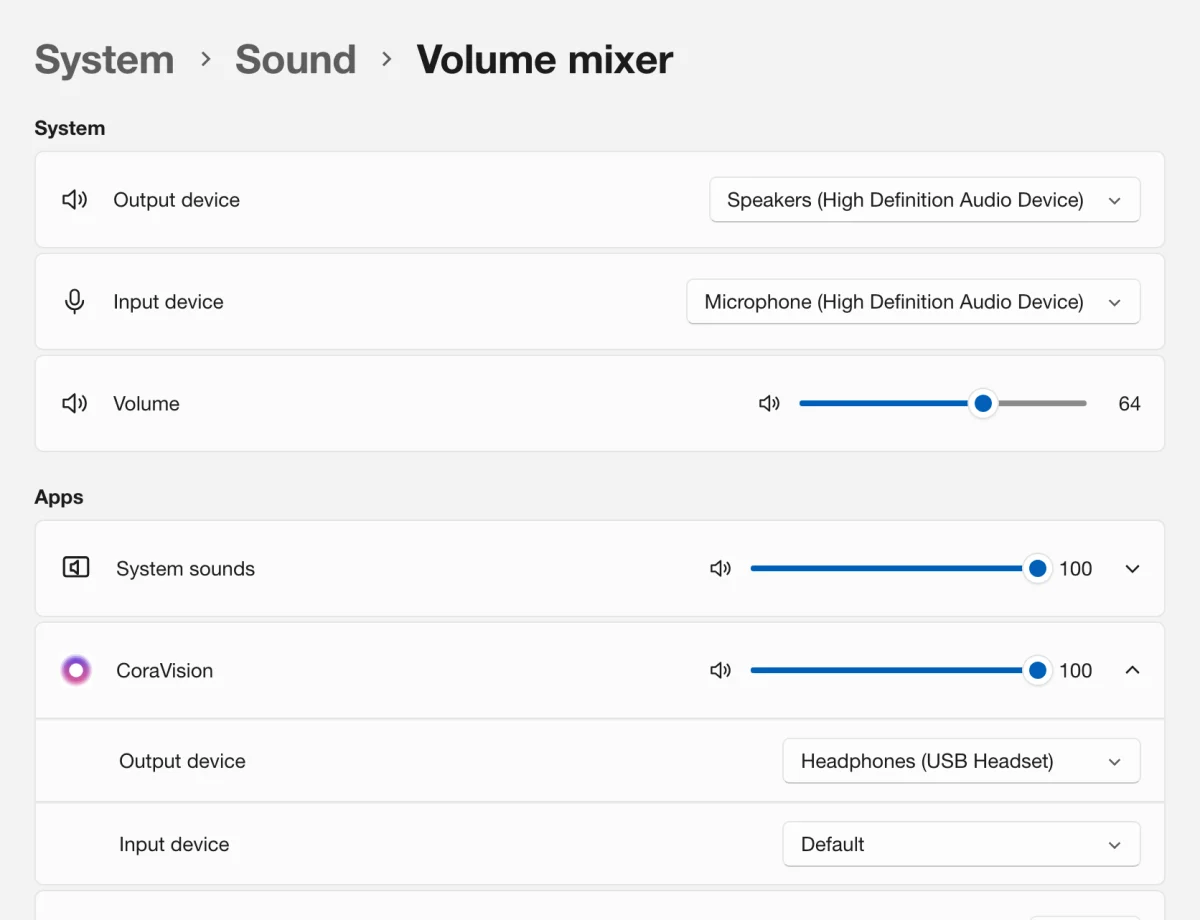
7 CoraVision's own volume and output device.
Still not working
-
Quit CoraVision completely and open it again (on a Mac, press Command and Q; on Windows, close the CoraVision window).
-
If you still cannot hear Cora, send us a message from the contact page. Tell us your computer (Mac or Windows), the speakers or headphones you use, and the version shown at the bottom of your dashboard's sidebar.
What happens next
Cora's voice now plays on the device you chose, and your choice is saved on this computer only. If you were on the speaker check, the screen reads No worries, let's sort it: click Retry audio test to hear Cora's line again.
While you are using laptop speakers, Cora's voice can reach your microphone and interrupt Cora, so headphones or a headset give the smoothest calls.
Common questions
The speaker check has no Speaker list. Why?
On some computers CoraVision cannot choose a speaker itself, so the list is hidden. Cora then plays through your computer's default output, so choose the device in your Mac or Windows sound settings instead.
I unplugged my headphones and Cora is now on my speakers. Is that right?
Yes. If the speaker you chose is not connected, Cora plays through your computer's default output. Plug the headphones back in and Cora goes back to them.
Can I hear Cora in headphones and still use my laptop's microphone?
Yes. The speaker and the microphone are separate choices in Audio & Camera, so you can mix them.