
Paying during the strategy session
Near the end of your strategy session (session two), Cora shows the plans on a slide. If you choose one, the call waits while you pay in the CoraVision window, then carries on where it stopped; if you are not ready, click Skip for now and choose a plan later from Settings.
- Have your card to hand. Your card details go into a form run by Stripe, our payment provider.
- All prices on the slide are in US dollars. For the rest of the call, see What happens in your strategy session.
Choose on the slide
-
On the prices slide, click Pay yearly or Pay monthly. The plan is charged the way the slide shows it when you choose.
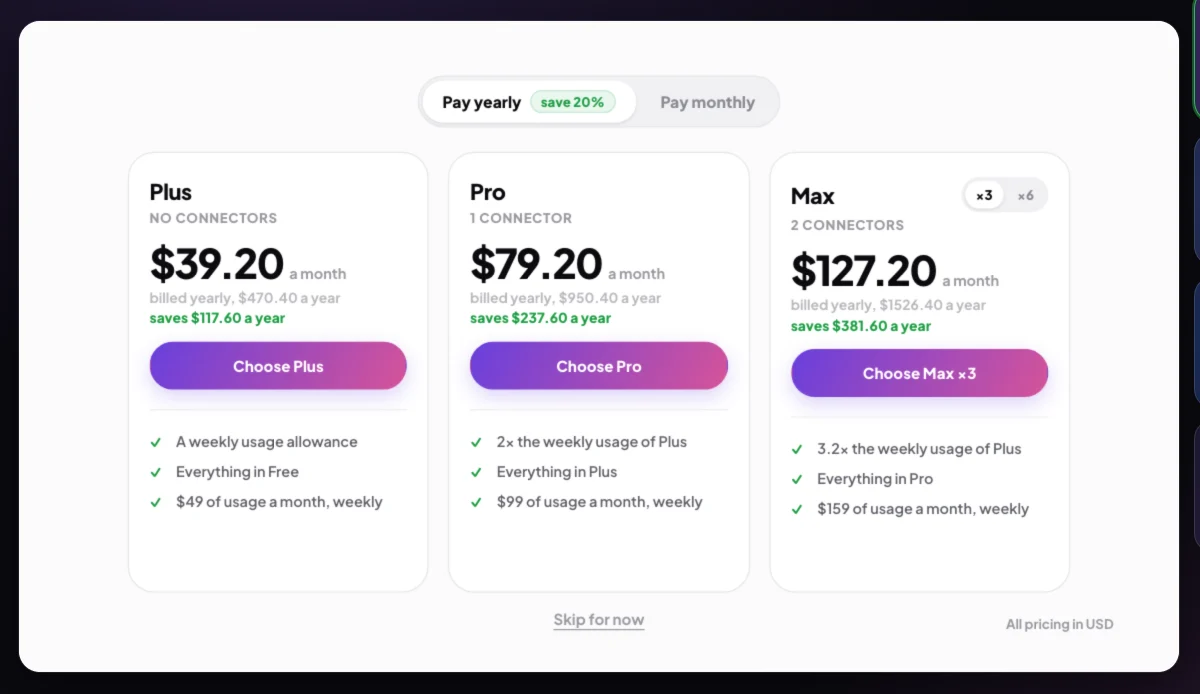
1 Yearly or monthly. 2 Choose a plan. -
On the plan you want, click Choose and the plan's name, for example Choose Pro.
Pay in the CoraVision window
-
The call pauses and says Complete your payment in the Cora window. The CoraVision window comes to the front on the checkout page, with the plan and the Total due today on the left.
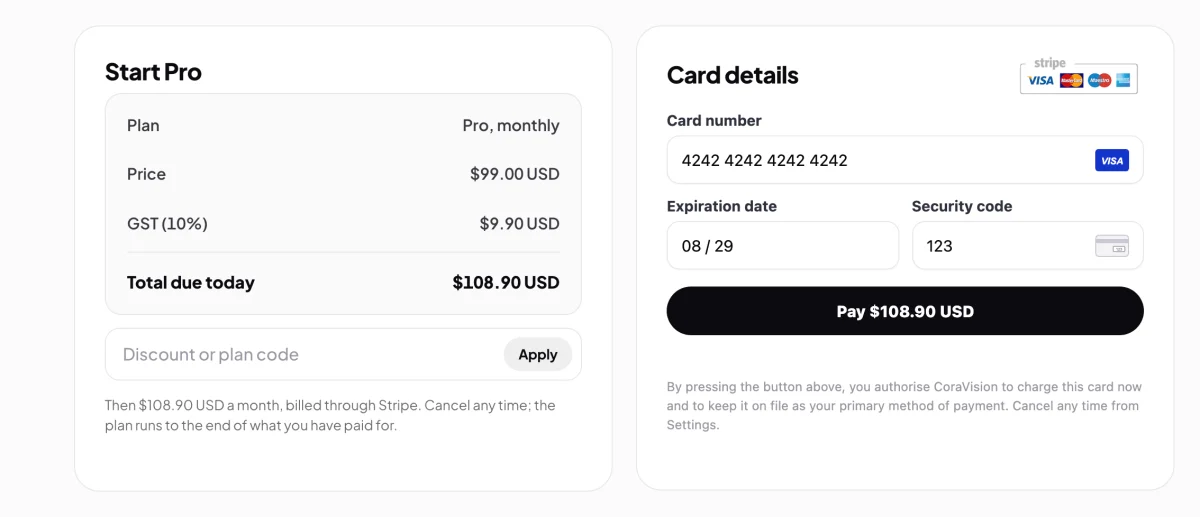
3 What you pay today. 4 Your card. -
If you have a code, type it in Discount or plan code and click Apply. Then enter your card details on the right, or use your saved card, and click the Pay button.
-
When you see Payment successful, click Continue. You go back to the call.
-
Listen to Cora: Cora thanks you, and the call carries on, next with booking a walkthrough of your action plans.
If you are not ready to pay
-
On the checkout page, click Back. You return to the call on the prices slide, and a line says No payment was made. Choose a plan, or skip for now.
-
Choose a different plan, or click Skip for now at the bottom of the slide. The call moves on to its close.
What happens next
With a plan, your dashboard, your strategy document and the Design Studio unlock after the call, and your plan shows in Settings, My Plan & Usage. If you skipped, those pages show a pop-up with See the packages, and you can choose a plan from there or from Settings at any time: see Plans and what each includes.
Common questions
Is Cora listening while I pay?
No. The call is paused while the checkout page is open: Cora does not listen or speak, and nothing new happens until you come back.
What if my card is not accepted?
The checkout page says Your card was not accepted and nothing is charged. Click Try again with the same or another card. The call waits, with Pay now and End call on its screen.
I already have a plan. What happens if I choose one on the slide?
Choosing your own plan needs no payment, and the call carries on. Choosing another plan opens the change in the CoraVision window, and if you go back without paying, your current plan carries on unchanged.