
Update your card
Your saved card pays for your plan's renewals, the credit you buy and auto top-up. To change it, add the new card in Settings, Billing: it becomes your default straight away, and nothing is charged when you save it.
- Have the new card to hand: its number, expiry date and security code.
- Your card details go into a form run by Stripe, our payment provider. They never reach CoraVision's servers.
Open your payment details
-
At the bottom of the sidebar, click Settings, then Billing.
-
Under Payment, click Update beside your card. If no card is saved yet, click Add payment method at the top right.
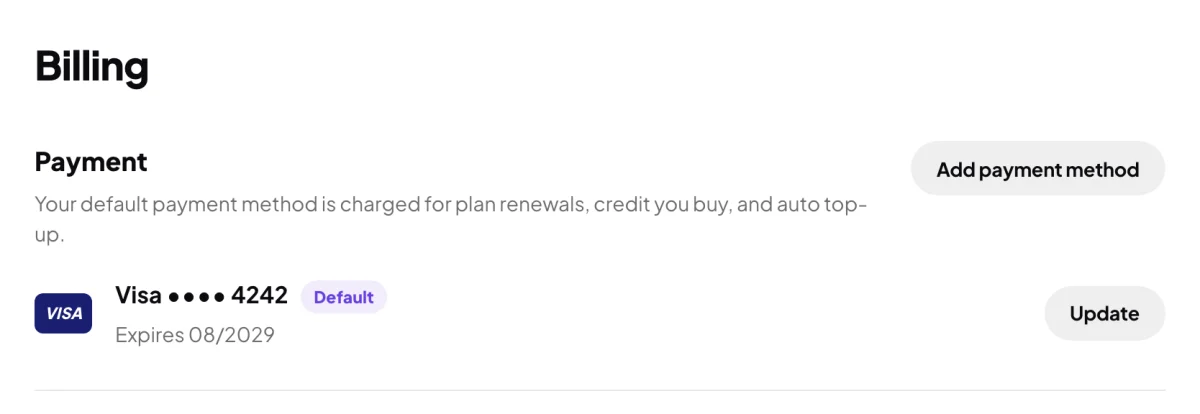
2 Update replaces the card that pays.
Save the new card
-
In the Add payment method window, enter the card number, expiry date and security code.
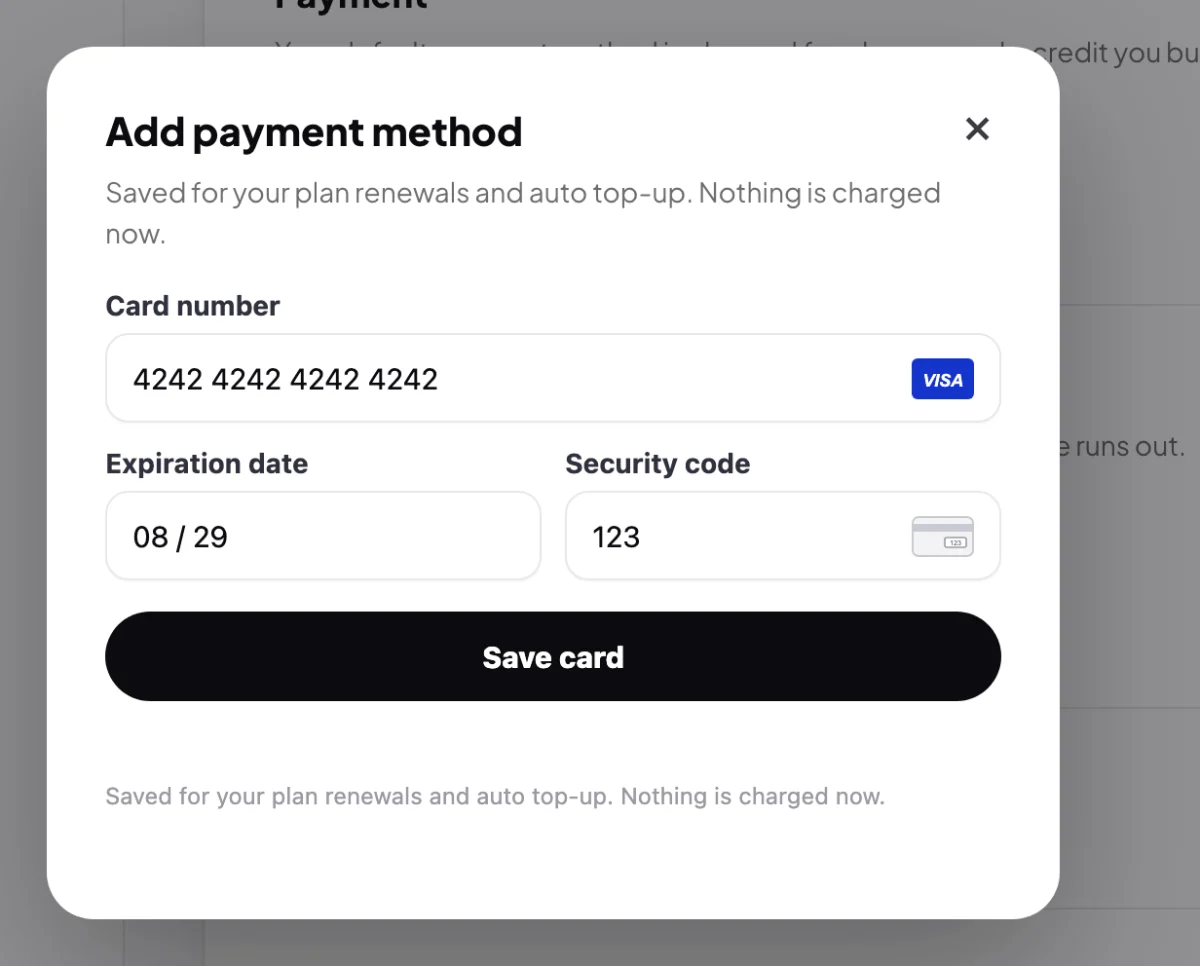
3 The card form. 4 Save card. -
Click Save card. If your bank asks you to confirm it is you, complete its check in the window.
-
When it says Card saved., the window closes. Check that the card row shows the new card, tagged Default, with its expiry date.
If a renewal payment failed
-
Look at My Plan & Usage. A failed renewal shows the tag Payment failed, and the line under it says Stripe will try your card again over the next few days. Update your card as above so the next try goes through.
What happens next
From now on your plan renews, credit is bought and auto top-up runs on the new card. If auto top-up turned itself off because the old card was declined, turn it on again: see Auto top-up.
Common questions
Will I be charged when I save the card?
No. Saving a card charges nothing. It is used the next time a payment is due.
How do I remove my old card?
There is no button to remove a card. Once the new card is your default, the old one is not charged. To have it removed, send us a message from the contact page.
Can I use a different card for one payment?
Yes. On the checkout page, click Use a different card and enter it there.