
CoraVision asks you to restart after a permission
When you allow Screen Recording on a Mac, CoraVision tells you it needs to restart, and that is normal: macOS only switches Screen Recording on for an app once the app has reopened. Only CoraVision restarts, not your computer, it takes under a minute, and it brings you straight back to where you were.
- This only happens on a Mac. Windows has no screen recording permission, and the microphone and Accessibility permissions never need a restart.
- You see it the first time you open CoraVision, or later if Screen Recording was switched off in System Settings.
Allow Screen Recording
-
On the Welcome to CoraVision card, click Allow on the Screen Recording row.
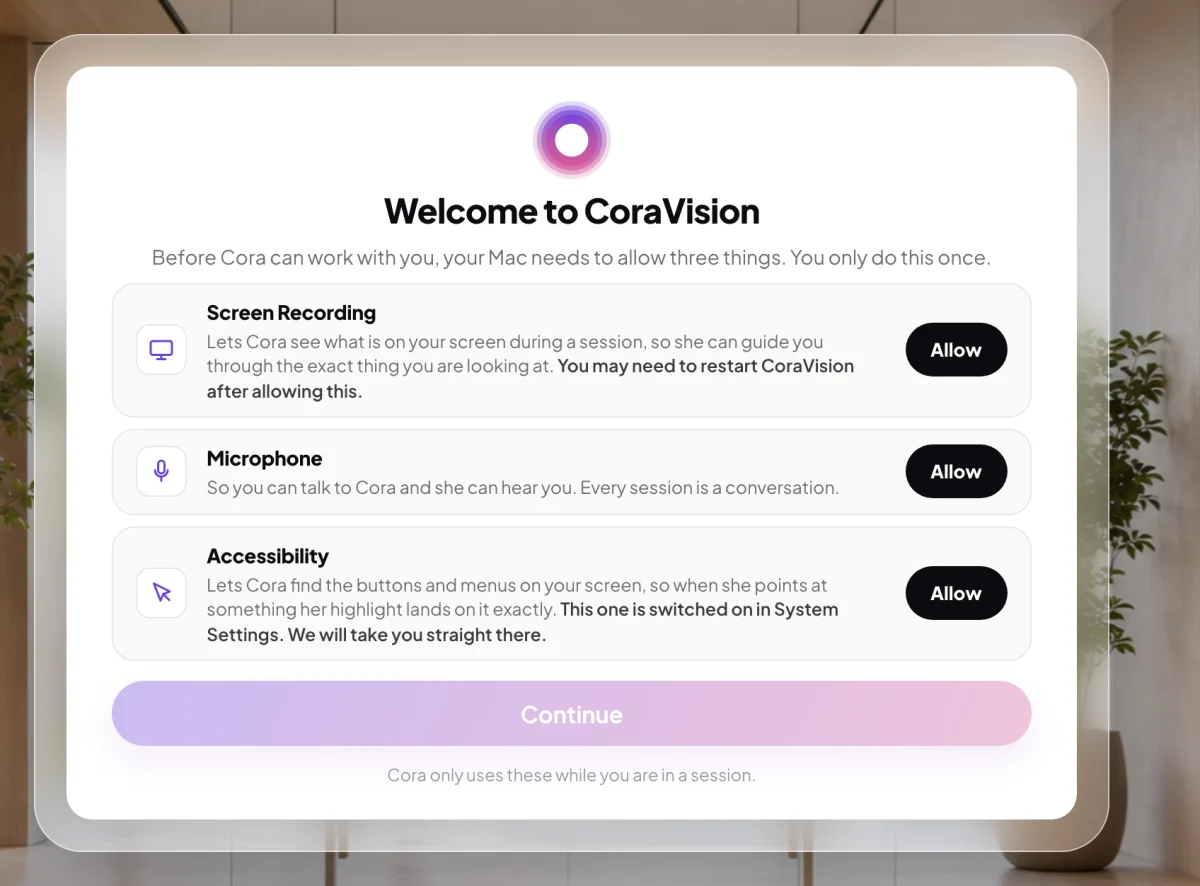
1 Screen Recording is the first of the three rows. -
A message reads The next screen will ask you to restart CoraVision. This is normal. Click Allow.
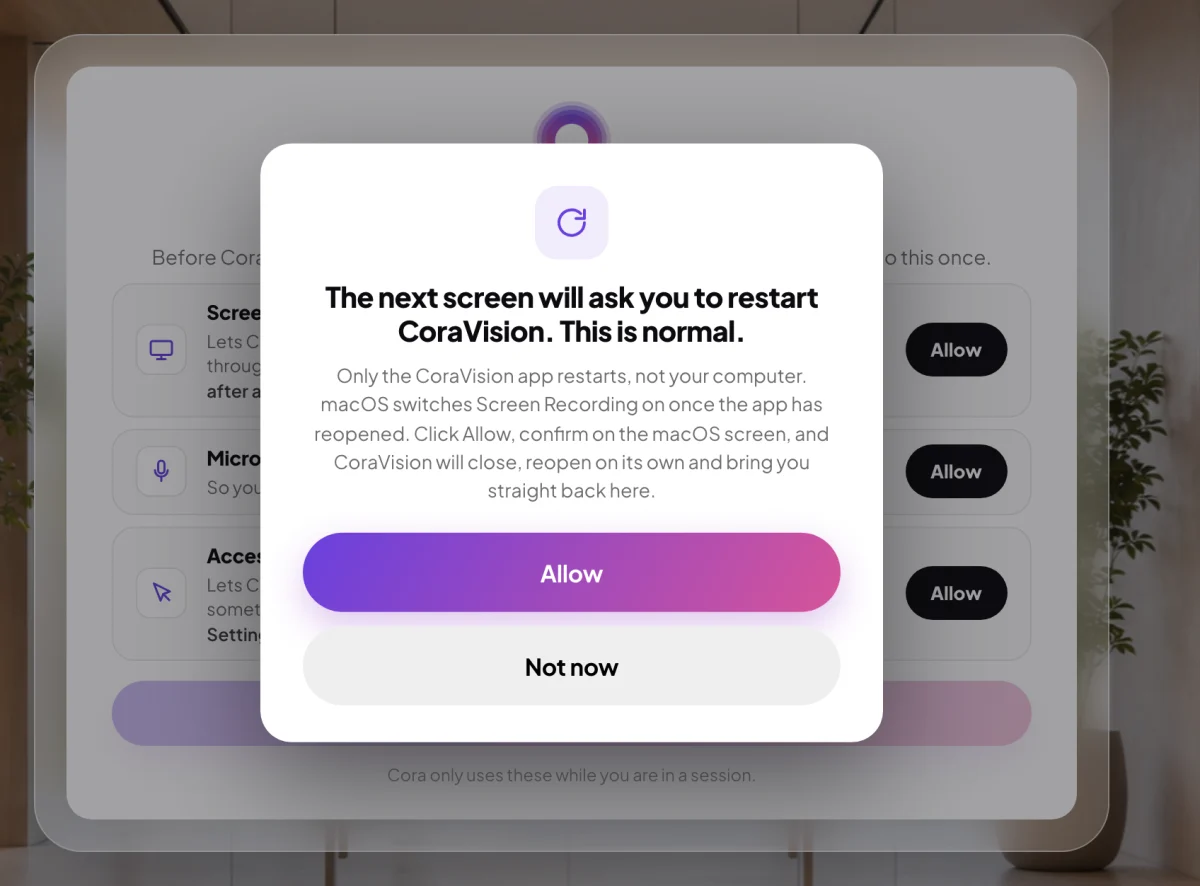
2 Allow carries on. Not now closes the message. -
macOS shows its own message about recording your screen. Click Open System Settings.
-
In Screen & System Audio Recording, find CoraVision and switch it on. On macOS 14 and earlier the list is called Screen Recording.
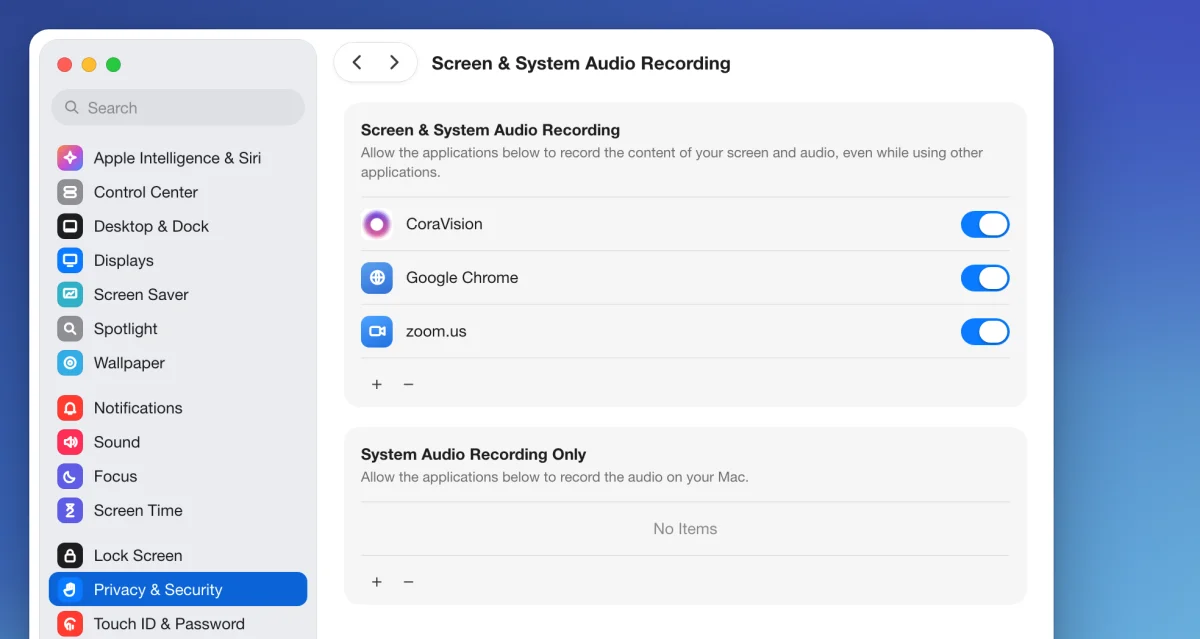
4 Switch CoraVision on here.
The restart
-
CoraVision restarts by itself: the button on the row reads Restarting CoraVision…, the app closes and opens again. If macOS asks first, click Quit & Reopen.
-
The card comes back with Screen Recording marked Activated. On macOS 15 and later, macOS may ask once more whether CoraVision can see your screen. Click Allow.
-
When every row is Activated, the card reads You're all set. Click Continue.
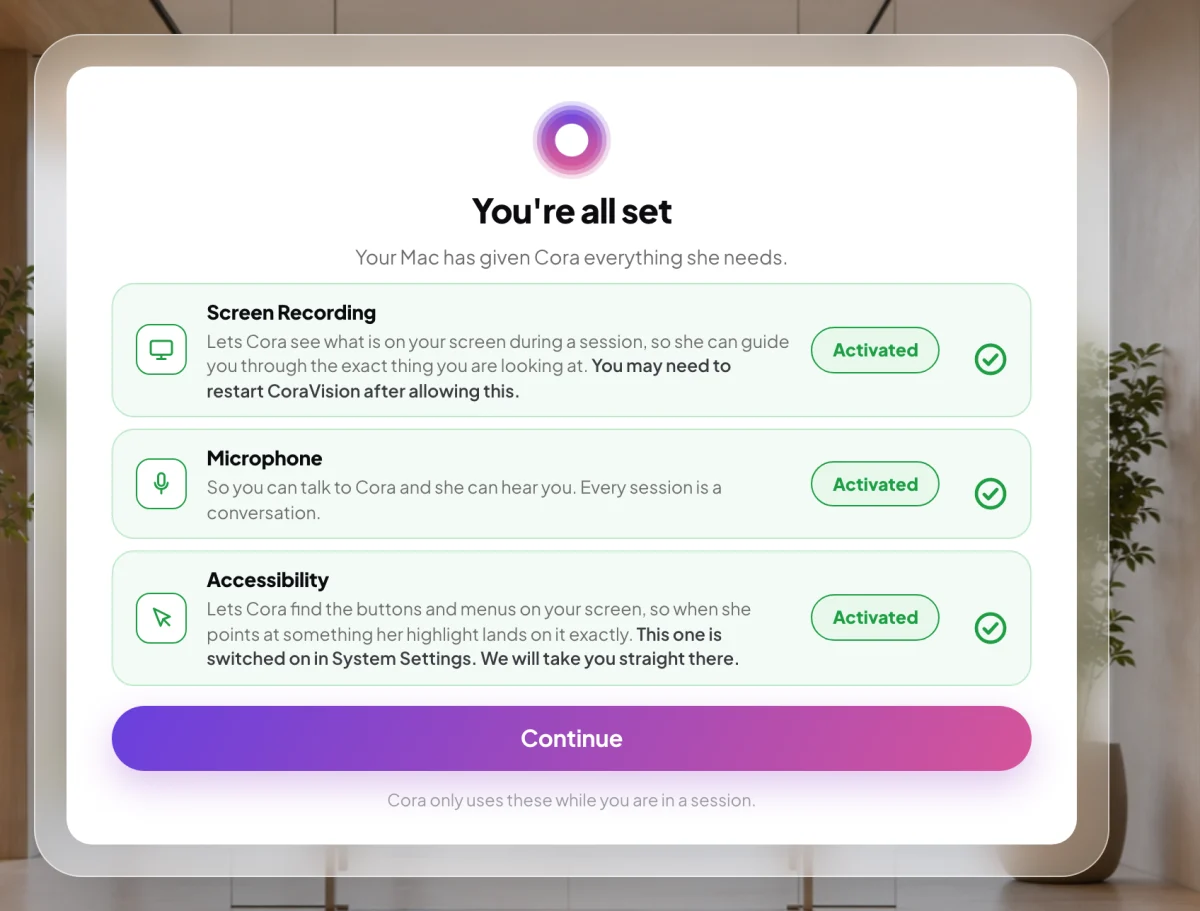
7 Continue lights up once all three are allowed.
If Screen Recording still does not tick
-
CoraVision restarts itself only once. If the row then reads Screen Recording is switched on, but macOS has not applied it yet. Quit CoraVision completely and open it again., press Command and Q, then open CoraVision again from your Applications folder.
-
If the row still does not show Activated, click Open System Settings on the row and check the CoraVision switch is on. If it is on and the row still waits, send us a message from the contact page with your macOS version.
What happens next
You only do this once on each Mac. After the card, CoraVision carries on where you were going: signing up or signing in on a new Mac, or your dashboard if you are already signed in. Cora can see your main display whenever you start a session with Cora. If you switch Screen Recording off later, the card comes back the next time you open CoraVision.
Common questions
Does my whole Mac restart?
No. Only the CoraVision app closes and opens again. Your other apps and windows are not touched.
What happens if I click Not now?
The message closes and nothing changes. Continue stays hidden until all three permissions are allowed, so you need to allow Screen Recording before you can go on.
Why does only Screen Recording need a restart?
macOS applies the microphone and Accessibility permissions straight away. Screen Recording is the one it applies only after the app reopens.