
Camera on or off during a call
Your camera is optional in every call with Cora: you can join with it off, and turn it on or off at any time with the button at the bottom of the call window. The call keeps a transcript only, so your video is never saved.
- You have allowed CoraVision to use your camera. See Allow the microphone and camera.
- If you have more than one camera, such as a laptop camera and a webcam, know which one you want to use.
In the lobby, before you join
-
In the lobby, under your preview, click the camera icon, the third of the three controls. Your picture replaces your initial in the preview.
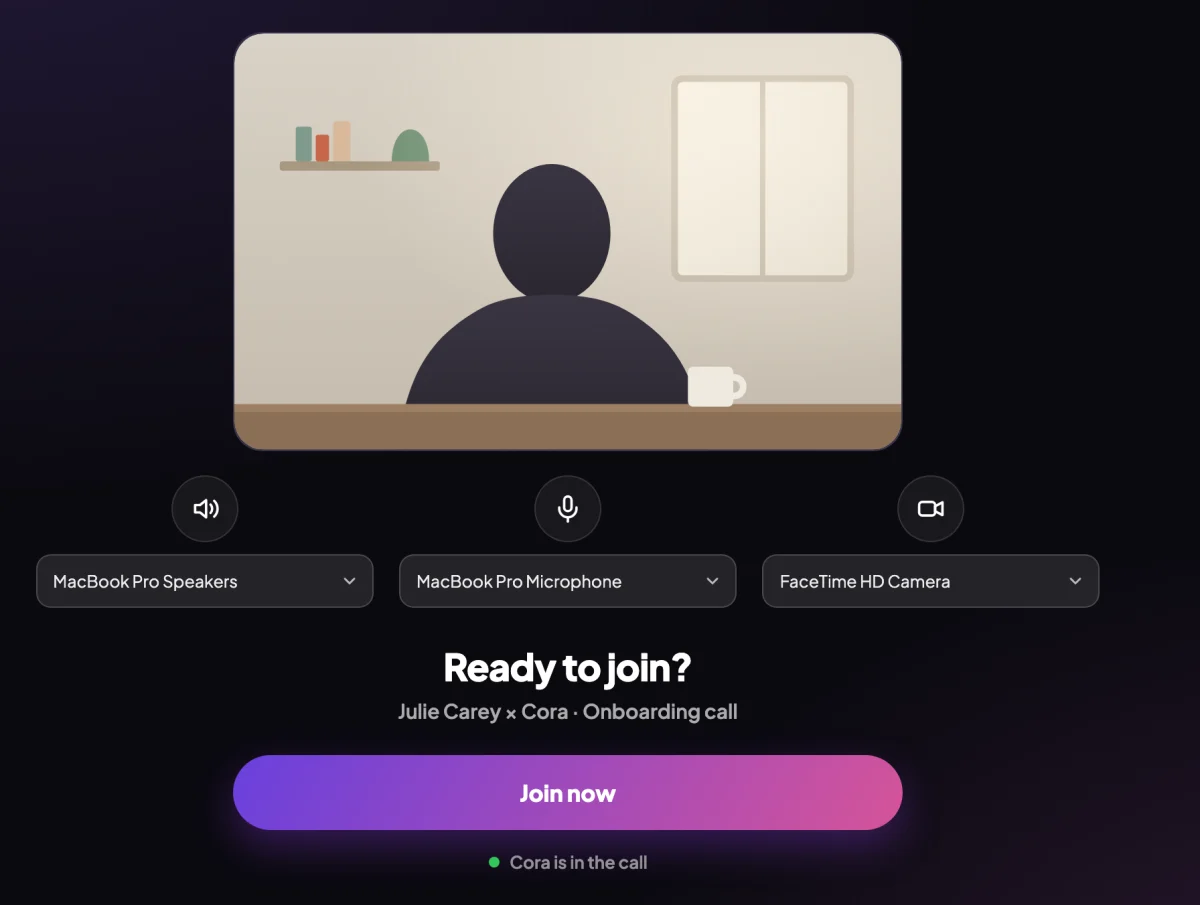
1 The camera is the third control under your preview. -
To use a different camera, open the dropdown beside the camera icon and choose it.
-
Click Join now. If your camera is off, CoraVision asks once, under Your camera is off: click Turn camera on, or Continue without camera on.
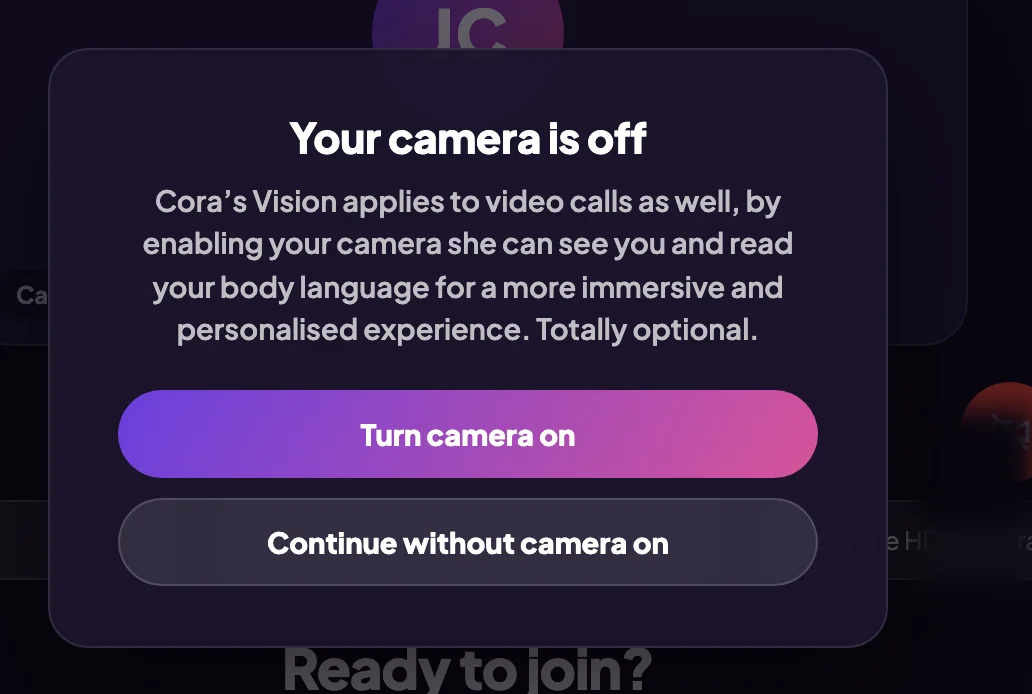
3 Either choice is fine. The camera is optional.
During the call
-
In the bar at the bottom of the call window, click Start video. Your picture appears in your own tile, and the button changes to Stop video.
-
To switch cameras, click the camera name that slides out beside the button and choose another.
-
To turn the camera off, click Stop video.
What happens next
With your camera on at the start of your onboarding call, Cora may say something friendly about one thing in view, such as your jacket or a plant behind you. That comes from one still picture taken as the call starts. It is used for that one sentence and is not saved, and Cora never comments on your face, body or looks.
Common questions
Do I need my camera on?
No. Everything in the call works with the camera off; Cora hears you either way.
Is my video recorded?
No. Calls keep a transcript only, never audio or video. The one picture used for the opening remark is not stored. See What is saved to your account, and what is not.
Can I set which camera is used by default?
Yes. In the sidebar, click Settings, then Audio & Camera, choose your camera, and save.
My camera shows black or will not turn on. What do I do?
Check that CoraVision is allowed to use the camera in your computer's settings, and that no other app is using it. See Allow the microphone and camera.