
What happens in your onboarding call
In your onboarding call, Cora and the specialists Gage and Dune get to know your business by asking you questions out loud, then play back what they heard so you can confirm it. The dashboard puts the call at about 15 minutes, there is nothing to prepare, and you finish with your brand style guide and a time booked for your strategy session.
- CoraVision is installed, you are signed in, and you have allowed the microphone and camera.
- You are somewhere quiet, ideally with headphones on. See Cora works best in a quiet place.
- You know your website address.
- If you advertise on Google or Meta, you are signed in to those accounts in your web browser.
Start the call
-
On your dashboard, under Cora is ready to start her onboarding call with you, click Join now.
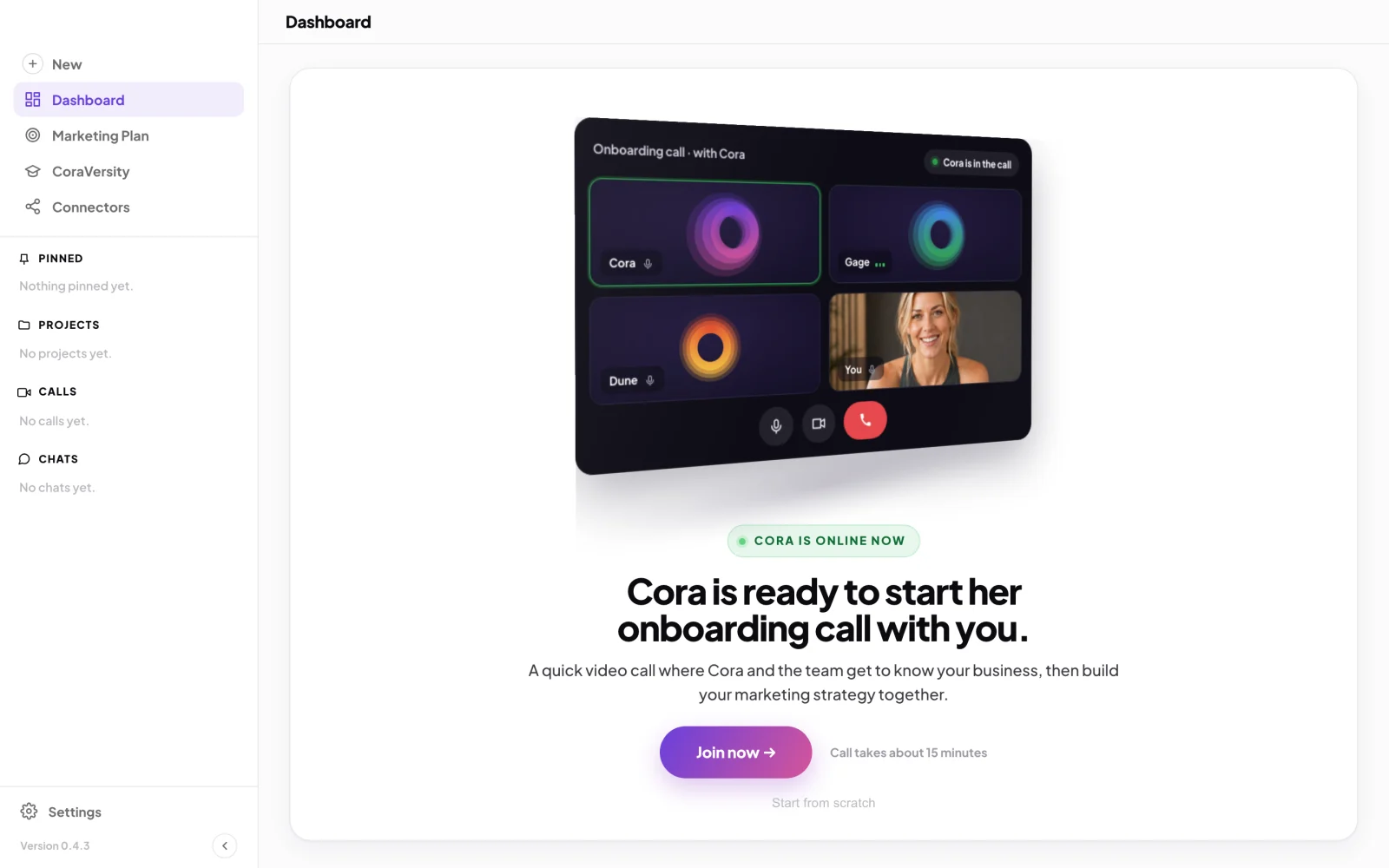
1 Join now opens the call window over your whole screen. -
The call window opens with two short screens: Cora works best in a quiet place, then a reminder to be signed in to your Google and Meta ad platforms. On each, click Continue.
-
In the lobby, check your speaker, microphone and camera, then click Join now. The step by step version is in Join a call.
Answer Cora's questions
-
Listen to Cora's introduction: how CoraVision works, the three "big rocks" Cora will come back to at the end, and how to talk to Cora. Then the questions come in five parts: Introduction, Your business, Your brand, Your numbers, and What you've tried. Answer out loud, in your own words.
TipRough answers are fine. If a question is unclear, ask Cora to repeat it or to give you an example, the same way you would ask a person.
-
While Cora waits for your answer, the question sits in a white box beside Cora. Use its round buttons if you need them: Go back a question, Repeat the question, or Give me an example.
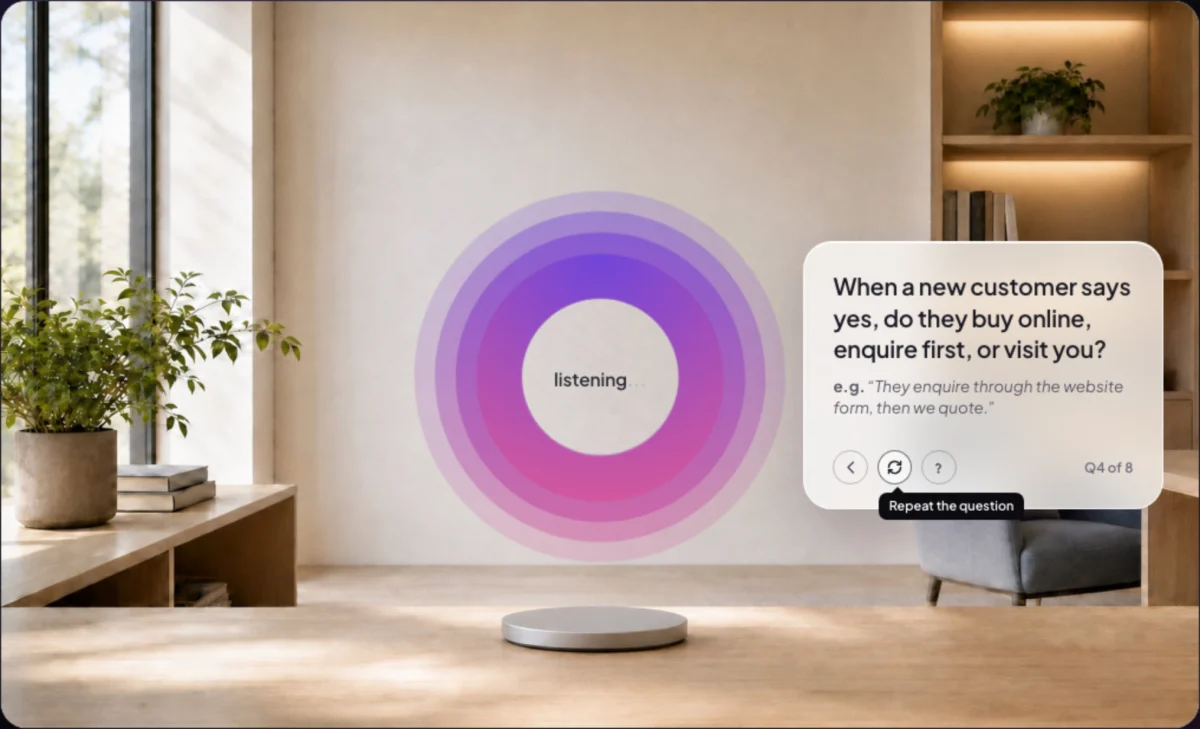
1 The question in one sentence. 2 Back, repeat and example. -
When Gage asks for your website, type the address and click Submit, then Yes, that's it. Gage then shows the platforms he found on your site. Click any tile you are not really using, then click Looks about right.
No website, no callCora's analysis starts from your website, so the rest of the call cannot go ahead without one. If you click I don't have a website, you can choose Go back to add it, or End call and rejoin later.
-
Later in the call, Dune presents your brand style guide: the colours, fonts and words that fit your business, built from your answers and your website.
Confirm, connect and book
-
Cora plays back what Cora heard as three big rocks: your numbers today, your twelve month goal, and why it matters to you. On each, click I agree, or click Edit to correct it and then Save.
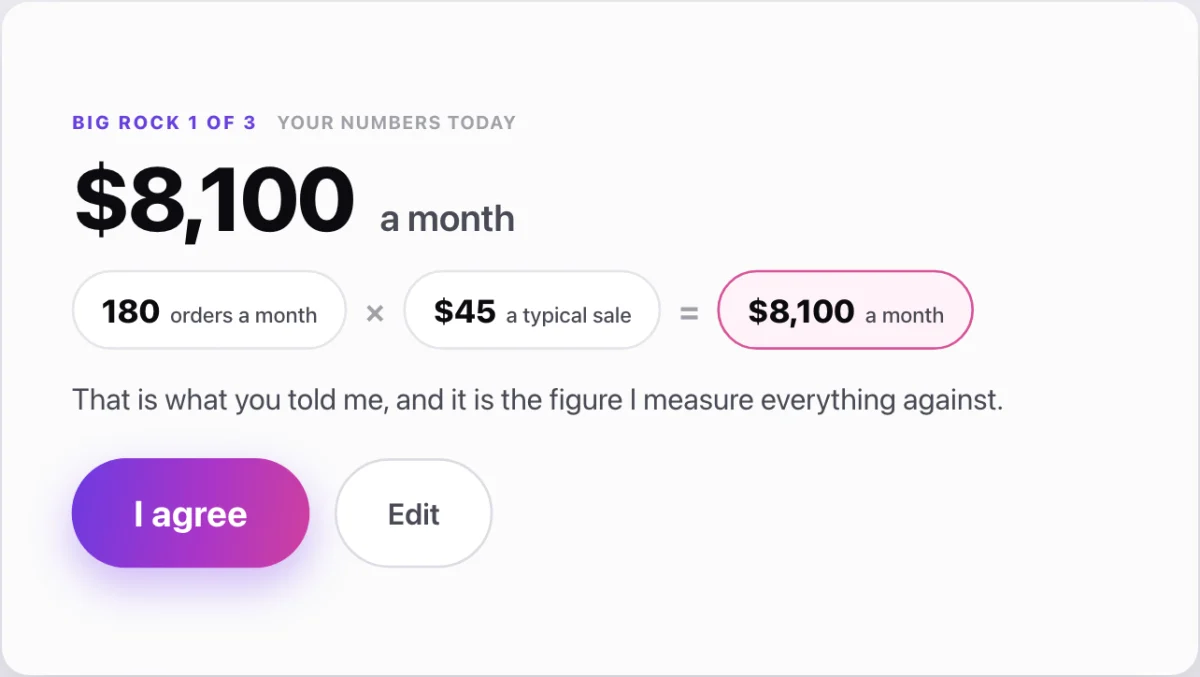
8 Agree with the figure, or edit the numbers it is made of. -
Cora asks for read only access to your Google and Meta accounts. Click Two click simple connection to all your Google properties, then Connect your Meta ad account, and follow Cora through each sign-in. If you do not use a platform, click the "I don't have" option under it, then Yes, skip.
Read onlyCora requests read only data. Cora never makes changes to your accounts.
-
Book session two: tell Cora a day and time that suits you, or click Enter date and time manually, then click Book appointment. The earliest is tomorrow, because Cora's analysis takes up to 24 hours.
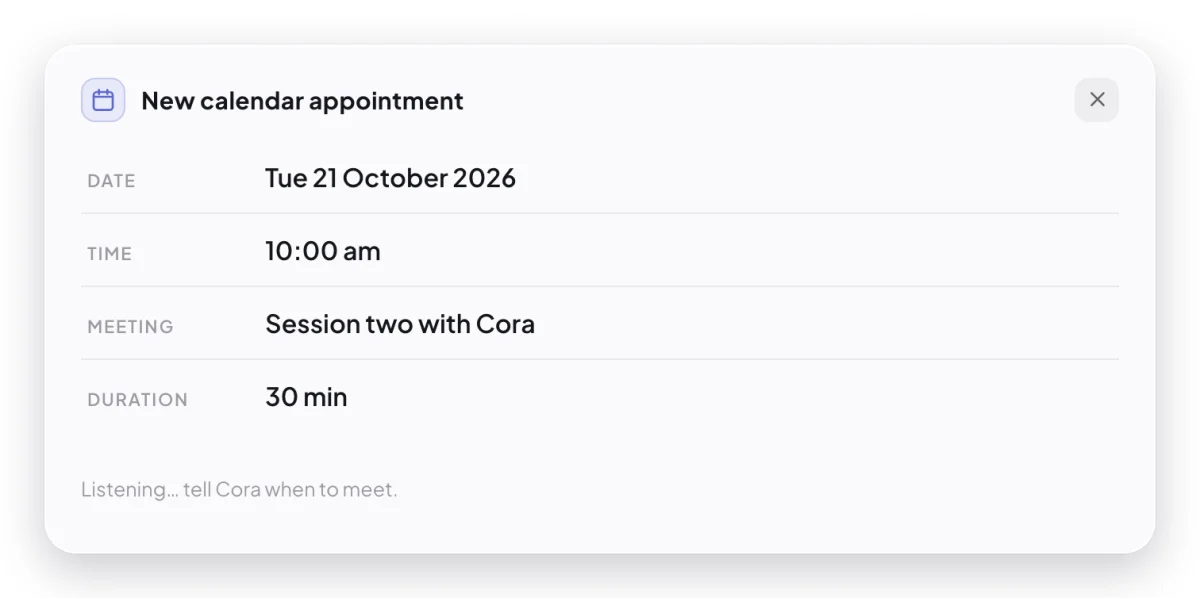
10 Session two is a 30 minute call with Cora.
What happens next
A calendar invite for session two is sent to you, and your dashboard shows a countdown to your marketing strategy while Cora does Cora's analysis. Your brand style guide is in the sidebar under Marketing Plan, Brand Style Guide, where you can view it and download it as a PDF.
When the countdown ends, the dashboard says Your session two call with Cora is ready, and Cora walks you through your strategy in that call.
Common questions
Do I need my camera on?
No, it is optional. With your camera on, Cora looks at one still image from it at the start of the call so Cora can greet you; that image is not saved and nothing else is sent. You can turn the camera on or off at any time with Start video and Stop video.
Is the call recorded?
The call is transcribed, and the transcript is saved to your account where only you can see it. Calls keep a transcript only, never audio. Click Transcript during the call to read it live.
Can I take a break in the middle?
Yes. Click Pause meeting and your mic and Cora's audio go off. Click Resume meeting and Cora starts that part again.
What if I have to stop before the end?
Your progress is saved. On the dashboard, click Rejoin the call and Cora carries on from where you left off. See Rejoin a call that dropped.