
Connect Google Ads to CoraVision
Connecting Google Ads lets Cora read your real spend, clicks and sales, so the numbers Cora shows you are yours. One Google sign-in connects Google Ads, Google Analytics, Merchant Center and Tag Manager together, takes a few minutes, and changes nothing in your Google accounts.
- You are signed in to CoraVision on your computer.
- You know the Google sign-in that has access to your Google Ads account.
- That sign-in must be added to the Google Ads account itself. If an agency runs your ads and you can only reach the account through the agency's manager account, ask them to add your Google sign-in to your own account first.
- On a Mac, Cora can only see Google's screens to help you if CoraVision is allowed to see your screen: see Allow CoraVision to see your screen on a Mac.
Open your connectors
-
In the sidebar on the left of your dashboard, click Connectors.
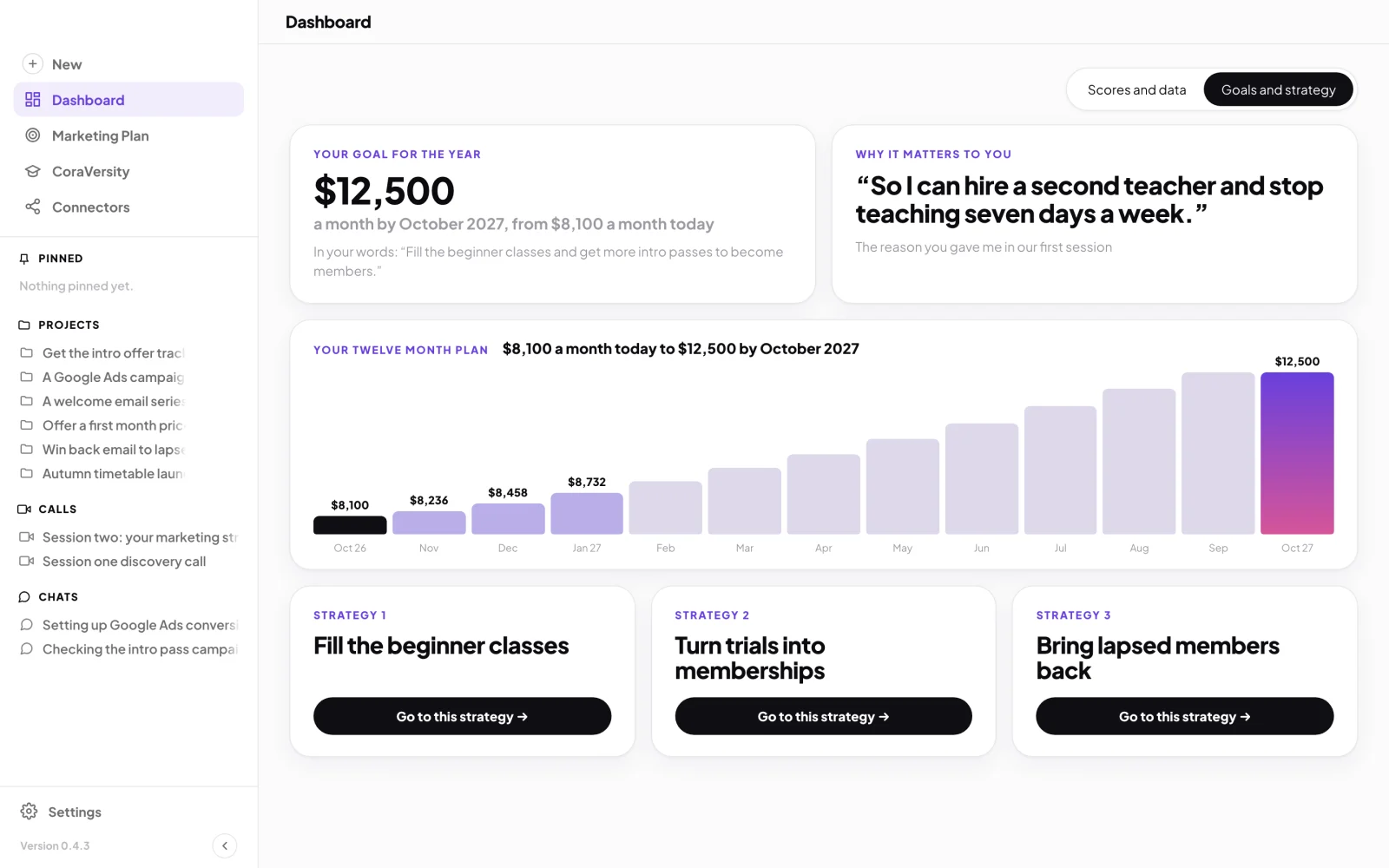
1 Connectors sits in the sidebar, under CoraVersity. -
On the Google Ads card, click Connect. The button changes to Connecting… while you sign in.
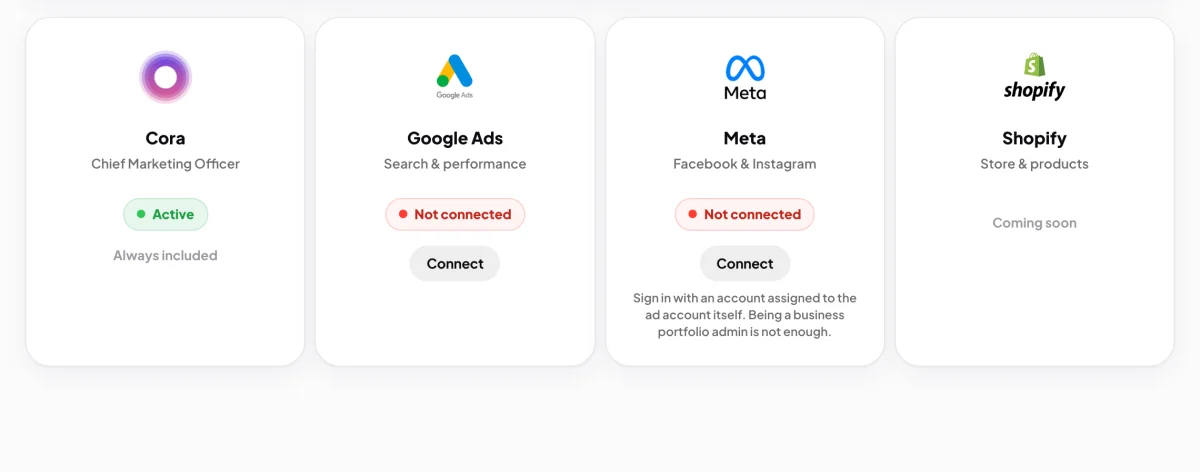
2 Connect on the Google Ads card opens Google in your browser.
Sign in with Google
-
Your web browser opens on Google's sign-in page and the CoraVision window steps aside. Choose the Google account that can see your Google Ads, and sign in if Google asks.
TipCora joins you while you do this and talks you through Google's screens. Cora can hear you and see your screen until you are back in CoraVision, so you can ask Cora if a screen looks different from what you expected.
-
Google lists what CoraVision is asking to see: Google Ads, Google Analytics, Merchant Center and Tag Manager. Tick every box, then click Continue.
Read onlyCora reads your campaigns, spend and results. Cora never creates, changes or pauses anything. Google describes its Google Ads permission in its own words, which mention managing your account, because it is the only Google Ads permission Google offers to apps. CoraVision uses it to read.
-
Your browser shows Google connected and counts down. CoraVision comes back to the front on its own. If it does not, click the button on that page to go back.
Choose the business Cora reads
-
CoraVision checks what your Google sign-in can see. If it finds more than one business, it shows Choose your business. Click the one you are setting up.
NoteCoraVision groups your Google Analytics, Google Ads, Merchant Center and Tag Manager accounts by business, using your website and the links between them. If you only have one business, it skips this step.
-
A window headed Importing and your business name lists the four Google products. A tick means CoraVision found an account and will read it. A cross with none for this business means it found nothing for that product. Click Done.
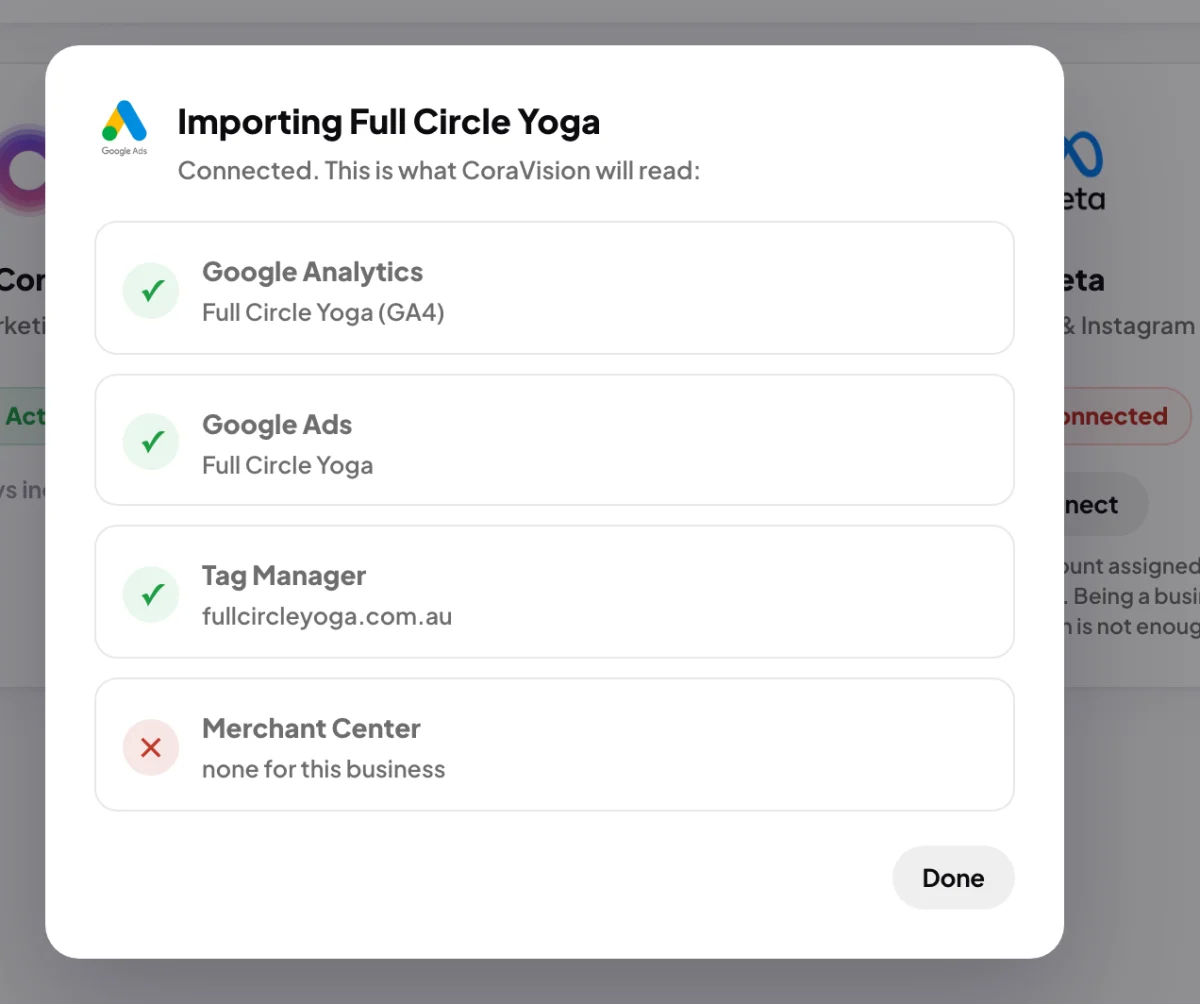
7 A tick means Cora will read it. Done closes the window. -
The Google Ads card now reads API connected, with a Manage button. Click Manage any time to see which accounts Cora reads.
What happens next
Cora starts reading your accounts straight away and then reads them again every night. Until the first read lands, the Google Ads card on your dashboard says there are no numbers yet. After that it shows the last seven days of cost per acquisition and sales (or leads, if that is what your business counts), and Cora uses your real figures in calls and chats.
If the card goes back to ConnectThe sign-in did not finish: you closed the browser tab, declined on Google's screen, or took longer than about five minutes. Click Connect again. If CoraVision says it could not find an importable Google account on that login, sign in with a Google account that is added to your Google Ads account directly. If it fails twice, send us a message from the contact page with the time it happened.
Common questions
Do I need to be the account owner?
No. You need a Google sign-in that has been added to the Google Ads account itself. Accounts you can only reach through an agency's manager account are not listed, so ask the agency to add you to your own account.
Can I connect more than one Google Ads account?
No. CoraVision reads one account per Google product for your business. To switch to a different account, click Manage on the Google Ads card, disconnect Google, then connect again and choose the other business.
Will connecting change anything in Google Ads?
No. Cora reads. Cora coaches you to make the changes yourself, on your screen, so you stay in control.
How do I disconnect Google?
On the Google Ads card, click Manage, then Disconnect Google. Type disconnect to confirm. CoraVision stops reading new data and removes the access it holds; reports already prepared stay in your account.