
Google says the app is unverified
When you connect Google, Google may show a screen saying it has not verified this app. That is expected while Google reviews CoraVision: click Continue, the small link, not Back to safety, and carry on. Nothing in your Google account changes, and you can remove the access at any time.
Why you see thisGoogle shows this notice for every app it is still reviewing, and only to people the app has added as testers, which is why you can see it at all. It is not a problem with your Google account.
Carry on past the notice
-
Check the address bar of your browser shows accounts.google.com, so you know this is Google's own page.
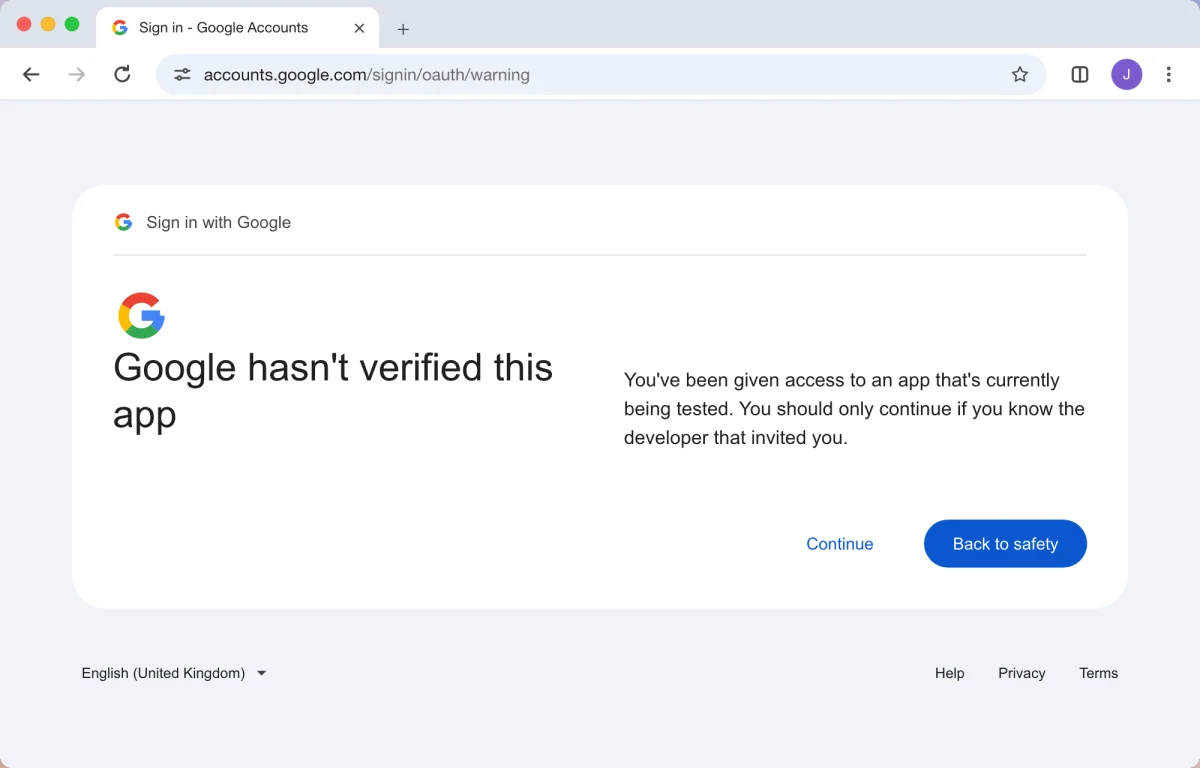
2 Continue is the small link, not the blue button. -
Click Continue, the small text link. Do not click Back to safety: it cancels the connection.
-
On the next screen, Google lists what CoraVision is asking to see. Tick every box and click Continue.
-
Your browser shows Google connected and CoraVision comes back to the front. Carry on from Connect Google Ads to CoraVision, step 6.
If you clicked Back to safety
-
If your browser shows That didn't go through, click the button on that page to go back to CoraVision.
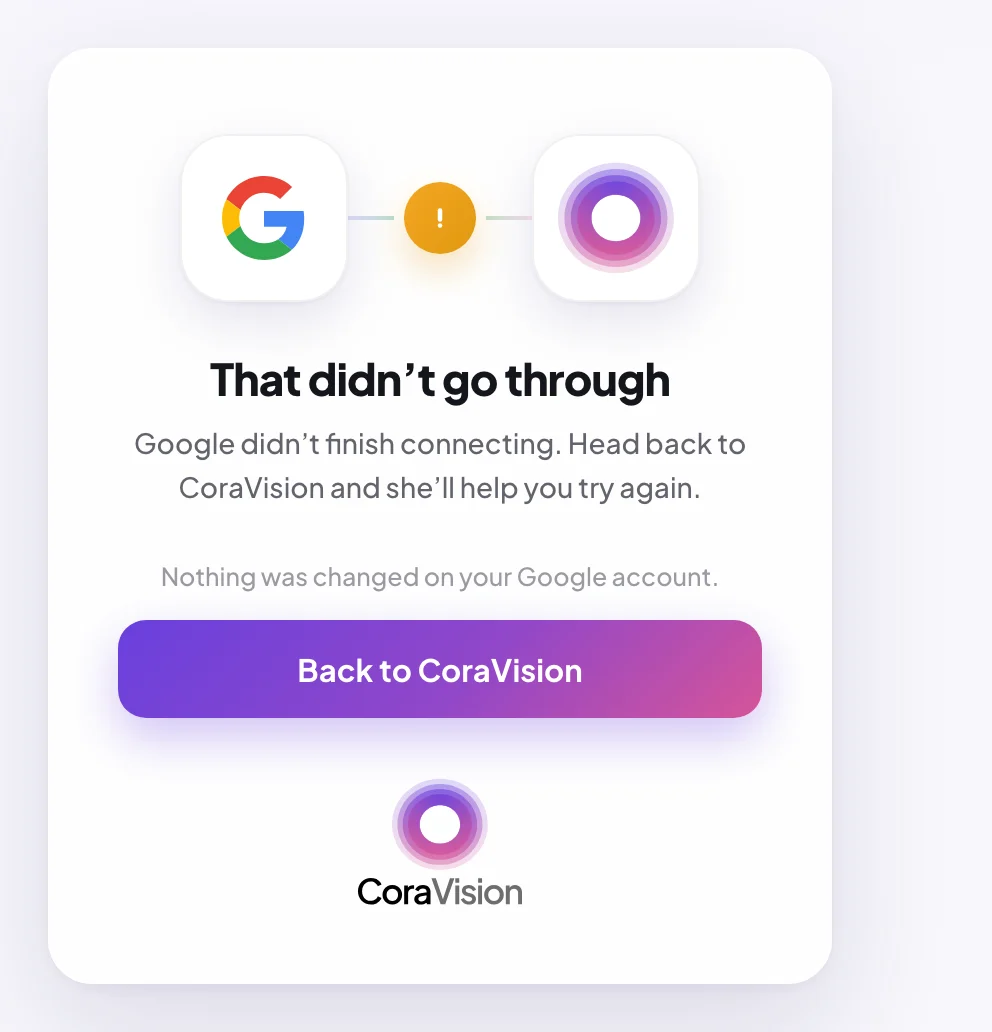
5 This button takes you back to CoraVision. -
On the Connectors page, wait until the Google Ads card shows Connect again instead of Connecting…, which can take up to five minutes. Then click it and start over.
What happens next
Once you are past the notice, the connection works like any other. If Google says access is blocked instead of showing the notice, your Google account is not on CoraVision's tester list yet: send us a message from the contact page with the Google email you used.
Common questions
Is it safe to continue?
Yes. CoraVision only reads: it cannot change your campaigns, your website data or your products. You can remove its access at any time, from the Connectors page or from the third-party apps list in your Google account.
Will my Google connection last?
While CoraVision is in Google's testing stage, Google can end a connection after seven days. If your Google Ads numbers stop updating, disconnect Google from Manage on the Google Ads card and connect again.
When will the notice go away?
When Google finishes its review. This guide will say so.