
Connect Google Merchant Center
Merchant Center connects through the same Google sign-in as Google Ads: you click Connect on the Google Ads card and allow Merchant Center. Cora then reads your product list and how each product performs in Google Shopping, and nothing in Merchant Center changes.
- You know the Google sign-in that can open your Merchant Center account.
- Your Merchant Center account has your website set as its homepage. CoraVision matches the account to your business by that website, or by its name.
- On a Mac, Cora can only see Google's screens to help you if CoraVision is allowed to see your screen: see Allow CoraVision to see your screen on a Mac.
Start the Google connection
-
In the sidebar on the left of your dashboard, click Connectors.
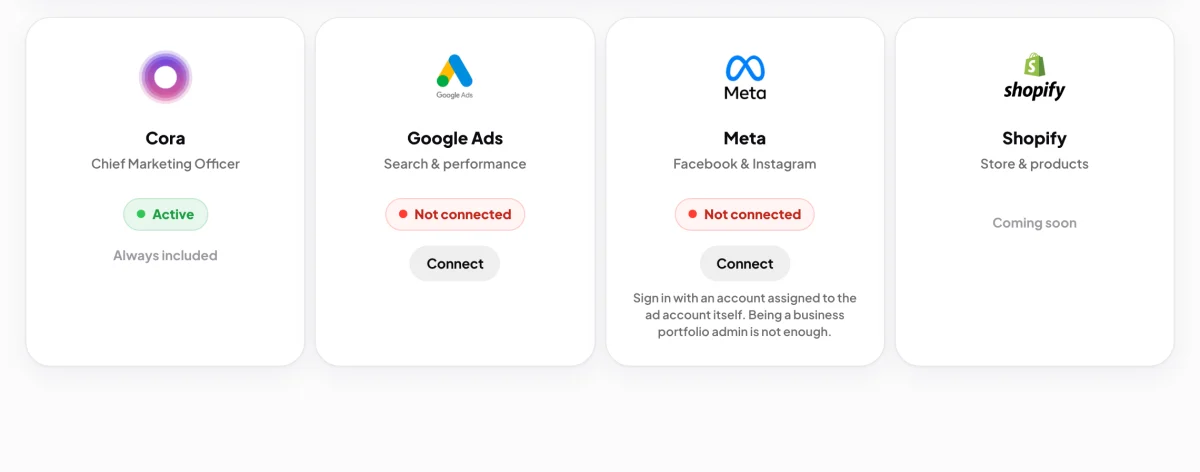
2 Merchant Center connects from the Google Ads card. -
On the Google Ads card, click Connect. The one Google connection covers Merchant Center too.
Sign in and allow Merchant Center
-
Your web browser opens on Google and the CoraVision window steps aside. Choose the Google account that can open your Merchant Center, and sign in if Google asks. Cora joins you and talks you through Google's screens.
-
Google lists what CoraVision is asking to see. Make sure the Merchant Center box is ticked, then click Continue.
Read onlyGoogle's wording for this permission mentions managing your product listings, because it is the only Merchant Center permission Google offers apps. CoraVision uses it to read. Cora never adds, edits or removes a product.
-
Your browser shows Google connected and counts down. CoraVision comes back to the front on its own. If it does not, click the button on that page to go back.
Check Merchant Center is in
-
If CoraVision shows Choose your business, click the business you are setting up.
-
In the Importing window, look at the Merchant Center row. A tick and your account's name mean Cora will read it. Click Done.
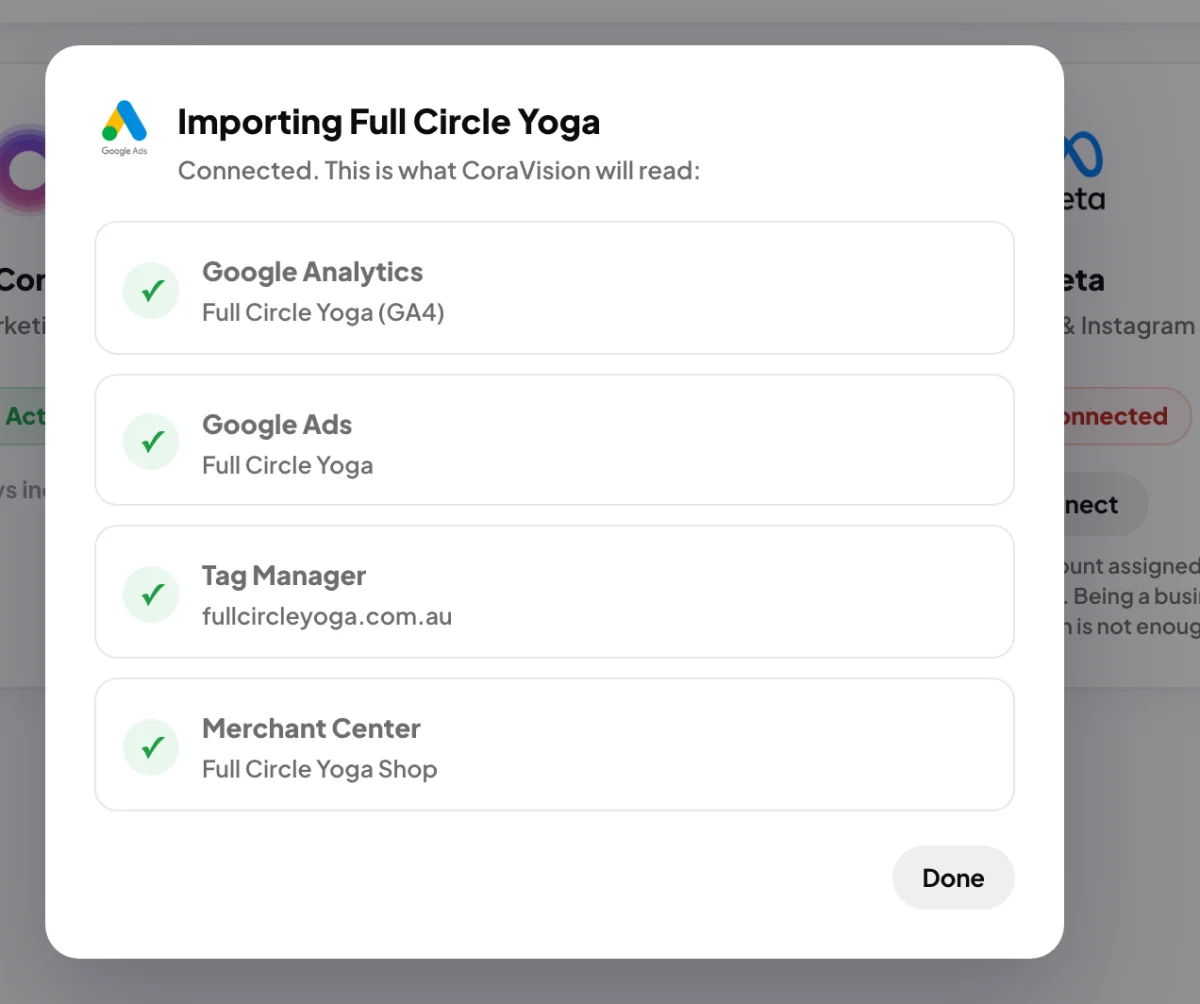
7 A tick beside Merchant Center means Cora reads it.
What happens next
Cora reads your products straight away and then every night: each product's status, any issues Google has flagged, its availability and price, and its clicks, impressions, conversions and value. Cora uses this in your calls and your strategy, for example to spot products Google is not showing.
Common questions
The Merchant Center row shows a cross. Why?
Either the Merchant Center box was not ticked, your sign-in cannot open the account, or neither the account's homepage nor its name matches your business, so CoraVision lists it as a business of its own. Fix that, then on the Google Ads card click Manage, Disconnect Google, and connect again.
Will Cora fix my disapproved products?
No. Cora reads the issues Google reports and shows you how to fix them in Merchant Center yourself.
Do I need Merchant Center to use CoraVision?
No. It only matters if you sell products through Google Shopping. If you do not use it, the row reads none for this business.