
Using CoraVision with more than one display
If you work with two or more displays, Cora only sees your main display, and Cora draws Cora's circles and highlights on whichever display the pill is on. When the pill and the window you want help with both sit on your main display, everything lines up; it takes a minute to set up and changes nothing else.
Find your main display
-
Open the Apple menu, click System Settings, then Displays. Your main display is the one with the menu bar.
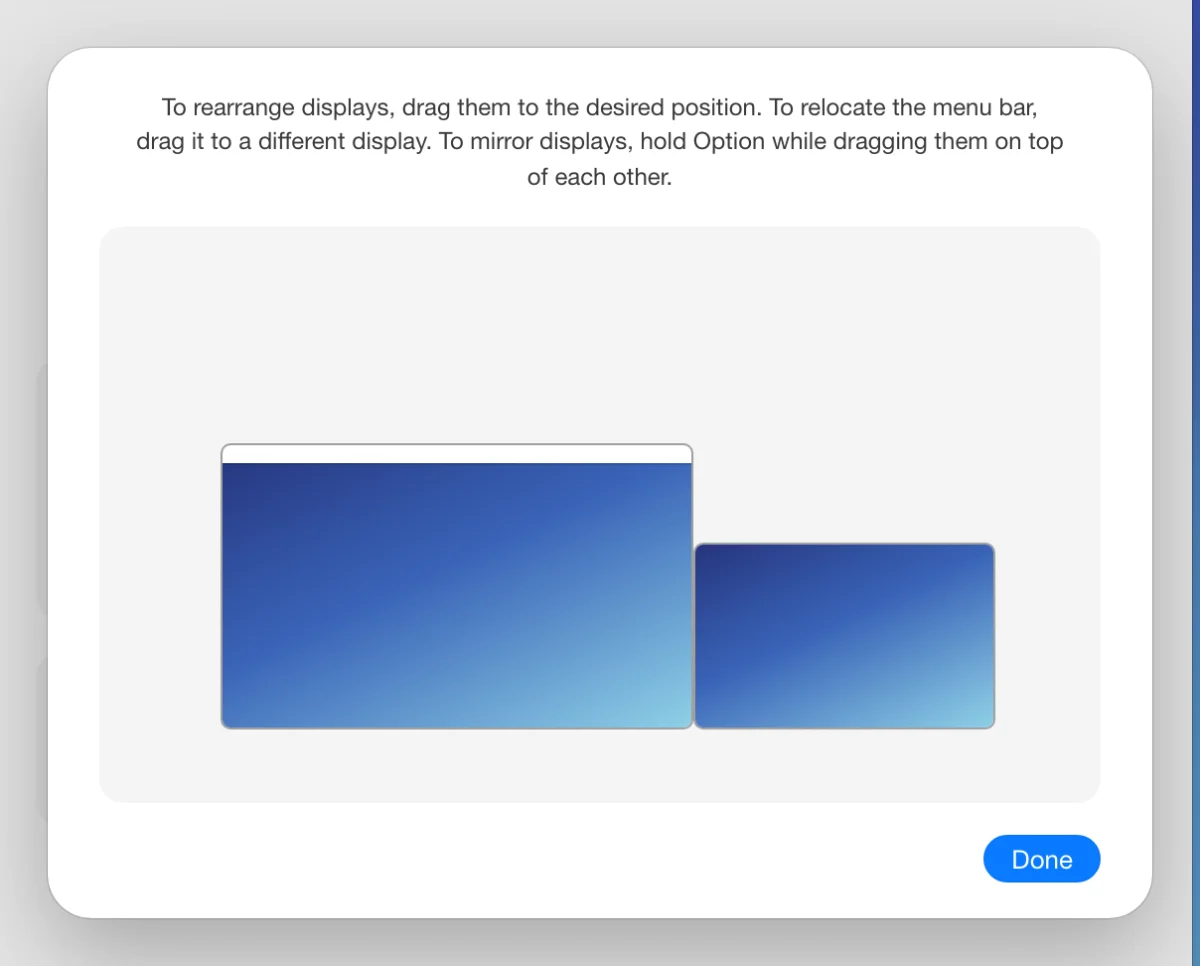
1 On a Mac, the main display has the menu bar.
-
Click Start, then Settings, System, Display. Click a display, open Multiple displays, and look for Make this my main display: it is ticked on your main one.
Put your work and the pill on it
-
Move the window you want help with onto your main display.
-
Drag the pill onto your main display too. Grab it anywhere except its buttons and drag. Cora's highlights then land on the same display as your work.
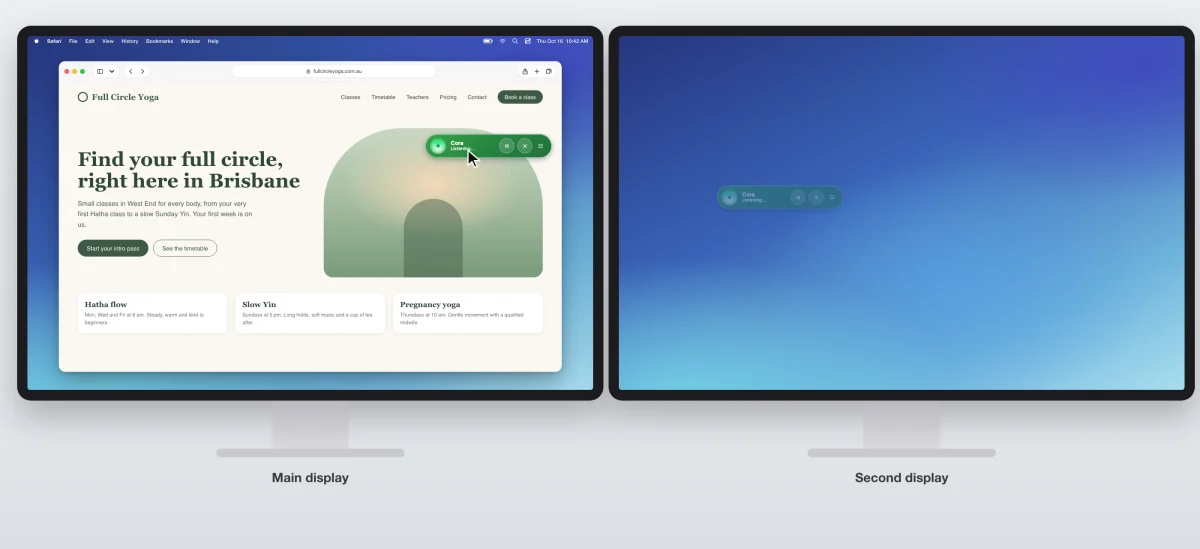
3 Keep the pill on the display Cora sees. -
Start your chat. Cora looks at your main display when you finish speaking and when it changes.
While Cora guides you
-
When Cora walks you through a set of steps, such as connecting an account, a green frame can appear around every display. That frame does not mean Cora can see them all: Cora still sees your main display only.
-
If Cora's circle lands in the wrong place, or on the wrong display, check where the pill is and move it back to your main display.
What happens next
Your other displays stay private: Cora never sees them, so you can keep something on a second display while Cora helps you on the main one. If Cora says Cora cannot see something that is on your main display, follow Cora can't see my screen.
Common questions
Can Cora see my second display?
Not yet. Cora sees your main display only.
Can I make a different display the main one?
Yes. On a Mac, in Displays, use the arrangement to move the menu bar to the other display. On Windows, click that display and tick Make this my main display. Then start a new chat.
Does this matter in a call?
No. In a call Cora does not look at your screen, so the call window can sit on any display. It matters again when Cora helps you connect an account during the call.