
Update CoraVision to the latest version
CoraVision keeps itself up to date: it downloads each new version in the background while you work, then asks you to restart with one click. Updating takes under a minute, keeps you signed in, and leaves your account and your settings as they were.
When a new version is ready
-
Look at the bottom of the sidebar, between Settings and the version number. While a new version downloads, it reads Downloading new version with a progress bar. You can keep working.
-
When the download finishes, it reads New version and Click to update. Click it.
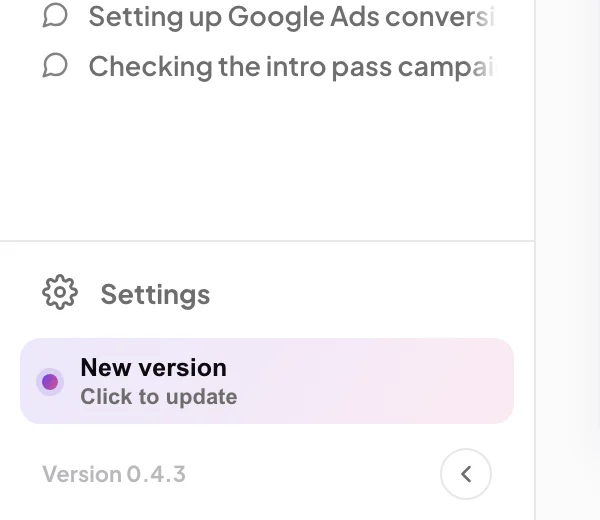
2 One click restarts CoraVision on the new version. -
It reads Relaunching…, CoraVision closes and opens again on the new version. On Windows the update installs without showing an installer.
Check for updates yourself
-
At the bottom of the sidebar, click Settings, then Check for updates. The page shows the version you have.
-
Click Check for updates. You see You’re on the latest version, or that a new version is downloading (watch the sidebar), or Update ready with a reminder to click the sidebar pill.
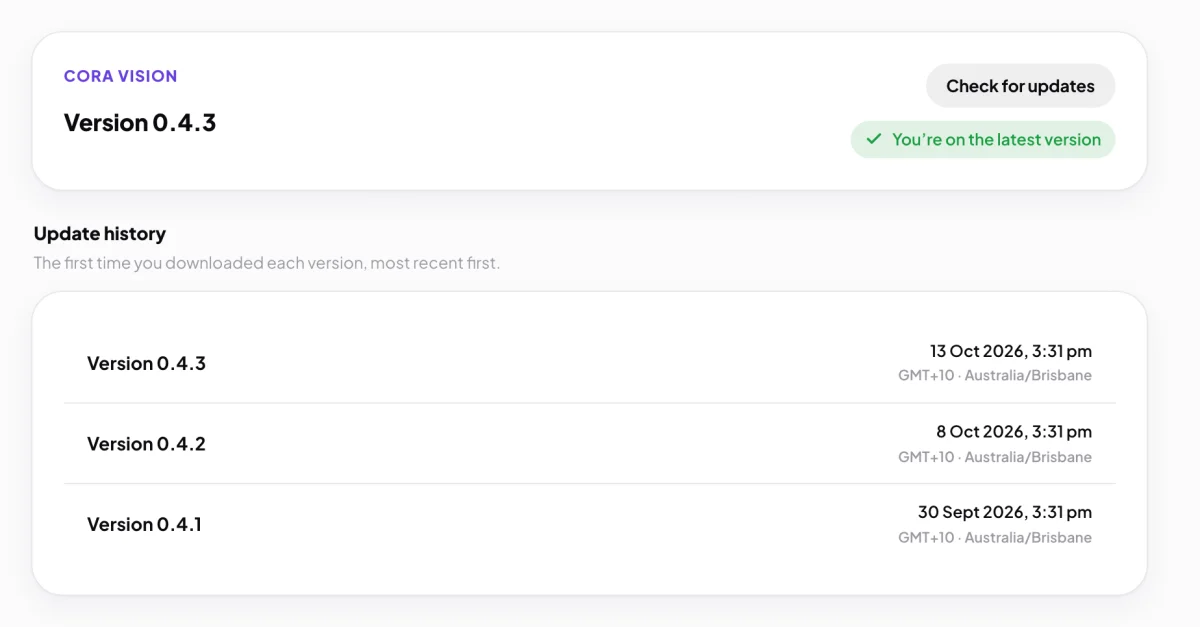
5 The result shows beside the button.
If the update does not arrive
-
If you see Couldn’t check right now. Try again shortly, check your internet connection and try again in a few minutes.
-
Quit CoraVision and open it again. It looks for a new version shortly after it opens, and every four hours while it stays open.
-
If it still will not update, download the installer again from coravision.ai/download and install it over the top, as in the Mac install guide or the Windows install guide. If that fails too, send us a message from the contact page.
What happens next
The version number at the bottom of the sidebar changes to the new one, and Check for updates adds it to your Update history. What changed in each version is in What's new.
Common questions
What if I don't update straight away?
Nothing is lost. The new version installs the next time you quit CoraVision, so it is there when you open it again.
Do I need to download each update from the website?
No. CoraVision finds and downloads updates itself. The download page is only needed if an update keeps failing.
Which version do I have?
It is at the bottom of the sidebar, for example Version 0.4.3, and at the top of Check for updates.